
Using IMatch AutoTagger for OCR and Text Recognition in Photos
This article shows how to use IMatch AutoTagger to extract visible text from photos and store it as searchable metadata. The workflow is useful for signs, information displays, vehicles, scanned documents, postcards, and handwritten notes. It also explains how prompt design, model choice, temperature, and image size affect text recognition results.
What Is AutoTagger
IMatch AutoTagger creates descriptions, keywords, and traits for your images automatically with the help of local or cloud-based AI models.
AutoTagger supports user-defined prompts and offers many features not available in other software, like the ability to use metadata stored in your database (e.g., person names, location information) to guide the AI while creating descriptions and keywords. This improves the relevance and quality of the results considerably.
Extracting Text from Photos
In this post, I’ll show how to use AutoTagger to extract text visible in images, such as signs, information displays, text on vehicles or buildings, and store the result in a dedicated or standard metadata tag. The same workflow also works for historical documents, postcards, and text written on the back of photos.
The general idea is that, once the text data has been extracted, it is available in IMatch for searching, filtering, sorting, and display. And it can be used with IMatch’s 2026 AI-driven semantic search feature.
Find a Good Prompt and Model
Creating a good prompt for the AI service and model you use is the key for achieving good or excellent results. Picking the right model for the job is also important.
Depending on the clarity of the text to extract, and the overall complexity of the job, smaller local models will struggle where the big cloud-based models have no problems with extracting the text.
Ask the Model to Help with the Prompt
When creating the prompt, I recommend speaking with the model in a chat first. Explain the task, the type of images you work with, and what the expected result should look like. The model must understand that it should look for visible text of all kinds and return only the extracted text, so AutoTagger can store it in a metadata tag.
I started by asking the model this question:
I’m going to use <MODEL NAME> to extract text visible in images via API calls. I’m interested in extracting text that is shown e.g. on signs or information displays visible in the image, text shown on vehicle or buildings, or text visible on letters or postcards shown in the image. If there are multiple texts (e.g. multiple sections of text on an information display), the texts should be separated by a line feed.
What would be an optimal prompt to achieve this goal, while avoiding false positives or hallucinations?
I have control over both the system prompt and the user prompt. The model is <MODEL NAME>.
And then added the system and user prompts suggested by the model to a new AutoTagger setting. The setting uses a dedicated trait tag that I named AI.TextData to store the AutoTagger result. You can of course use any tag name you want or store the extracted text in a standard XMP / IPTC tag of your choice.
Keep It Cool: Temperature
For models that support it, the temperature setting in AutoTagger controls how “creative” the model can be in its responses.
For tasks like this, set the temperature to 0. You do not want creativity; you want deterministic mapping from pixels to tokens.
Critical for Success: Image Size
I used the “Large” image size setting in AutoTagger. This helps the AI see smaller details. When you work with images containing very small text or complex text, such as italic handwriting, using the “Large” or even “Extra Large” image size setting can make a big difference.
Note that for cloud-based models, larger images require more tokens, which means it becomes more expensive to process them.
Pro Tip
You can create two AutoTagger settings: one with the normal image size and one with the “Large” or “Extra Large” setting. Run the normal setting first. If it does not produce useful results for some images, run the larger-image setting on those images.
Refine the Prompt
The first suggested prompt is often good, but not always optimal. I usually go back and forth with the model a few times, explaining which results I got, how they differed from my expectations, and, when useful, providing the image and the result I expected.
After doing this a few times, I usually end up with a prompt that does exactly what I need (in almost all cases). And then I have a specialized AutoTagger setting I can run in IMatch whenever I want text extracted.
My Final Prompt for Text Extraction
These are the prompts that worked for both Qwen 3.8 27B running locally on my PC and Google Gemini 3.8 Flash:
The System Prompt
You are a high-precision Optical Character Recognition (OCR) engine. Your sole task is to extract literal, verbatim text visible in images.
Rules:
1. EXTRACT ONLY: Only output the text found in the image. Do not provide descriptions, commentary, or context.
2. VERBATIM: Do not correct spelling, grammar, or punctuation. If a word is illegible, omit it or use [illegible].
3. FORMATTING: If multiple distinct text blocks, labels, or sections are present, separate them u^ng a semicolon.
4. ZERO HALLUCINATION: If no text is visible, return an empty string. Do not guess what a blurry sign might say.
5. SCOPE: Focus on text on physical objects (displays, vehicles, buildings, letters, signage, etc.)
The User Prompt
[[-c-]]
Transcribe all visible text from the provided image.
Follow the formatting rule: separate distinct text elements/sections with a line feed.
Target text includes:
– Information displays and screens
– Signage and labels
– Text on vehicles or buildings
– Text on paper items (letters, postcards, documents)
If no text is detected, return an empty result.
I used AutoTagger’s placeholder token [[-c-]] in the user prompt. This lets me provide ad-hoc guidance or additional information when I run AutoTagger.
Important Strategies Applied in This Prompt
The “Empty String/Error Code” constraint: By telling the model to return an empty string when it finds no visible text, you avoid a common failure mode: the model feels forced to find something and starts hallucinating text from the background.
Separation of concerns: The system prompt defines the model’s role and constraints, while the user prompt defines the task and scope. This separation helps the model keep the strict formatting needed for API parsing. Access to the system prompt was added in IMatch 2026.
Verbatim Instruction: Explicitly telling the model not to correct spelling is crucial. LLMs are trained to be helpful and “correct” things; in OCR, “correcting” a typo is actually a failure.
Negative Constraints: Using “Do not provide descriptions” is essential for API usage. It prevents the model from outputting: “The text on the sign says: ‘Stop’.” Instead, it will just output: “Stop”.
Your Mileage May Vary
This is the general prompt I used for my experiments. It works well for the photos I use. It may work out-of-the box for your use case, or it may require some tinkering, depending on your requirements.
For example, if you want to extract signs and text displayed on vehicles, race numbers and driver names from race cars, or make the AI decipher handwritten text in scans of old letters or postcards, creating a fine-tuned prompt for the purpose can make a huge difference.
Reading Signs in Images
Using the prompts shown above and an AutoTagger setting configured as explained, I ran AutoTagger on some images. Here are the results:
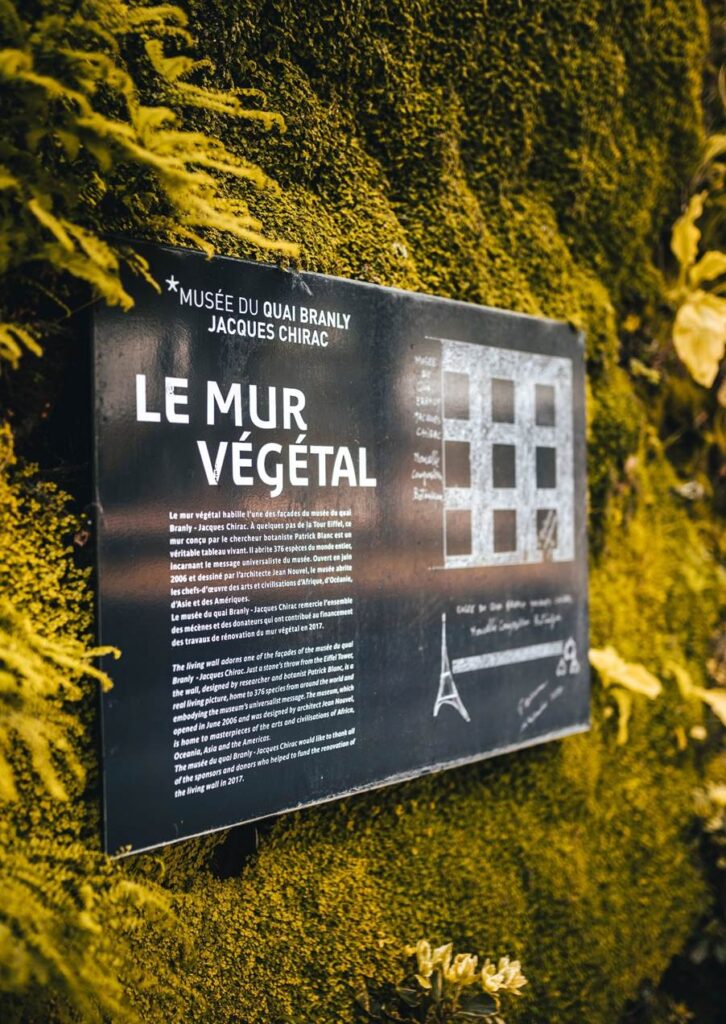
Gemini 3.8 Flash extracted the following text from this image:
MUSÉE DU QUAI BRANLY
*MUSÉE DU QUAI BRANLY
JACQUES CHIRAC; LE MUR VÉGÉTAL; Le mur végétal habite l’une des façades du musée du quai
Branly – Jacques Chirac. Conçu par le chercheur botaniste Patrick
Mans en un véritable tableau végétal, il s’étend sur le mur
intéressant le parcours végétal du musée. Ouvert en juin
2006 et dévoilé des arts des civilisations d’Afrique,
d’Asie et des Amériques.
Le musée du quai Branly – Jacques Chirac souhaite l’osmose
des milieux et des disciplines du mur végétal en 2017.
The living wall adorns one of the facades of the musée du
quai Branly – Jacques Chirac. Designed by the botanist Patrick
Mans in the wall, encompassing an area of 376 square meters,
it was opened in June 2006 and one of the arts of civilizations
of Africa, Asia and the Americas is housed to the museum of
the quai Branly – Jacques Chirac wants the osmosis of
fields and disciplines of the living wall in 2017.
Note how the AI was able to read both the French and English text even though the sign has been photographed at an angle. This is something the smaller local models usually fail with.
How to Use Extracted Text
Once this text extraction result is available in a metadata tag in your IMatch database, you can search it, display it, and use it everywhere in IMatch where you can use IMatch variables.
Here is how it looks when the tag containing the extracted text is used in a File Window Layout:
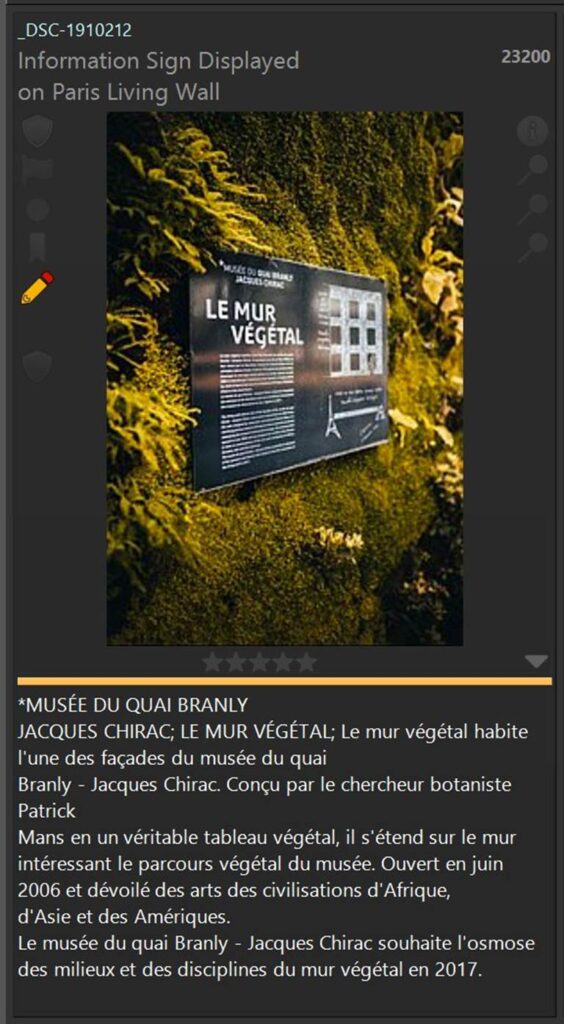
Note: The layout does not display the full text because of the height allowed in the layout. This can be changed easily by allowing more height or using a smaller font. IMatch File Window Layouts are very flexible.
Another Example for Text Extraction
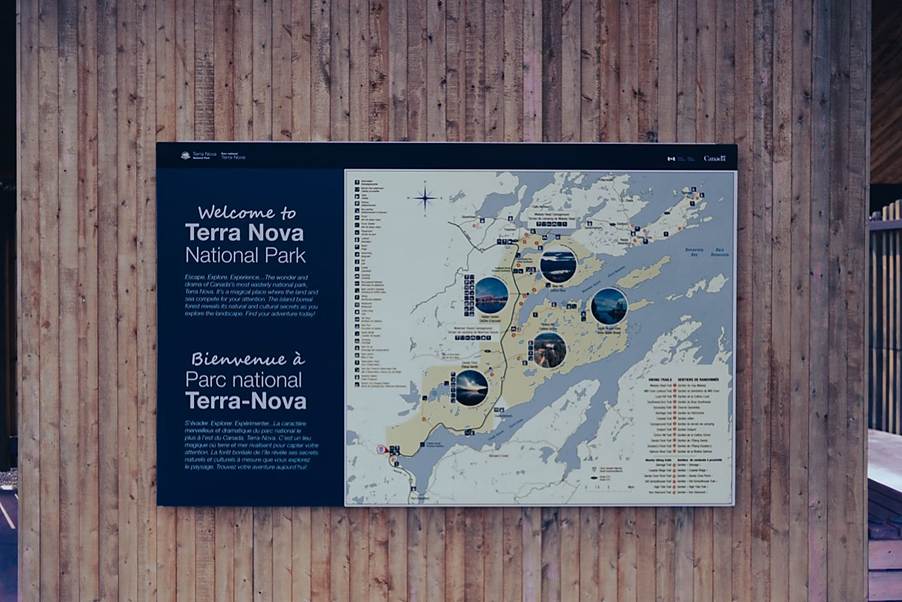
The text extracted from the sign in this image is:
Welcome to
Terra Nova
National Park
Escape. Explore. Experience. – The wonder and
drama of Canada’s most westerly national park.
Terra Nova is a rugged island with breathtaking
landscapes that compete for your attention. The
island formed from ancient volcanic activity. As you
explore the landscape, find your adventure today!
Bienvenue à
Parc national
Terra-Nova
Découvrir. Explorer. Expérimenter. – La caractère
merveilleux de l’île sauvage de Terra Nova est un
plus à l’est du Canada. Terra Nova. C’est un île
magnifique avec des paysages époustouflants qui
captivent votre attention. La forêt boréale de l’île vous
invite à explorer le paysage. Trouvez votre aventure autour je
A photo like this is something many tourists take at a new location: an information display photographed as a memory aid or for later use in a DAM like IMatch.
Reading “Back of the Photo” Text
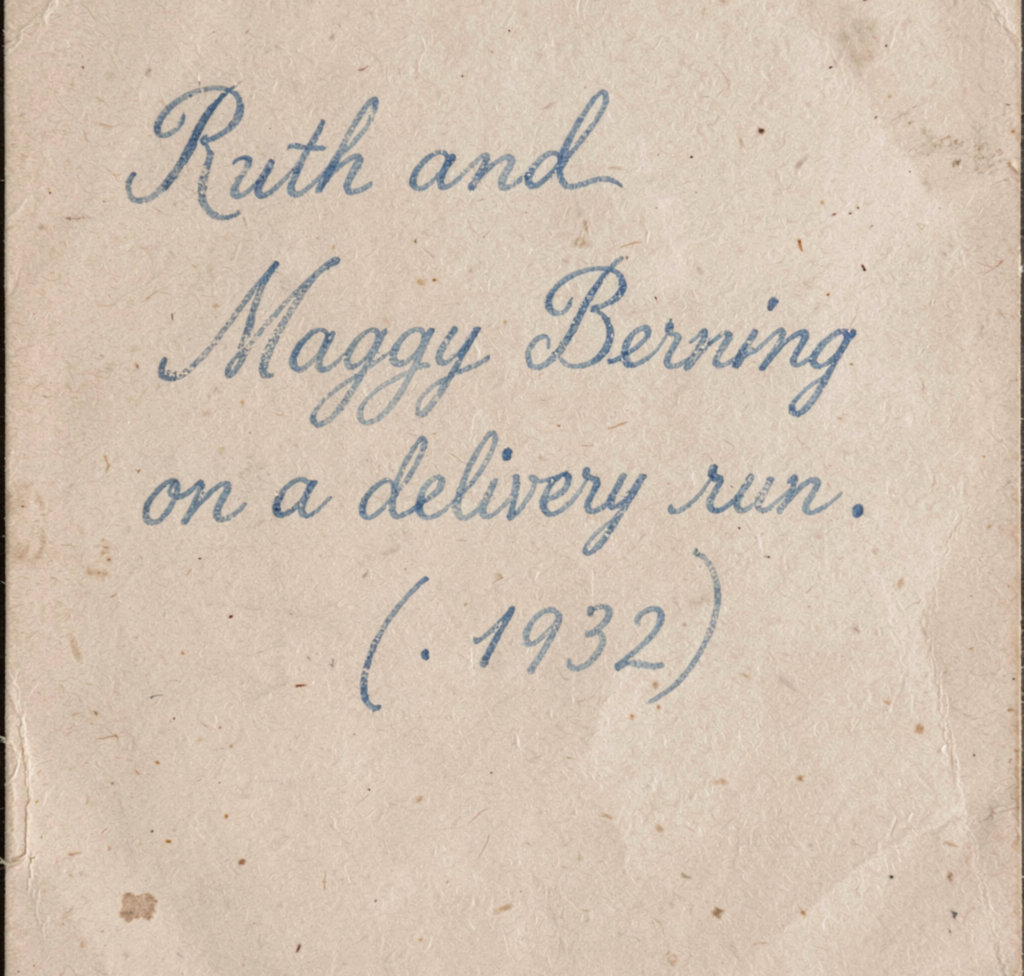
A common use-case for IMatch users who work with historical images is to scan both the front and the back of a photo when written information is present on the back.
The two resulting images are then added to an IMatch database, where the scan of the back of the photo becomes a version and buddy file of the scan taken from the front (the master). IMatch keeps the two images together when the master is moved or renamed. Rating, label, metadata, and attributes assigned to the master are optionally also applied to the version.
When we run the AutoTagger text extraction setting on the “back” images, we can harvest the information and use it everywhere in IMatch. The information on the back was used when generating the description for the master image:
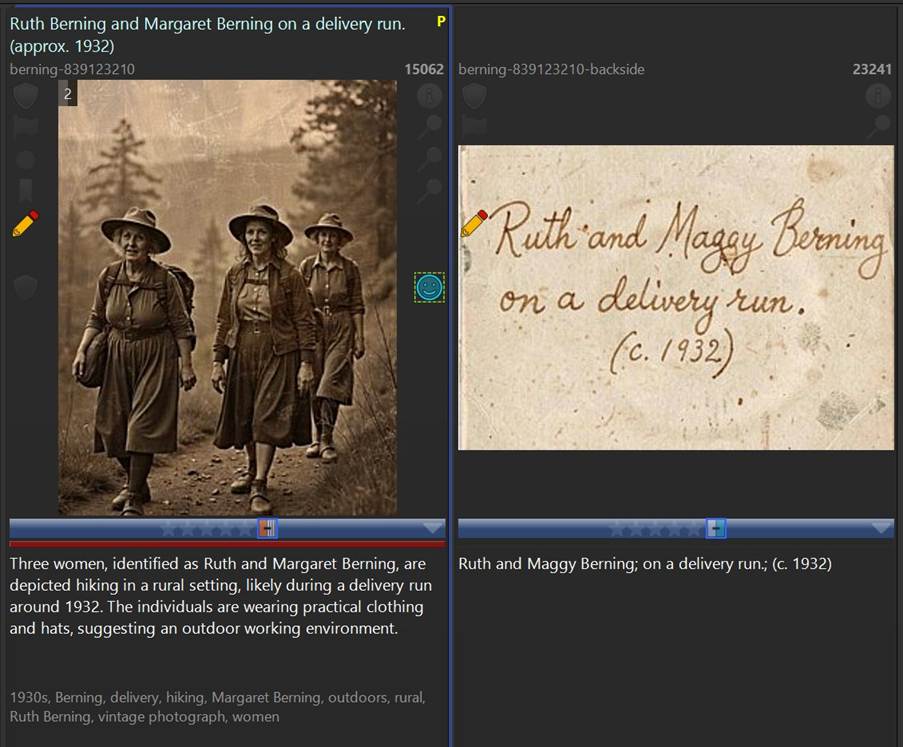
This text was extracted using Qwen 3.8 27B running on my graphics card. Processing this image took almost 30 seconds on a RTX 5080. Processing time in the cloud is typically less than 2 seconds.
Local vs. Cloud
For simple text extraction cases, local models such as Gemma 4, Qwen 3.8, and others may be able to do the job. Text extraction is a complex task, even for today’s AI models, so results vary depending on the image, the prompt, and the model.
At the time of writing (September 2026), local models often fail with timeouts, infinite text repetitions (like outputting thousands of line feeds before aborting) or hallucinations. This may change in the future, as local models become better, though.
Real Challenges
A task that currently requires large cloud-based models is text extraction from complex sources like the two examples shown here:
A Vintage Postcard
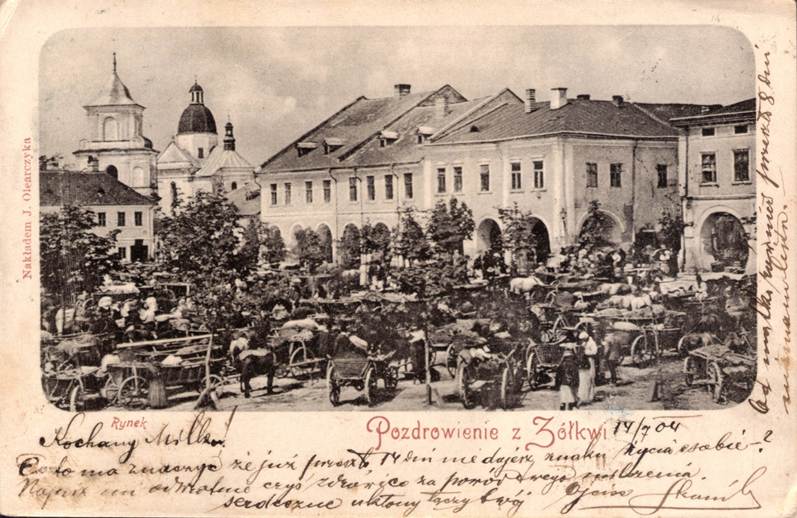
Autor: Віктор Заславський
https://commons.wikimedia.org/wiki/File:Old_postcard_from_Zhovkva.jpg

Gemini 3.8 Flash was able to extract the following text. I’ve used a modified prompt for this example that told the model to not only return the original extracted text, but also a version translated into English:
Nakładem J. Olearczyka
(Published by J. Olearczyk); Rynek
Pozdrowienie z Żółkwi 17/7 04
(Market Square
Greetings from Żółkiew July 17, 1904); Kochany Willku!
Co to ma znaczyć że już przeszło 14 dni nie dajesz znaku życia o sobie?
Napisz mi odruchowo czyś zdrów i co za powód Twego milczenia.
Serdeczne ukłony łączy Twój Ojciec Franciszek
(Dear Willuś!
What is the meaning of this, that for over 14 days you haven’t given any sign of life?
Write to me immediately whether you are healthy and what is the reason for your silence.
Sending warm regards, your Father Franciszek); Od matki również przesyłam 8 dni zastanowienia.
(From mother also sending 8 days of reflection.)
This could surely be improved and the formatting is all over the place, much like the handwritten text on the card. Still, Gemini managed to extract enough text to make the image searchable in IMatch. We can now find it by searching for terms such as “Franciszek” or “Żółkiew”.
A Poem
The last example is this scan of a handwritten poem (Source: https://thegraphicsfairy.com/):
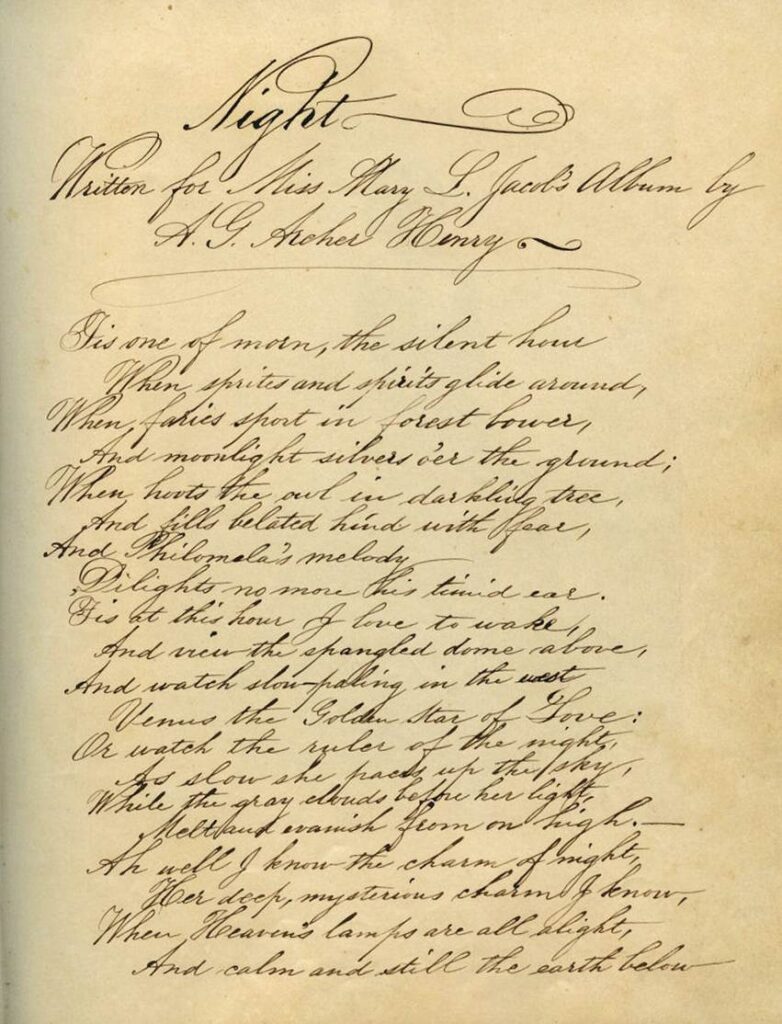
Gemini extracted the following text from this letter:
Night
Written for Miss Mary L. Jacob’s Album by
A. G. Archer Henry
‘Tis one of morn, the silent hour
When sprites and spirits glide around,
When fairies sport in forest bower,
And moonlight silvers o’er the ground;
When hoots the owl in darkling tree,
And fills belated hind with fear,
And Philomela’s melody
Delights no more his timid ear.
‘Tis at this hour I love to wake,
And view the spangled dome above,
And watch slow-falling in the west
Venus the Golden Star of Love:
Or watch the ruler of the night,
As slow she paces up the sky,
While the gray clouds before her light,
Melt and evanish from on high.-
Ah well I know the charm of night,
Her deep, mysterious charms I know,
When Heaven’s lamps are all alight,
And calm and still the earth below
Summary
AutoTagger is not a replacement for a dedicated OCR workflow, but it can be very useful when visible text is one part of a larger digital asset management task. With the right prompt, a suitable model, and enough image detail, IMatch can turn text found in photos, scans, signs, and handwritten notes into searchable metadata.

Mario M. Westphal is the developer of IMatch, the digital asset management system (DAM) for Windows. He has a strong background in software development and photography, gained through working for over 30 years in the field for many clients. His special interests are photography, music. literature and of course software development, with a strong focus on digital asset management, database systems and image metadata. He hails from Germany.
You can reach him in the IMatch user community and via support@photools.com.