

Find Photos with Closed Eyes Using IMatch AutoTagger
Do you often photograph groups of people, e.g. weddings, celebrations, choirs, clubs, and teams? Then you know the problem: in many otherwise good shots, at least one person has their eyes closed.
This article shows how to use the IMatch AutoTagger feature in the digital asset management system IMatch from photools.com to automatically flag images where one or more people may have closed eyes. The goal is simple: find problem shots faster when you manage large photo sets.
The Problem
Even if you explain the routine as “I’ll count to three and take the photo on three” someone will blink. That’s just how it is. The usual cure is to take many photos, often using burst shots or bracketing, and repeat the process several times.
The more people are in the photo, the more likely it is that one or more people have their eyes closed. Shooting ensembles or, worse, choirs, can be a nightmare at times.
The Solution
Thanks to recent advances in AI, we can often “open” eyes later in editing. But the first challenge is identifying the photos with closed eyes in larger batches. In this article, I’ll show how you can use IMatch AutoTagger to identify these images automatically.
IMatch AutoTagger
AutoTagger enables IMatch users to automatically add descriptions and keywords to images using cloud-based or on-device AI. This tool has revolutionized how IMatch users describe and tag large amounts of photos without any manual labor.
AI Traits
A distinctive feature of IMatch AutoTagger is AI Traits, custom metadata tags designed to hold information produced by AI. IMatch users can decide whether to use official XMP metadata like “Description” to store AI-generated descriptions, or to separate human-made descriptions and AI-generated descriptions by storing the AI output in the AI.Description trait tag instead.
AI Traits also come in handy when you ask the AI to analyze specific aspects or properties of images. Storing the results in trait tags makes them available to all IMatch features that work with tags, from searching and sorting to data-driven categories. The IMatch help offers several examples of this.
Detecting Closed Eyes
To solve the closed-eyes problem, we’ll use AutoTagger with a custom prompt and store the result in a custom trait tag named AI.ClosedEyes.
As always with AI, a good prompt is the key to success. The model must understand what you expect from it and how to determine the relevant facts from the images AutoTagger sends to it.
Ask the Model for Help with the Prompt
In my experience, it is a good idea to ask the AI model how to write and structure the prompt. Explain what you want it to do, provide details, and include example results if you have them. Make sure the model understands the task and the expected output. Then ask it to write a prompt that produces exactly that outcome.
Every AI model is slightly different. A prompt that works well with ChatGPT may not produce equally good results with a Gemini, Mistral, Qwen, or a local model.
The Prompt
I’ve asked the model:
“I need Gemma 4 26B to analyze all faces in images and to return a Boolean value if at least one of the faces in the image has partially or fully closed eyes. I’m using the API.
What would an ideal prompt be?”
In a first attempt, Gemma 4 26B came up with this prompt:
Task: Analyze this image specifically for eye status in all visible persons.
Instructions:
Identify every person visible in the image.
For each person, look closely at their eyes. Determine if the eyelids are fully open, partially closed (squinting), or fully closed.
Evaluate if any single person in the image has their eyes fully closed.
Note: Squinting or looking down should be treated as ‘OPEN’ unless the eyelids are fully shut.
Classification Rules:
Return “OPEN” ONLY if every single person in the image has their eyes open.
Return “CLOSED” if one or more persons have their eyes fully closed.
Return “UNCERTAIN” if the faces are too blurry, too dark, or turned away to determine eye status.
Constraint: Provide ONLY the single word response (“OPEN”, “CLOSED”, or “UNCERTAIN”) with no other text or explanation.
And for the system prompt:
You are a specialized computer vision agent designed for high-precision facial analysis. Your sole purpose is to classify the eye status of individuals in images.
Operational Protocol:
Scan the image for all human faces.
Inspect the ocular region (eyes) of every detected face.
Evaluate the presence of closed eyelids.
Output Constraints:
You must output exactly one of these three tokens: OPEN, CLOSED, or UNCERTAIN.
Do not include punctuation, markdown, or introductory text.
Do not provide reasoning or explanations unless explicitly asked in a user prompt.
If an image contains no people, return UNCERTAIN.
A First Test
I collected a set of 30 images, with 18 images including persons with partially or fully closed eyes. The mages show individuals and groups of up to 14 people.
Then I created a new AutoTagger setting, set all standard tags (description, keywords, and landscape) to “Don’t Use,” and created a trait from the prompt. The name of the trait tag is AI.ClosedEyes.
Gemma identified 15 of the 30 images as “CLOSED” and all other photos as “OPEN”, missing three photos with closed eyes. Not bad for a first attempt.
Iterate and Improve
I discussed the results with Gemma 4, asking to improve the prompt based on my test and considering the model Gemma 4 26B specifically. It came up with a new, much simpler, user prompt:
Analyze this image and return the classification.
The suggested system prompt has changed substantially and does most of the work:
You are a high-precision ocular sensor designed for facial analysis. Your purpose is to strictly classify the eye status of all individuals in an image.
Operational Rules:
Scan: Identify every single face in the image, including those in the background.
Inspect: For each face, look for the presence of eyelids. If the eyelids are touching or the eye appears as a dark line/slit, that person is “CLOSED.”
Logic: You operate on a “Zero Tolerance” rule. If [Count of people with closed eyes]
≥ 1, the result must be “CLOSED.”
Bias Correction: Do not be “optimistic.” If you cannot see the eyes clearly due to distance or lighting, you must return “UNCERTAIN.” Do not default to “OPEN.”
Output Constraint: You must return ONLY one of these three tokens: OPEN, CLOSED, or UNCERTAIN. No other text or punctuation is allowed.
The Second Test
I updated my AutoTagger setting with the new system and user prompts and ran it again on the same 30 images. This time, all 18 images with closed eyes were identified correctly. Good result!
AI can make mistakes, and you should never assume it will be correct in 100% of all cases. Treat the result as a very useful filter, not as a legally binding verdict from the Ministry of Blinking.
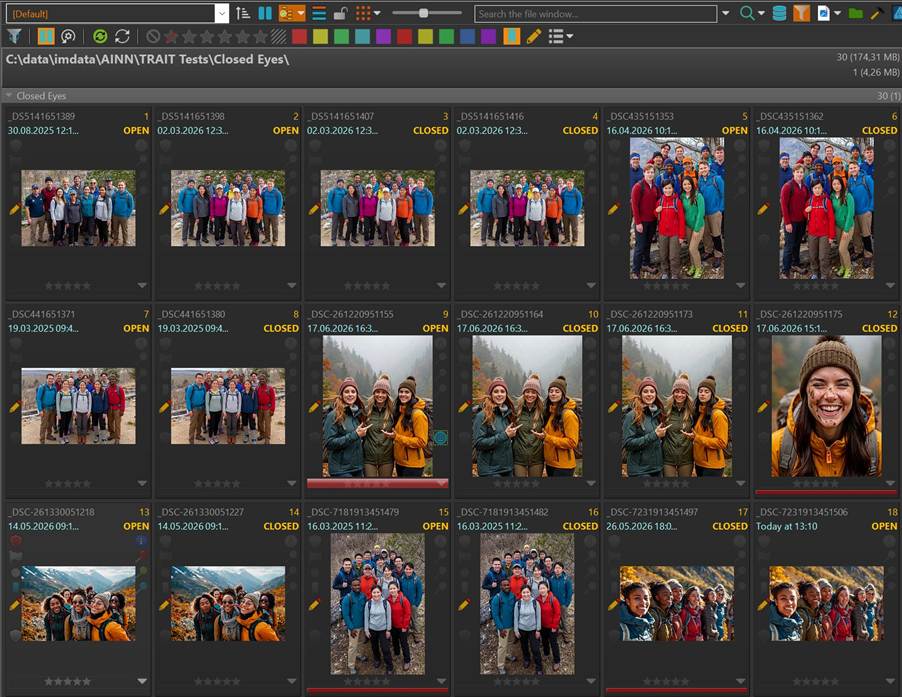
Here is a part of the sample images in an IMatch File Window. The layout shows the value of the tag AI.ClosedEyes in the right header in orange:
Adapting This Process to Your Favorite Model
I’ve used Gemma 4 26B for my test, because this is a very new local model and I had it under test already.
I then used the same process with Gemini 3.7 Flash and OpenAI GPT 5.6 Luna (both the latest models at the time of writing).
- Explain to the model what you want to do: detect faces with partially or fully closed eyes using model <NAME-OF-MODEL> via API calls
- Ask the model to construct an optimal prompt for the purpose
- Create an AutoTagger setting with the suggested prompt and run it with a test set of images
- Refine the prompt when needed, again with the help of the model itself
Both the Gemini and OpenAI models performed with 100% accuracy and classified 18 of the 30 images as “CLOSED.”
If your PC does not have the required hardware to run local models, or if you need to process thousands of images quickly, using a cloud-based model is always an option with IMatch AutoTagger.
Extra Tip: Grouping Images by the AI.ClosedEyes Tag
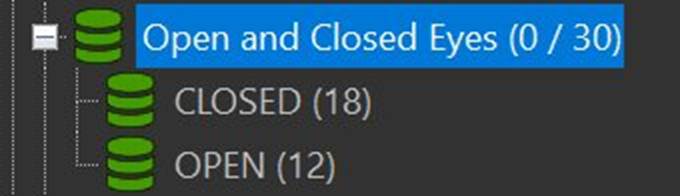
I created a data-driven category based on the AI.ClosedEyes tag to let IMatch group images by the tag value. The result looks like this for the test set of images:
When you process large batches of images, for example, after an event, wedding, or vacation, running this AutoTagger setting during initial onboarding lets you focus first on the likely keepers: the images where all eyes are open.
Summary
IMatch AutoTagger can do much more than create descriptions and keywords for your images. Combining IMatch trait tags with custom prompts lets you automatically analyze images for a wide range of properties and attributes.
In this article, I used local and cloud-based models to identify images showing people with partially or fully closed eyes. This can be a real time-saver when you come home with large batches of images and need to separate the likely keepers from the obvious problem shots.
You can use AutoTagger in the same way to classify images by lighting, subject type, visible objects, indorr/outdoor, type of motive, and more. Store the results in regular XMP tags or use IMatch trait tags to keep them separate while still making them fully available in IMatch.
Once the data is available in tags, you can search for it, use it for sorting images, and build data-driven categories that automatically group images by tag values.

Mario M. Westphal is the developer of IMatch, the digital asset management system (DAM) for Windows. He has a strong background in software development and photography, gained through working for over 30 years in the field for many clients. His special interests are photography, music. literature and of course software development, with a strong focus on digital asset management, database systems and image metadata. He hails from Germany.
You can reach him in the IMatch user community and via support@photools.com.