

Enhancements and New Features
in IMatch 2026 at a Glance
Major New Features
- Overlays are now available in the Viewer, Peek View, My Panels, and File Window Tips
- Introduced the IMatch Albums feature.
- Introduced a new syntax highlighting editor for variables, XAML, and HTML.
- Enhanced the integrated media player to allow playing videos directly in the Viewer.
AI and AutoTagger
- Introduced the new integrated IMatch AI.
- Introduced AI-assisted semantic search features.
- Added support for the latest AI models (local and cloud) to AutoTagger.
- AutoTagger now supports custom AI services, allowing you to connect to any local or remote service.
This enables users to use software like llama-server or Unsloth Desktop to run any suitable AI model with AutoTagger, and to connect to on-premise AI servers used by corporate and institutional IMatch users. - Retired support for legacy AI providers (Clarifai, imagga, etc.).
Enhancements and Changes
- Added support for new RAW and DNG variants.
- Added support for new metadata schemas and tags.
- Added support for person relations.
- Updated Google Maps integration for the Map Panel to ensure compatibility with current versions.
- Migrated CAI (C2PA) support to the latest version with the new CAI 2.0 App.
- Improved visual queries and duplicate detection algorithms.
- Added a manual update option for formula-based categories.
- Enabled flexible sorting by person name in the People View and People Filter.
- Improved security for IMatch Anywhere WebServices™ integrated in IMatch.
- Implemented many additional features requested by our users (see release notes for details).
Important Bug Fixes and Security Updates
This release includes over 50 bug fixes for IMatch, and even more security updates and bug fixes for the database system and other 3rd party components and tools used by IMatch. Installing this update is strongly recommended to ensure the continued security, stability, and reliable operation of IMatch in the future.
How to Upgrade to IMatch 2026
- Log into the customer portal to access your personal discount voucher1 and purchase your upgrade.
- Afterwards, download IMatch 2026 from the customer portal and install it. Your settings and databases are automatically upgraded.
- Enter your new license key in Edit menu > Preferences > Application: License Key. The IMatch updater then detects and installs future updates automatically.
- Read the IMatch 2026 Migration Guide and the release notes.
Overlays Are Now an Integral Part of IMatch
After several months as an experimental feature, following very positive feedback from our users, Overlays are now a built-in feature of IMatch. If you have created custom overlays for the Viewer, Peek View, or My Panels, they will continue to work exactly as before; no changes are required.
If you have not used overlays yet, check out the Overlays and My Panel help topics to learn more about these exciting features.
File Window Tips Now Use Overlays
File Window Tips now utilize the same overlay technology as Peek View, the Viewer, and My Panels. This makes creating and styling File Window Tips much easier for users, and you can now easily exchange rows and styling across all these overlays.
This screenshot shows the new default File Window Tip included with IMatch. You can easily customize it to your liking.
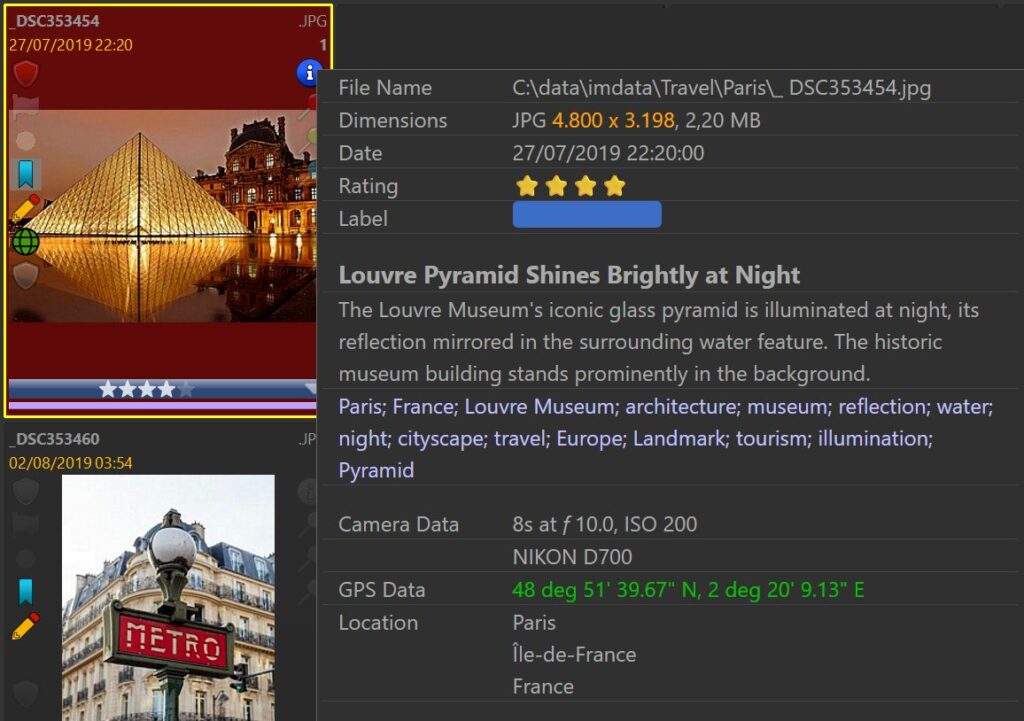
See the File Window Tip help topic for more information.
Person Relations
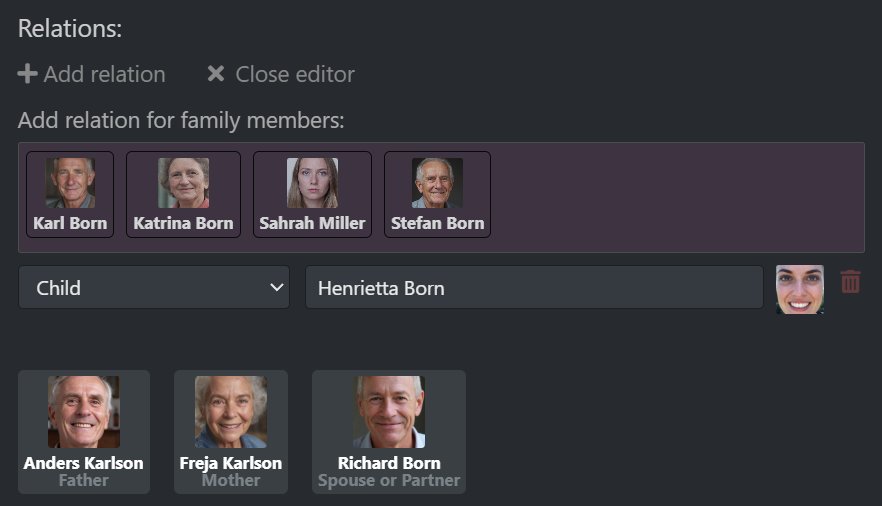
IMatch 2026 introduces relations between people, like “Alexander is the father of Susan” or “Patrick and Taylor are a couple”. Relations are either created in the Person Editor or in Albums. You can visualize family trees in IMatch Albums.
Here is a screenshot of the Person Editor, showing the relations for a person named Maggie Born. It shows manually entered relations (“Child”) and inferred relations IMatch has dynamically created from other person’s relations with Maggie.
IMatch AI and Semantic Search
IMatch now has an integrated AI that is currently used for the new semantic search feature and will be used for other features we plan to introduce in the future.
Semantic Search uses AI to analyze metadata already stored with your images, such as descriptions and keywords, enabling natural-language queries and fuzzy search.
If you search for “A red car on a street”, semantic search will also return descriptions mentioning “a red auto…” or “a red automobile…”. And, further down in the results, maybe also “A red vehicle…”. If you search for “Older people holding a smart phone”, semantic search also considers descriptions mentioning “senior people” or “elderly people”, because these terms describe the same concept.
Searching for “One or more people riding a bike” will find files with descriptions mentioning “A woman is riding a bicycle”, “Two men cycling down the road”, “Two cyclist stand with their bicycles…”, or “A biker is riding a motorcycle on a country road”. These descriptions are considered matches because they describe the same concept.
Some Examples for Semantic Searches
Here are two examples for the semantic search feature:
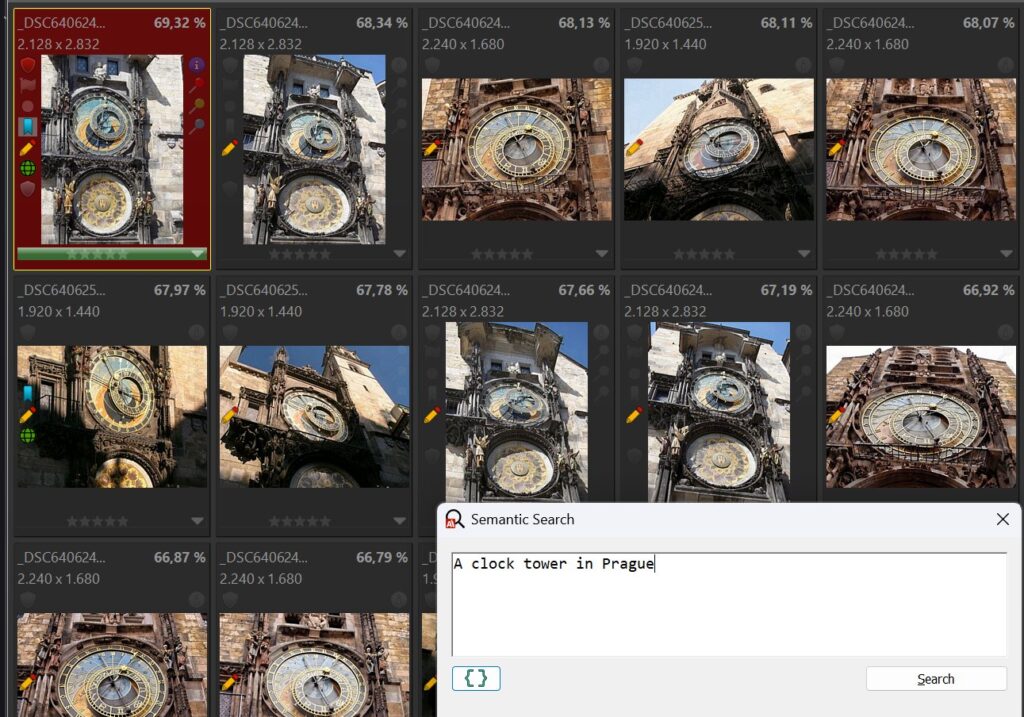
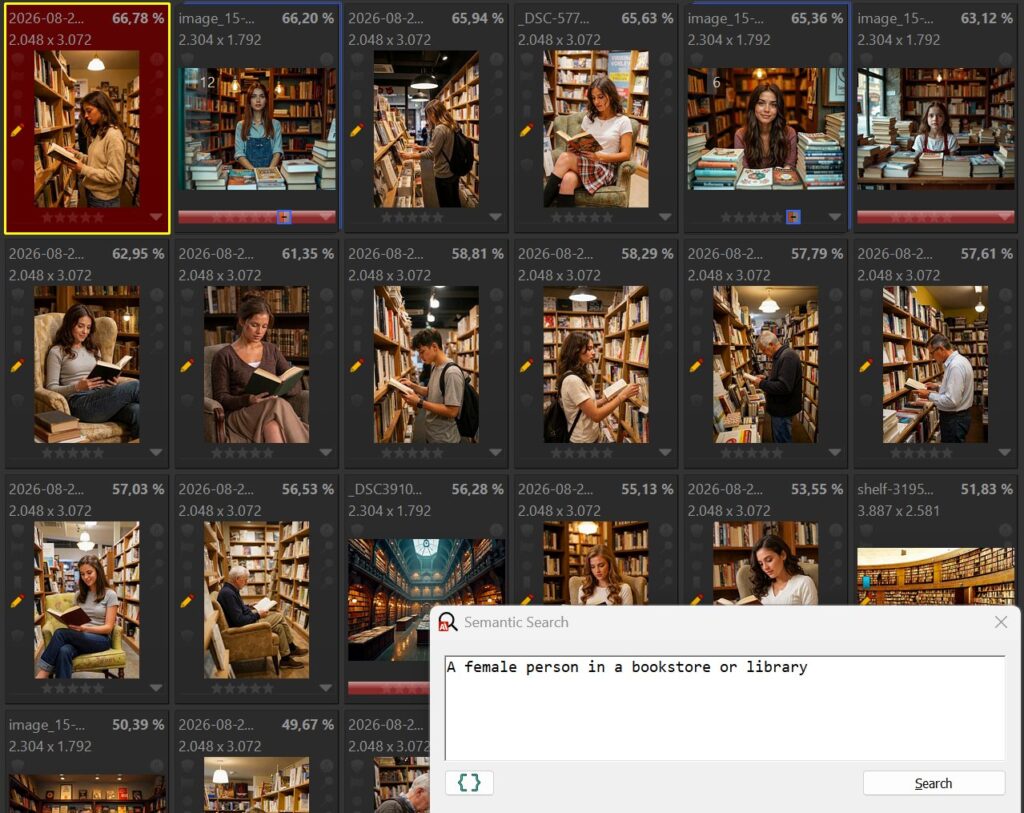
Semantic search is rarely100% correct, there will always be some false matches. It “knows” only what it has found in the description or other tag you used. You can always interactively refine your query to narrow down the results in Result Windows.
Multi-language Content
The AI models used for Semantic Search support more than 100 languages. This means that you can search in a language different from the language used in the metadata. Here, we use a query written in German (English translation: “An older woman looking at a smartphone”) to search a database with descriptions written in English:
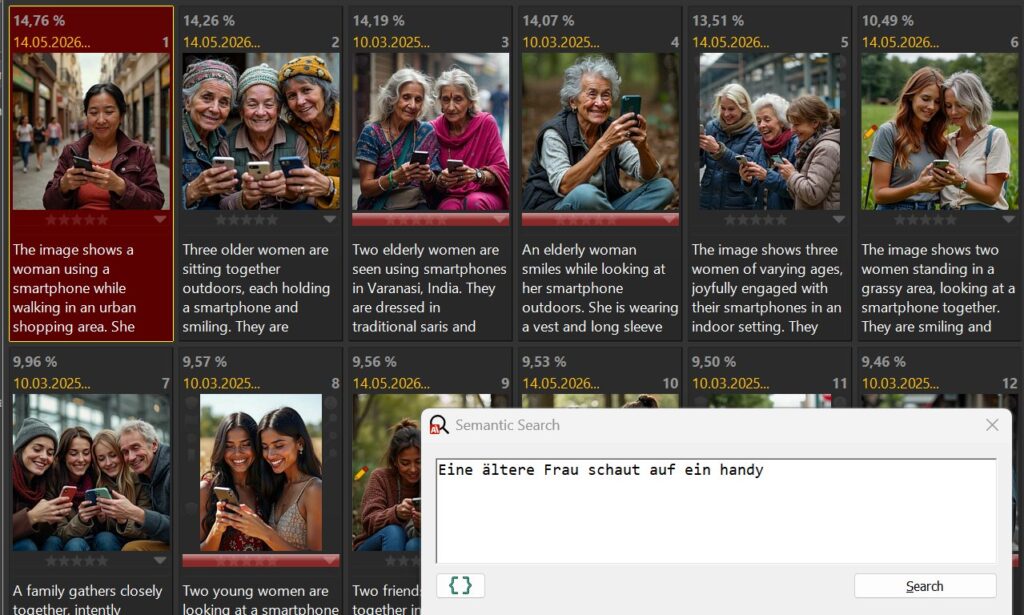
Semantic search solves search problems caused by inconsistent naming, singular and plural forms, synonyms such as “big” and “large” or “shut” and “closed,” and related concepts such as “old,” “senior,” and “elderly.” It also helps when you do not know the exact words to search for.
The IMatch AI has been designed to make the best use out of the hardware you have. It can run on CPU (processors) alone, or make use of whatever supported graphic card you have to speed up AI operations. See IMatch AI for more information.
Introducing IMatch Albums
IMatch Albums offer an easy way to organize, present, view, and print images and other IMatch objects. Choose freeform or page-based layouts on an infinite canvas. Create custom timelines, print layouts, fact sheets, infographics, family trees, and other visualizations using files, folders, categories, events, persons, and more from your database.
Albums use live objects from your database. If you change the images or other objects used in an album, the album updates automatically. Albums include commands like Go To to navigate directly to the corresponding image, folder, category, person, or event.
Albums provide powerful tools based on modern HTML to create beautiful presentations of your images and other assets managed within IMatch. Here are some examples:
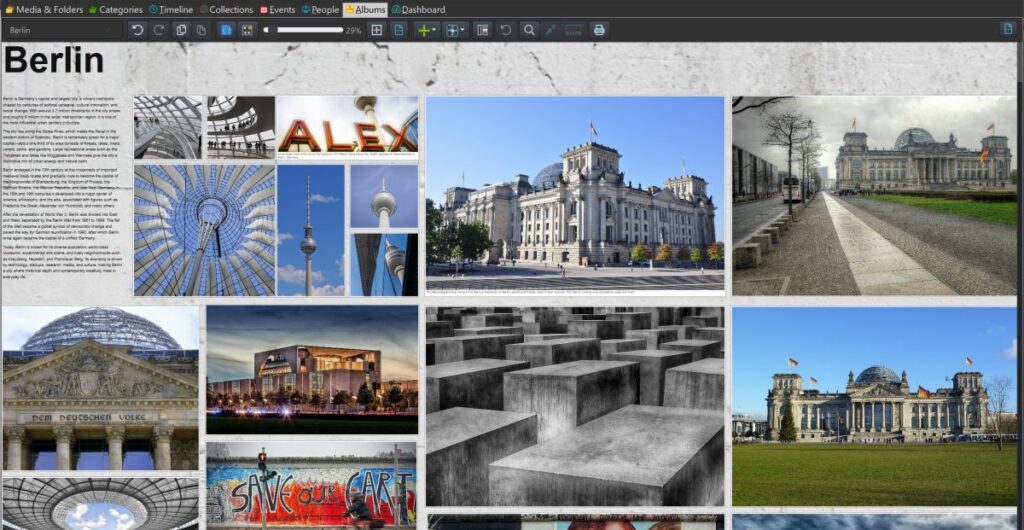
Thematic Albums
Thematic albums are an effective way to present images from a family occasion, a vacation, a sports event, or other similar gatherings.

Family Trees
The new person relations feature in IMatch enables you to define how people in your database are related. Albums allow you to visualize these relations.
You can add additional content such as text, graphics, or maps to make the album more informative.
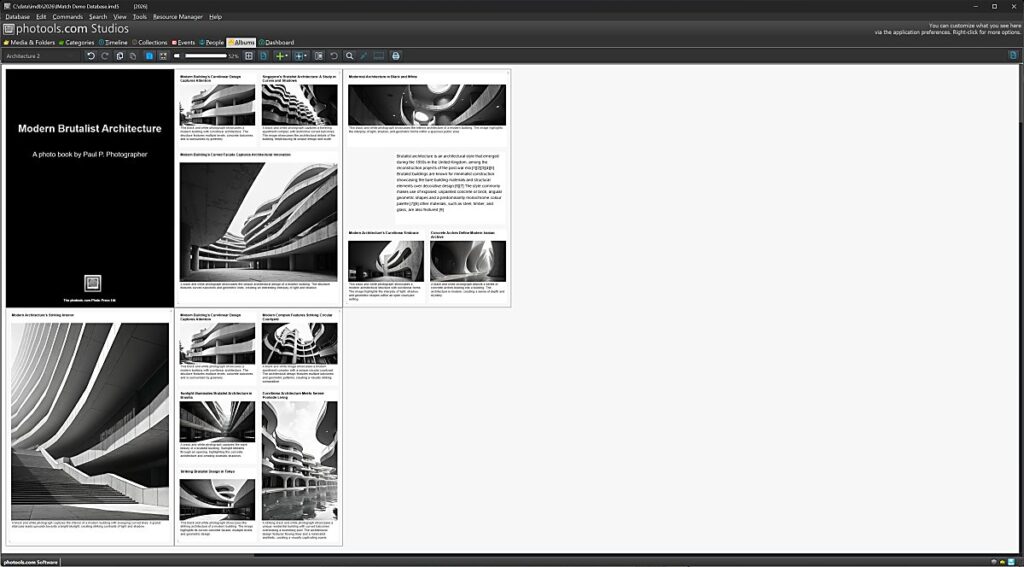
Print-ready Photo Albums
IMatch Albums allow you to create photo albums via drag & drop, prepared for viewing, printing, or PDF export.
PDF provides an easy way to share photos with family and friends across all devices and platforms.
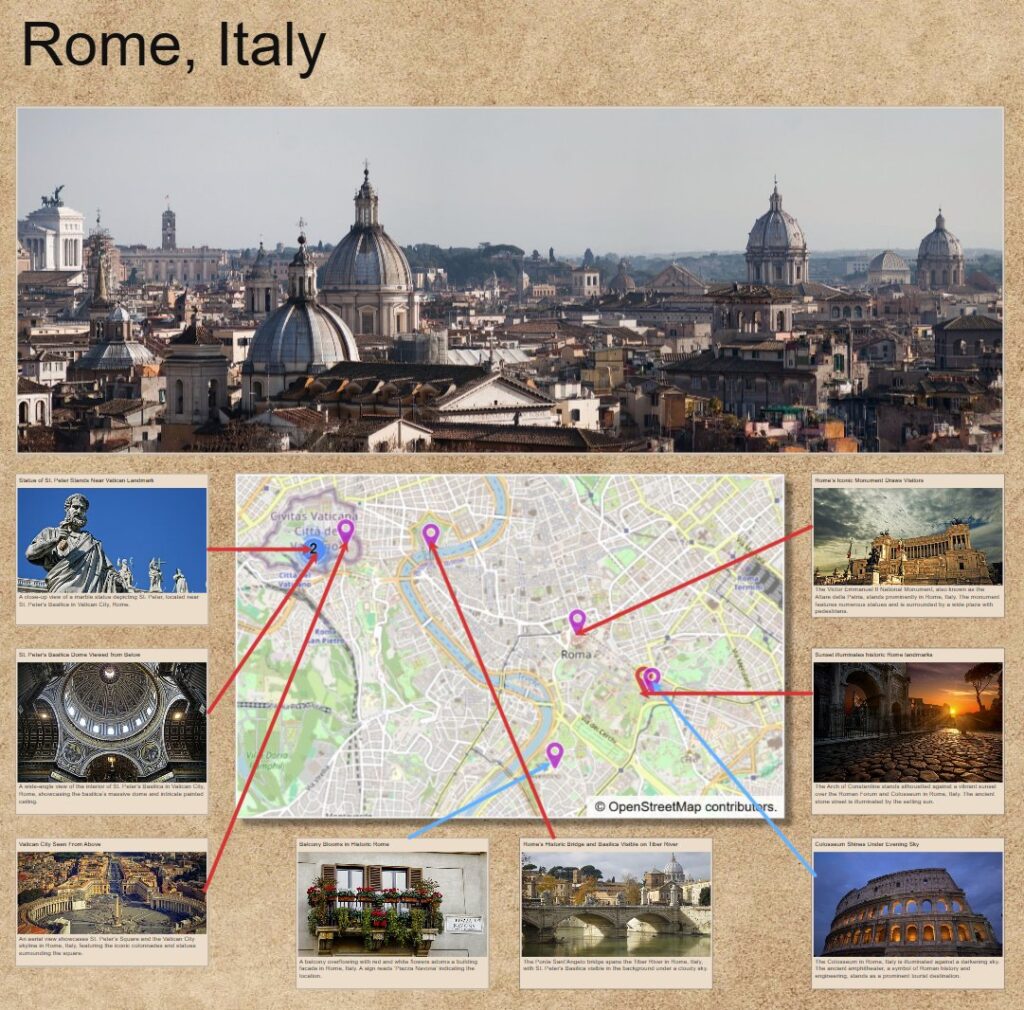
Tell Stories
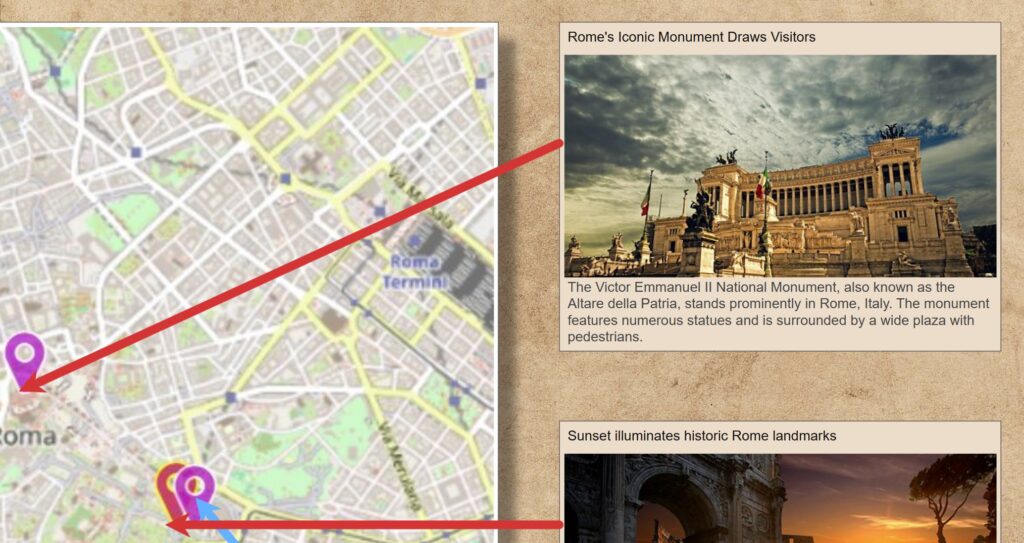
This album displays the locations of photos from a trip to Rome. The map is a screenshot of the IMatch Map Panel, with vector lines connecting each photo to its specific location. Every photo includes the headline and description from the XMP metadata.
Zoom In
This is a screenshot of the same album zoomed to 100% for reading the text. Albums use vector graphics to ensure perfect quality at all zoom levels. The Album automatically selects the best cache image based on the current zoom level for crisp rendering.
Beautiful Timelines
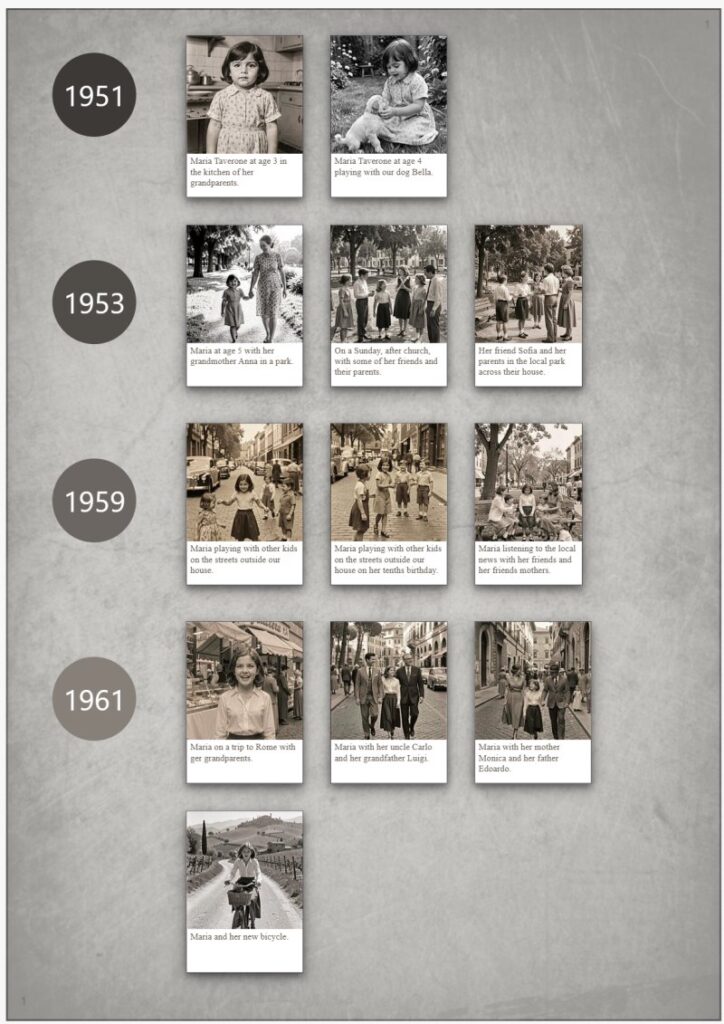
Create simple or stylish timelines from the images, events, persons, and other objects managed with IMatch.
With a double-click you navigate directly to the clicked photo in its containing folder.
Fact Sheets / Infographics
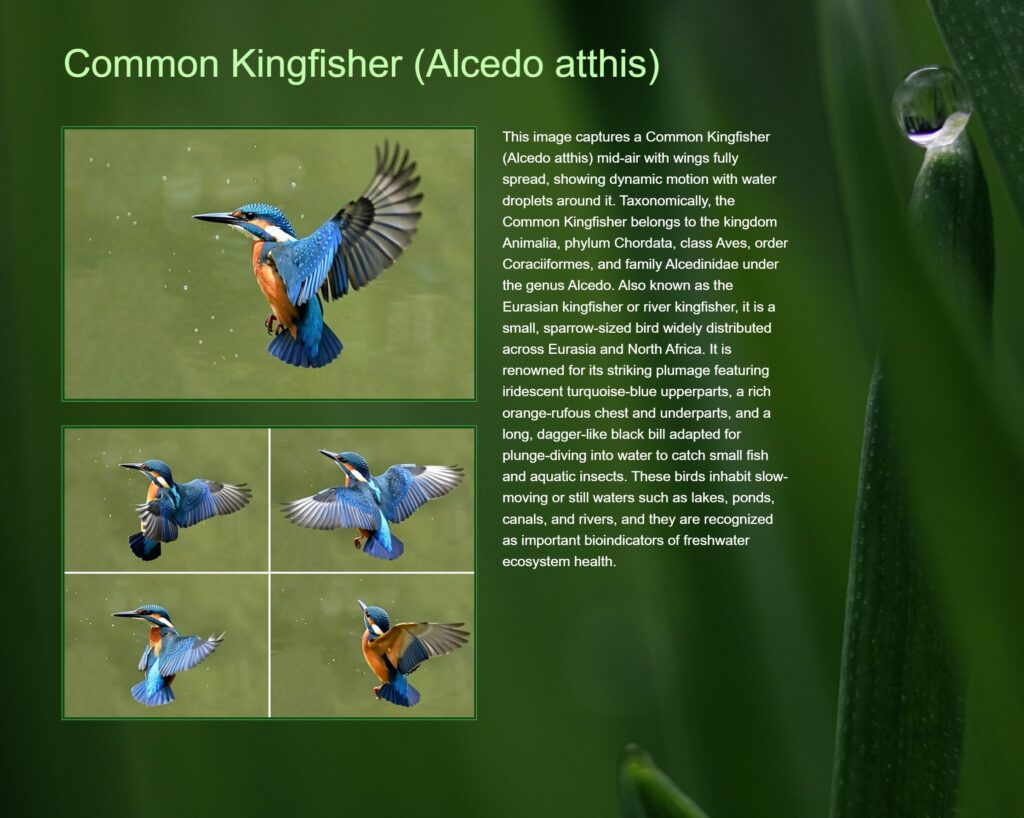
If you manage bird or other animal photos, or photos of cars, trains, or planes, albums allow you to quickly create visually pleasing presentations, fact sheets, or information displays.
You can design them as printable pages and dynamic photo books, or use the virtually infinite Album canvas to create any layout you desire to view within IMatch.
This sample fact sheet album uses images from the database along with their XMP descriptions.
These are just a few sample albums. Albums offer nearly limitless possibilities, leveraging modern HTML for styling to create beautiful and functional presentations for your images and other files.
This is another creative feature in IMatch. You can use it however you like, and we’re sure you’ll create something great with it.
Watch Videos Directly in the Viewer
If a video is selected, pressing <F4> now switches the Viewer into media player mode. You can use the standard controls to seek forwards and backwards, control volume with the cursor keys, and use <PageUp> and <PageDown> to switch between videos. When you navigate to another video, it automatically plays when auto-play is enabled. This creates a seamless and distraction-free video viewing experience.
Syntax Highlighting for Variables
IMatch variables have advanced significantly over the years. Users utilize variables in IMatch features such as File Windows, Albums, Overlays, and AutoTagger, to name a few. The powerful variable formatting functions make variables even more versatile, though complex strings can occasionally become challenging to read or when trying to identify missing brackets or colons.
The new VarToy in IMatch 2026, along with a dedicated editor for variables and HTML/XAML content, addresses these challenges. By applying syntax highlighting, the new editor simplifies editing overlays and My Panel contents significantly.

VarToy now supports syntax highlighting, providing a significant improvement for those who frequently work with complex variables.

Syntax highlighting is available for all IMatch features that utilize complex variables, from File Window layouts to the Batch Processor and Design & Print.
AutoTagger Support for Custom AI Services (Local or Cloud)
The new Custom AI is the most flexible AutoTagger connector. It allows you to use any AI service that provides an OpenAI-compatible chat/completion endpoint and supports structured responses. Local AI services such as llama-server and Unsloth Desktop, as well as many cloud-based services, offer compatible endpoints that AutoTagger can use.
This feature is intended for users who want to connect to AI services not yet officially supported by IMatch, on-premises AI services hosted by companies or institutions, or cloud AI services other than OpenAI, Gemini, and Mistral.
To run the latest models locally with minimal overhead, you can use llama-server, which is part of the open-source llama.cpp project. It provides an alternative to software such as Ollama or LM Studio. The new Unsloth Desktop software, released in August 2026, is another alternative. It provides both a chat interface and an API that IMatch AutoTagger can use. It also allows you to fine-tune existing models so they work better with specific types of images.
See AI Services and Models in the IMatch Help System for all details.
Continuous Maintenance and Support
IMatch 2025 has been marked as frozen and support for it from us will be discontinued six months after IMatch 2026 was released. Bug fixes and new features will now be added to the current product line (IMatch 2026) only.
Upgrade now to not only benefit from all the new features added to IMatch 2026, but to also receive continuous support, bug fixes, and security updates.
See the release notes for a detailed overview of all new features, enhancements for existing features, and a list of all bug fixes.
Ready to Upgrade?
- Log into the customer portal to access your personal discount voucher1 and purchase your upgrade.
- Afterwards, download IMatch 2026 from the customer portal and install it. Your settings and databases are automatically upgraded.
- Enter your new license key in Edit menu > Preferences > Application: License Key. The IMatch updater then detects and installs future updates automatically.
- Read the IMatch 2026 Migration Guide and the release notes.
1 Discounted upgrades only available to users with an IMatch 2025 license.