

IMatch Performance Tips for Large Photo Libraries
IMatch is a capable digital asset management system for Windows. Many users start with a growing personal photo library: family photos, travel shots, scanned slides, videos, and folders waiting to be organized. Others use IMatch for much larger collections, from specialized stock photo archives to institutional and commercial libraries with one million files or more.
IMatch is designed to handle large asset collections while remaining efficient and responsive. Still, no software can process half a million files as fast as fifty thousand. Performance is ultimately bounded by hardware, storage speed, background tasks, and the amount of data a database has to process.
Why Physics Matters
In practice, performing an operation on 500,000 files instead of on 100,000 files takes about five times as long, plus a bit of overhead. Even fast computers must process the additional data.
If searching 100,000 files for a metadata value takes one second, searching 500,000 files will take approximately 5 seconds.
Even with all processor cores working and with today’s very fast SSD storage, processing ten times as much data takes roughly ten times as long. That is not a limitation of IMatch; it is simply how large data sets behave.
Match Your Hardware to the Task
Most IMatch users manage between 80,000 and 150,000 images, videos, audio recordings, PDF files, and Office documents. That works well even on computers that are many years old, especially when the IMatch database is stored on a fast SSD. If your photo library has grown steadily over the years, an SSD is one of the best upgrades you can give it.
If your archive has grown substantially and you plan to manage one or more million files with IMatch, use a workstation-grade or gaming-grade PC with 32 GB of RAM and fast SSD storage. If you also plan to run local AI models with AutoTagger, choose a powerful graphics card (GPU) with 16 GB of VRAM or more.
Using faster hardware will offset the additional workload IMatch has to handle when your database becomes huge.
Make IMatch Do Less Work
The more assets you manage, the more work IMatch must do. Smaller databases with 50,000 to 100,000 files work well even on older computers. Still, a few performance habits help keep things responsive. They become especially useful as your database grows over the years.
IMatch performs many tasks in the background: processing new and updated files in managed folders, running CPU-intensive face recognition, reclustering unconfirmed faces when you assign people to faces, updating data-driven categories and collections, checking for master files and versions, and more.
The larger the database becomes, the longer many of these tasks take. Refreshing a data-driven category for a database with 500,000 files takes about five times as long as refreshing the same category for 100,000 files. That is the practical meaning of the physics mentioned earlier.
Performance Tips You Can Apply Right Now
- Delete formula-based and data-driven categories you no longer need.
IMatch must keep these categories up to date when, for example, metadata changes or new files are added to the database. - Disable automatic updates for data-driven categories you don’t need often.
IMatch then updates these categories only when you explicitly refresh them. - Close categories you are not using.
Categories that are hidden because their parent category is collapsed or closed do not need to update as often. - (IMatch 2026 and later) Set “expensive” formula-based categories to manual update.
For the same reason as disabling automatic updates for data-driven categories.
Delete Standard Categories You Don’t Need
IMatch ships with useful categories in the IMatch Standard Categories branch and the IMatch Workflow Categories branch. These categories group your images by camera model, lens, location, and similar metadata. Workflow Categories help you find files that still need attention, such as “No Keywords”, “No Description”, or “Unrated”. They are helpful reminders when parts of a collection still need housekeeping.
While these categories can be useful, they also have a performance cost. The Standard Categories are data-driven categories that must be updated whenever related metadata changes in the database. The Workflow Categories are formula-based categories that must be updated whenever they are displayed.
The cost for maintaining these categories is low for smaller databases, but becomes more noticeable once your database size reaches, say, 200,000 or more files.
If you do not need these categories, delete them. You can always re-import them later when you need them, so this is a safe way to reduce background work.
The ‘Direct Assignments Only’ Trick
Categories with children display two counts in the Category View, the Categories Panel, and the Category Filter: the number of files assigned to the category itself, and the total number of files assigned to the child categories, recursively.
If the child categories are expensive to calculate, this may impact overall performance.
If you enable the direct assignments only option for the parent category, via this option in the category properties:
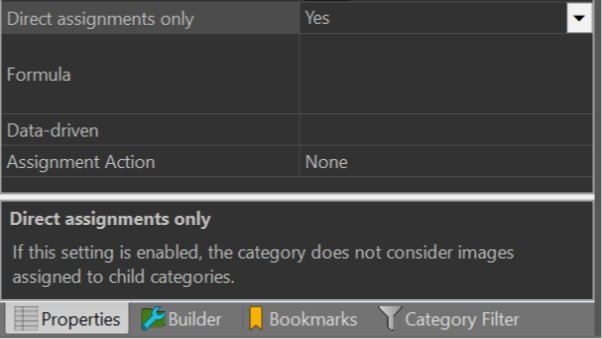
The category shows only the number of files assigned to it directly and no longer counts the files assigned to its child categories.
If you also close or collapse the category, IMatch does not need to update its child categories as often, because they are not visible and no longer contribute to the parent category’s child-file count.
Note: The IMatch Standard Categories and IMatch Workflow Categories already apply this trick. Still, it is worth checking if you created your database years ago and have never re-imported the standard category sets shipped with IMatch.
Confirm Faces
If you use the built-in face recognition in IMatch, try to keep the number of unconfirmed faces low.
Every time you confirm a person for a face, IMatch checks unconfirmed faces to see whether there is now a better match. This happens especially when you train new faces.
This so-called reclustering is a database-intensive task that processes large amounts of data. It can slow down other features that also need database access. Updating data-driven categories or collections, for example, also processes large amounts of data. If the database is busy reclustering 50,000 faces, these tasks will be slower.
Close Panels You Don’t Need
This is especially helpful for expensive panels like the Filter Panel or the Categories Panel. These panels require work to stay current while you edit metadata or while IMatch processes new and updated files in the background.
Consider setting up a few workspaces that show only the panels needed for specific stages in your workflow. You can then switch quickly between workspaces and keep only the panels required for the current task visible.
Summary
IMatch is fast and responsive even on older computers, especially when the database is stored on a fast SSD. As file volumes grow, the tips in this post help reduce background work and keep performance predictable, so you can spend more time finding and enjoying your photos and less time waiting for software to catch up.
If you manage hundreds of thousands or even millions of assets in IMatch, good hardware and a lean configuration make a measurable difference. Use fast storage, keep expensive categories under control, confirm faces regularly, and close panels you do not need during heavy workflows. These habits make large photo libraries easier to work with over time.

Mario M. Westphal is the developer of IMatch, the digital asset management system (DAM) for Windows. He has a strong background in software development and photography, gained through working for over 30 years in the field for many clients. His special interests are photography, music. literature and of course software development, with a strong focus on digital asset management, database systems and image metadata. He hails from Germany.
You can reach him in the IMatch user community and via support@photools.com.