

A Friendly Guide to Photo Metadata for Regular People
Metadata is often explained as “data about data.” That is technically correct—and about as exciting as explaining pizza as “flattened dough with toppings.” For regular people, photo metadata is simply the hidden information that helps you find, understand, organize, and protect your photos.
Some of this information is added automatically by your camera or phone—things like date, time, lens, exposure, aperture, and sometimes GPS location. Other metadata is added by you in software such as IMatch: headlines, titles, descriptions, keywords, people, locations, ratings, and copyright details. That second group is where the real magic happens, because it turns “IMG_4837.raw” into “Summer picnic with Grandma at the lake.”
If you use IMatch, the Metadata for Beginners help page is especially useful because it explains how IMatch handles XMP, EXIF, IPTC, keywords, ratings, labels, GPS data, and sidecar files in a way that makes sense outside the newsroom and far away from corporate digital asset management meetings—which is a relief for the rest of us.
The help topic also explains about metadata mess, but that’s a totally different topic.
The Metadata Types Regular People Actually Need to Know
| Metadata Type | What it does | Do regular users need to edit it? |
|---|---|---|
| EXIF | Technical data added automatically by your camera or phone: date taken, shutter speed, aperture, ISO, lens, camera model, and more. | Usually no. It is helpful for reference, but most people mainly read it rather than edit it. EXIF data may be automatically updated when you modify XMP data that also exists in native EXIF. |
| GPS | Latitude, longitude, altitude, and sometimes direction—useful for seeing where a photo was taken. | Sometimes. Great for travel and family history, but worth reviewing before sharing photos publicly. |
| IPTC | Descriptive and rights-related fields such as title, description, creator, copyright, and keywords. Originally designed for the news industry, but many of these fields are just as useful for normal humans with messy photo collections. | Yes. This is where everyday organization becomes much easier. Always use the IPTC and IPTCExt tags which are part of XMP. Avoid using legacy (IIM3) IPTC metadata. |
| XMP | The modern standard most software uses to store and exchange metadata reliably. XMP can carry IPTC, EXIF, GPS, ratings, labels, hierarchical keywords, and more. | You should prefer software that writes metadata in XMP because it is the safest long-term choice. |
Why Metadata Matters If You’re Not a Pro Photographer
Most people do not need agency codes, transmission references, or highly specific editorial fields. What they do need is a simple way to answer questions like these:
- Who is in this photo?
- Where was this taken?
- When did this happen?
- Can I find all pictures from our trip to Italy?
- Show me all photos from Cassie and Tom from last year
- Which files are my favorites?
Good metadata turns your photo archive from a digital junk drawer into something you can actually use.
IMatch emphasizes practical metadata tags like headline, description, hierarchical keywords, rating, label, GPS and location data, and people-related information as the everyday workhorses of digital asset management.
At the same time, IMatch is not limited to these practical everyday fields. It can also be configured to display and edit the full set of IPTC and IPTC Extension tags defined by the IPTC, which makes it suitable for professional metadata workflows used by photographers, institutes, libraries, archives, and other professional users. For official metadata conformity test results, see: https://iptc.org/photo-metadata-support-test-results/?swid1=imatch
The Essential Metadata Fields for Normal People
If your goal is to keep family photos, travel shots, hobby images, or personal projects organized, you only need a small set of metadata fields. Think of these as useful grown-up labels for your photos—without turning your weekends into a metadata internship.
| Field | Use it for | What to put in it |
|---|---|---|
| Headline | A short name you can scan quickly in search results and thumbnail panels. | “Anna’s 10th birthday,” “Autumn walk in Prague,” or “Kitchen renovation before and after.” |
| Title | The Title tag is sometimes called Object Identifier. | A brief identifier for the image, a reference number, original file name or similar. Headline is more like the title of a story and Title more like a label or reference identifier you can use e.g. in searches. |
| Description / Caption | Adding context you will forget in six months. This is one of the most valuable fields for family history and personal archives. | Who is in the photo, what is happening, why it matters, and any story worth preserving. |
| Keywords | Search and filtering. Keywords are the fastest way to group photos by people, places, events, activities, seasons, pets, and projects. | Use specific (hierarchical) terms such as “Person|Emma,” “Location|Germany|Berlin,” “Occasion|Christmas,” “hiking,” “Golden Retriever,” “garden project.” Prefer setting up a controlled vocabulary with the IMatch Thesaurus to ensure consistent keywords (use the same keyword for the same thing). |
| People | Finding all images of a person without relying only on your memory or file names. | Names of family members, friends, or pets if your software supports people tagging. IMatch offers powerful people-related features, from face recognition to assigning persons to faces or images to managing persons in families or teams. |
| Date Subject Created | Sorting your archive chronologically and building timelines. | Usually captured automatically. Add when needed or fix if the camera clock was wrong. Be aware of time-zone offsets. See How IMatch uses Date and Time Information to learn more. |
| Create Date | The date the digital image was created | Usually the same as Date Subject created, except for scans produced from old photos. |
| Rating | Quick quality filtering and culling. | Use stars to mark favorites, best shots, or keepers. |
| Label | Workflow status or custom meaning. | Examples: “To Edit,” “To Print,”, “Final”, “Album Candidate,” or “Shared with Family.” |
| Copyright / Creator | Ownership and contact information, especially if you share your work online. | Your name, copyright notice, and optional contact details. |
| Location | Travel, genealogy, and event memory. More readable than raw GPS coordinates. | A location entry consists of multiple individual tags like country, country code, state, city, location, and sub-location. You fill what you need: country, city, park, venue, or a meaningful place name such as “Grandma’s garden.” You can manually enter this information or use IMatch’s powerful reverse geocoding features to produce it from GPS coordinates automatically. |
| GPS Coordinates | Precise mapping and location-based browsing. | Let your phone add it automatically, then keep, edit, or remove it depending on privacy needs. The Map Panel in IMatch allows you to view, add, and modify GPS coordinates for images. |
A Simple Metadata Starter Pack
If you want the shortest possible answer to “Which metadata tags should I actually use?”, here it is:
- Headline for a short human-readable name
- Title for optional reference data
- Description for the story and context
- Keywords for search
- People for family and friends
- Location for places
- Rating or Label for favorites and workflow
- Copyright / Creator if you publish images online
That is enough to make a huge difference in IMatch or any other capable digital asset management system. You do not need to fill every available metadata field unless you genuinely enjoy spending Saturday nights with the Metadata Panel and a strong cup of tea.
Don’t Forget the Privacy Side of Metadata
Metadata can be wonderfully useful and mildly nosy at the same time. GPS data can reveal your home address, school, favorite walking route, or exactly where that very expensive camera gear was sitting. Several guides point out that location metadata should be reviewed before posting images publicly. A good everyday rule is simple: keep GPS data for your private archive, but think twice before sharing it on the web—especially for children, private homes, or sensitive locations.
The Batch Processor in IMatch allows you to export images in many different formats and gives you precise control over which metadata you include in the resulting images.
A Practical Metadata Workflow in IMatch
IMatch is especially friendly for this kind of sensible, non-newsroom workflow because it focuses on the metadata most people actually use. A practical photo metadata workflow looks like this:
- Import your images into IMatch. IMatch automatically creates high-quality and rich XMP metadata from all the native metadata found in your images.
- Add or verify the date and time information as needed.
- Write a headline, title, and short description for important photos or batches, or use IMatch AutoTagger to add this data automatically with the help of AI.
- Assign consistent keywords for people, places, objects, and events. If you use hierarchical keywords, even better. IMatch offers sophisticated features for working with keywords.
- Use ratings and labels to mark favorites, rejects, edit status, or album candidates.
- Add copyright and creator data once as part of your default template if you share images publicly. IMatch can do that automatically with metadata templates or AutoFill.
- Add or verify the GPS information if needed.
- Optionally use reverse geocoding to add location data like country, state, city, and location.
- Optionally use face recognition and IMatch’s powerful people-related features to identify people shown in the image.
This approach gives you the benefits of metadata without requiring you to become an unpaid archivist in your own living room.
Use Consistent and Simple Keywords
To make searching and sorting easier, it helps to use consistent keywords. Use the same keyword for the same thing. Creating or importing a controlled vocabulary into the IMatch Thesaurus is a great way to do this. Instead of typing keywords by hand, you can select them from a predefined list. Add new keywords only when no suitable keyword already exists. This is not only faster, but also ensures consistency, which is essential for effective searches later on.
Don’t get carried away and add too many overly detailed keywords on too many levels. Unless you work with deep hierarchical scientific or technical taxonomies, keeping your keyword structure simple is usually the better choice. Save the finer details for headlines and descriptions.
Keywords are mainly used to find and sort images quickly and to organize them automatically in IMatch’s @Keywords hierarchy. When deciding on a keyword strategy, ask yourself: “How will I search for these images later?” and then add keywords supporting your searches.
Let IMatch Assign Keywords Automatically
IMatch can automatically add keywords when you assign persons to faces (e.g. “person|Paul Miller” or “family|Miller”) and when you use reverse geocoding to create location data from GPS coordinates, like “WHERE|United States of America|California|Los Angeles”. This automatically enriches your keywords with data valuable for search and automatic organization.
Avoid Metadata Mess
What complicates things a little is that many metadata values exist in multiple metadata formats. For example, important timestamps such as Create Date and Date Subject Created can exist in native EXIF metadata and also in XMP and IPTC. GPS coordinates can exist in native GPS metadata and in XMP. Legacy IPTC contains fields such as headline, keywords, and description, with corresponding counterparts in XMP and sometimes EXIF. Common tags like country or city may even exist in three or four places. This has developed gradually over many decades.
Capable software such as IMatch understands these dependencies and automatically synchronizes metadata between XMP and EXIF, GPS, and legacy IPTC when you add or modify data. You only need to enter the correct metadata; the software takes care of keeping the related fields in sync.
If you use less capable software, you can easily end up with a metadata mess. For example, you might correct the EXIF timestamps because the camera clock was wrong, but the software stores the updated values only in EXIF or only in XMP because it does not know how to synchronize metadata across formats. This is unfortunately quite common. The result is two different timestamps for the same image, depending on which software reads which metadata field. In one program you may see the original time, while in another you may see the corrected time.
The Result
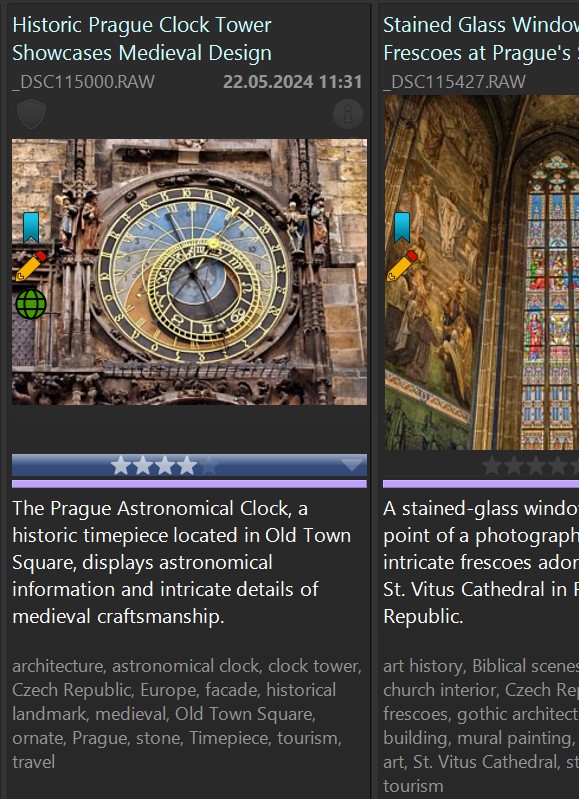
Here is a screen shot of the IMatch File Window, showing two photos with headline, timestamp, description, keywords, rating and label. If you need this amount of metadata for your images or not depends of course on your personal requirements. But once you have it, it makes finding, sorting and automatically organizing images so much easier.
Final Thoughts: Use the Metadata That Helps Future You
The best photo metadata strategy for regular people is not “use everything.” It is “use the fields that help you find and understand your photos later.” For most personal archives, that means headline, description, keywords, people, location, ratings, labels, and basic copyright information. Leave the newsroom-heavy fields to the newsrooms. Your future self will be much happier finding “Aunt May’s 60th birthday, summer 2026” than scrolling past 400 files called DSC_0042.
Further Reading

Mario M. Westphal is the developer of IMatch, the digital asset management system (DAM) for Windows. He has a strong background in software development and photography, gained through working for over 30 years in the field for many clients. His special interests are photography, music. literature and of course software development, with a strong focus on digital asset management, database systems and image metadata. He hails from Germany.
You can reach him in the IMatch user community and via support@photools.com.