
Easily Add, Remove and Replace Keywords with Metadata Templates
Metadata Templates and Favorites in IMatch can make it much easier to add, replace, and remove keywords quickly. A common use case is tracking workflow stages across multiple applications when not all of them support standard XMP labels.
Workflow Keywords
Consider a simple set of workflow keywords like this:
- New
- Culled
- Processed
- Archived
When an image is new and has just been imported from a camera or smartphone, you assign the keyword New. After the image passes the initial culling stage, you remove New and add Culled instead.
When you write back metadata in IMatch, the keywords assigned to the image are available to other applications.
After you process and edit the image, assign the keyword Processed in your image editor or in IMatch. This indicates that the image has been edited and can be considered finished.
Later, when you move the image to long-term storage such as a NAS, you assign the final keyword Archived to mark the last stage in the workflow.
Automating Workflow Keywords
Changing the workflow keyword for all except the “New” keyword requires two operations:
- Removing the existing workflow keyword (“New”, “Culled”, “Processed”)
- Adding the keyword for the current workflow state
You can do this quickly in the Keywords Panel or via @Keyword categories. But creating four dedicated Metadata Templates and running them from Favorites can save even more time.
The Metadata Template for the “New” Keyword
The first template adds the keyword New to images when they are first imported into the IMatch database.
Use Edit > Metadata Templates to create a new template. In this example, the template is named WF New for “Workflow New”:
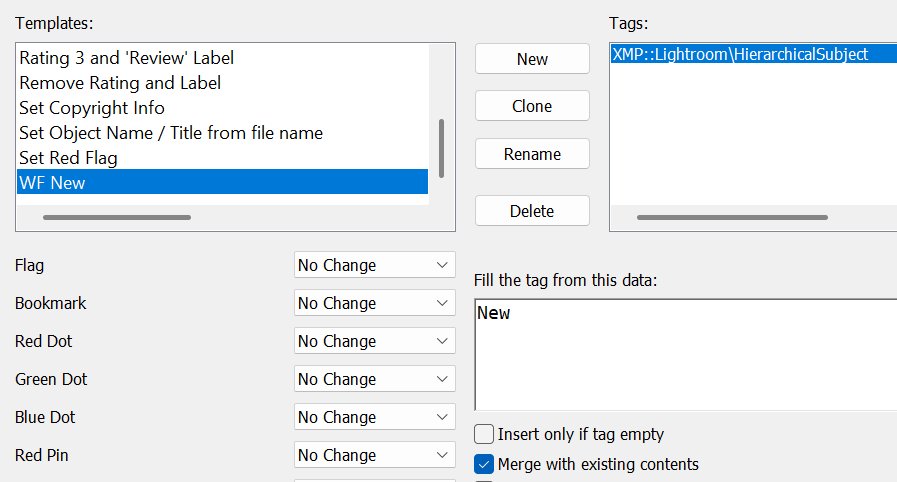
This template writes the hierarchical Subject metadata tag with the keyword New. The enabled option Merge with existing contents ensures that the new keyword is appended to any existing keywords.
That is all you need. To apply this Metadata Template automatically when files are added to your IMatch database, enable it under Edit > Preferences > Indexing:
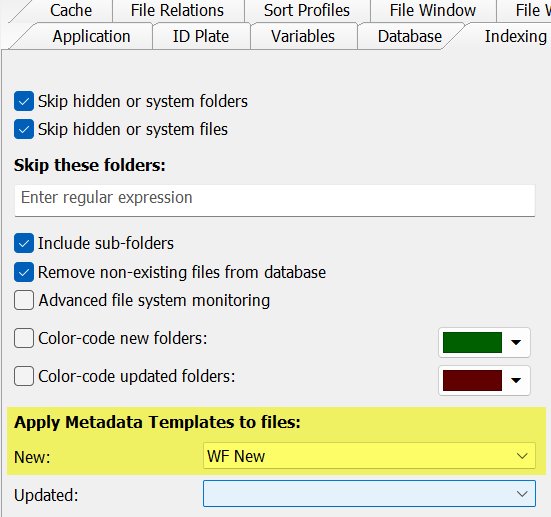
Tip: If you want to add other metadata automatically, e.g. your copyright notice, author info or legal data, extend the “WF New” template to add content to these additional tags.
Replacing Keywords
The Metadata Templates for the remaining three workflow keywords are created in the same fashion. To replace one workflow keyword with another, however, we need to use a simple workaround.
Metadata Templates can set or replace complete metadata tag values, or merge new data with existing data. They cannot directly remove or replace individual keywords, but that limitation is easy to work around.
The trick is to use an IMatch variable and the replace function available for variables.
The variable {File.MD.hierarchicalkeywords} returns the keywords of the current file as a semicolon-separated list. For example: Location|France|Paris; New; Motive|Building
We want to keep all of these keywords and replace the workflow keyword New with Culled. To do that, we use the variable to fill the hierarchicalSubject tag while swapping the keyword at the same time:
{File.MD.hierarchicalkeywords|replace:New==Culled}
That’s all we need to do. Use this variable in your “WF Culled” Metadata Template:
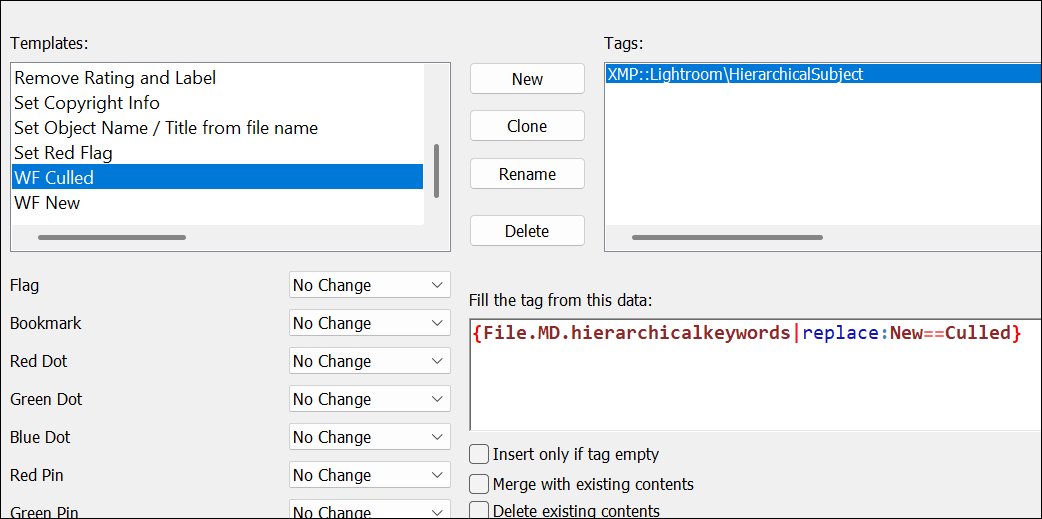
The Merge with existing content option is disabled because, in this case, we want to replace the existing keyword set.
Build the “WF Processed” and “WF Archived” Metadata Templates using the same logic.
Some Consistency Required
These templates assume that you follow your workflow and assign the keywords New, Culled, and Processed in that order. If you assign New and then run the Processed template, it will not work because the template will not find the Culled keyword to replace.
If that might happen in your workflow, add multiple replace functions to the variable, for example:
{File.MD.hierarchicalkeywords|replace:New==Processed; replace:Culled==Processed;}
This variable adds the keyword Processed if the file has either the New or Culled keyword. Problem solved.
Using Favorites to Apply These Metadata Templates
IMatch Favorites are one of the many built-in time-saving features. You can use them to move or copy files, assign or remove files from categories, open files in external applications, run external commands, or apply Metadata Templates with a single click or keyboard shortcut.
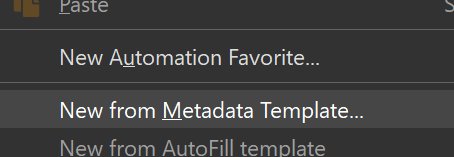
Right-click anywhere into a Favorite group and select “New from Metadata Template” from the context menu:
Then select the three WF Metadata Templates you have just created:
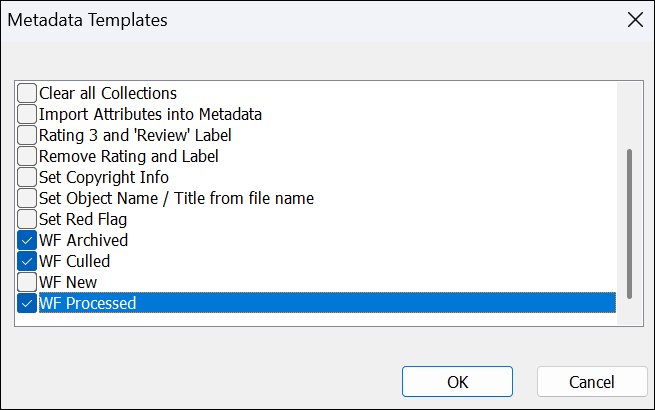
We don’t need a Favorite for the “WF New” Metadata Template because it is automatically applied to new files.
In this example, we created a new Favorite group named Workflow and added the Metadata Templates to it:
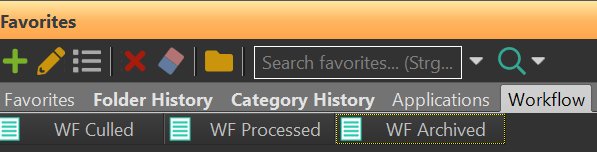
From now on, you can apply these templates with a single click on the Favorite. You can further customize the Favorites with custom icons and colors if needed.
A Small (Unlikely) Pitfall
If you use keywords that contain your workflow keywords, a simple replace operation may produce unwanted results. Consider this keyword list:
Location|Las Vegas; Motive|Conference; News; CES; AI; IT; New
It contains both the keywords News and New. When we apply the “WF Culled” template to it, we’ll end up with
Location|Las Vegas;Motive|Conference;Culleds;CES;AI;IT;Culled
Which is not what we want.
In IMatch 2026 and later, you can use regexp_replace instead of replace to handle this more safely:
{File.MD.hierarchicalkeywords|regexp_replace:\bNew\b==Culled}
The regular expression \bNew\b matches the word New only, but not News.
In earlier versions, just make sure that the keywords you use for your workflow stages don’t also appear as regular keywords.
Further Improvements
Instead of using simple, flat keywords such as New, Culled, Processed, and Archived, consider using hierarchical keywords instead: Workflow|New, Workflow|Culled, Workflow|Processed, and Workflow|Archived.
This naming scheme clearly separates workflow keywords from descriptive keywords. It makes them easier to identify, reduces the risk of confusion with regular keywords, improves keyword-based searching, and groups files by workflow stage in the @Keywords category hierarchy.
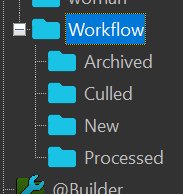
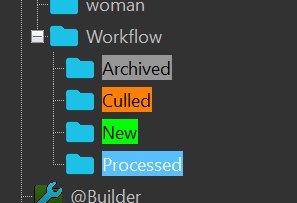
IMatch automatically groups files by their assigned workflow keyword. This makes it easier to identify new files or files that are ready for processing.
If you color-code these workflow keyword categories, you also get visual feedback about the workflow state of your files directly in File Windows:
Files with the Workflow|Culled keyword now show an orange band in the category color bar:

Summary
Using custom workflow keywords in IMatch can help you track file status across multiple applications, especially when not all software supports standard XMP labels.
This article showed how to use Metadata Templates to add the initial New keyword automatically, replace workflow keywords with variables, and handle edge cases such as partial keyword matches.
It also explained how to apply workflow templates from Favorites for faster keyword updates and why hierarchical keywords such as Workflow|Processed can make your workflow more reliable and easier to search.
Finally, color-coding workflow categories provides a clear visual indicator of each file’s current stage directly in the File Window.

Mario M. Westphal is the developer of IMatch, the digital asset management system (DAM) for Windows. He has a strong background in software development and photography, gained through working for over 30 years in the field for many clients. His special interests are photography, music. literature and of course software development, with a strong focus on digital asset management, database systems and image metadata. He hails from Germany.
You can reach him in the IMatch user community and via support@photools.com.