
Exporting Metadata and Attributes with the Text Exporter
Exporting metadata in multiple formats is a core feature of any digital asset management system. IMatch includes a range of export modules that let you export metadata, attributes, and other database content in several widely used formats.
Exporting Metadata and Attributes
This article covers the flexible Text Export module, which lets you create text files in a variety of formats. The module supports both UTF-8 and UTF-16 (Windows® Unicode) encoding, allowing you to produce output that works across platforms and operating systems. IMatch can export virtually every metadata field and attribute stored in the database, ready for import into other applications and systems.
These output formats are supported:
- CSV files (for example, for import into Microsoft® Excel or similar applications)
- Tab-delimited files (useful for many databases)
- XML files (a common cross-platform format)
- JSON files (for processing results in JavaScript and similar environments)
Each format can be customized to match the requirements of the target application. This makes it easy to export data from your IMatch database for use in other tools and workflows.
What To Export
You control what the exporter outputs by using standard IMatch variables, which provide access to all metadata and attributes that IMatch maintains for your files. With variable formatting functions, you can further shape and refine the output to meet specific requirements.
Each file processed by the export module produces one record in the output. A record can contain any number of fields. Each field has an optional name and a value. The name is plain text, and the value is composed of one or more variables and literal text. For example:
FileName:{File.NameExt}
In this example, the field name is FileName, and the value comes from the variable {File.NameExt}, which returns the file name and extension, for example beach.jpg. Field name and value are separated by a colon.
To export multiple fields per record, add additional declarations on separate lines:
FileName:{File.NameExt}
DateCreated:{File.MD.createdate|format:YYYY-MM-DD hh:mm:ss}
Description:{File.MD.description}
Credit:{File.MD.credit}
This declaration exports four fields per record. To keep things concise, this example uses shortcodes such as createdate instead of the longer standard variable names.
Formatting Variables
By default, IMatch exports date and time information in your local date and time format, as configured for your user account in Windows. This can cause problems if the target application expects a specific format.
To avoid issues, you can use the format variable function with the createdate variable to generate a standard ISO date and time value in the form YYYY-MM-DD HH:MM:SS. This removes ambiguity and improves interoperability.
IMatch supports dozens of variable formatting functions. See the Variables topic in the IMatch help for a complete list and examples.
Tip: Var Toy And Other Helpers
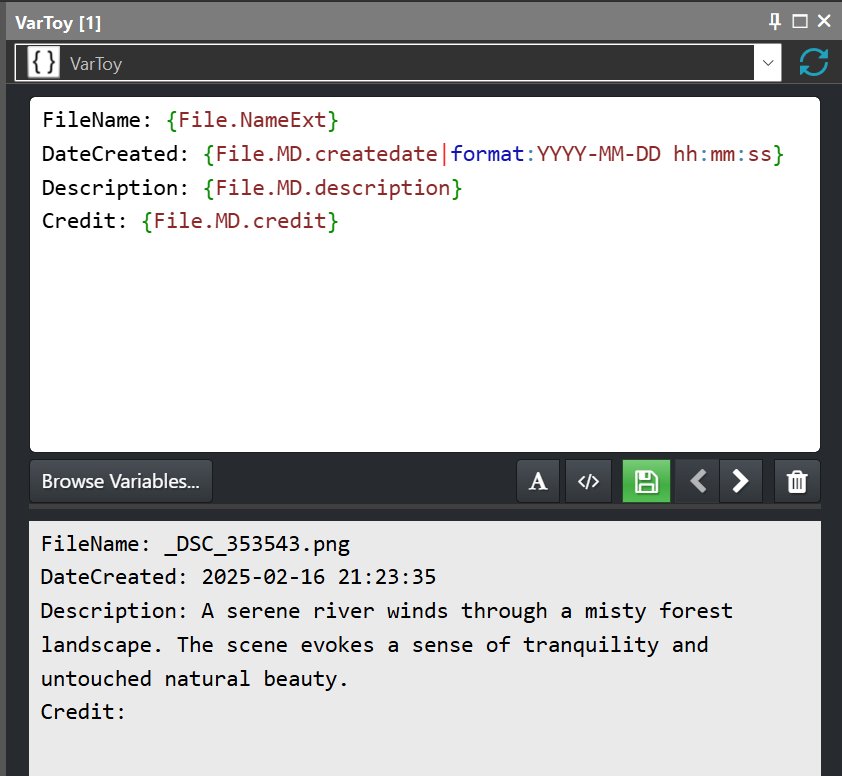
The Var Toy App is useful not only in this scenario, but whenever you work with variables in IMatch. It allows you to combine literal text and variables and immediately inspect the result.
Open an App Panel via View > Panels > App Panel (or <F9>,<1>) and select the Var Toy App from the drop-down list at the top of the panel:
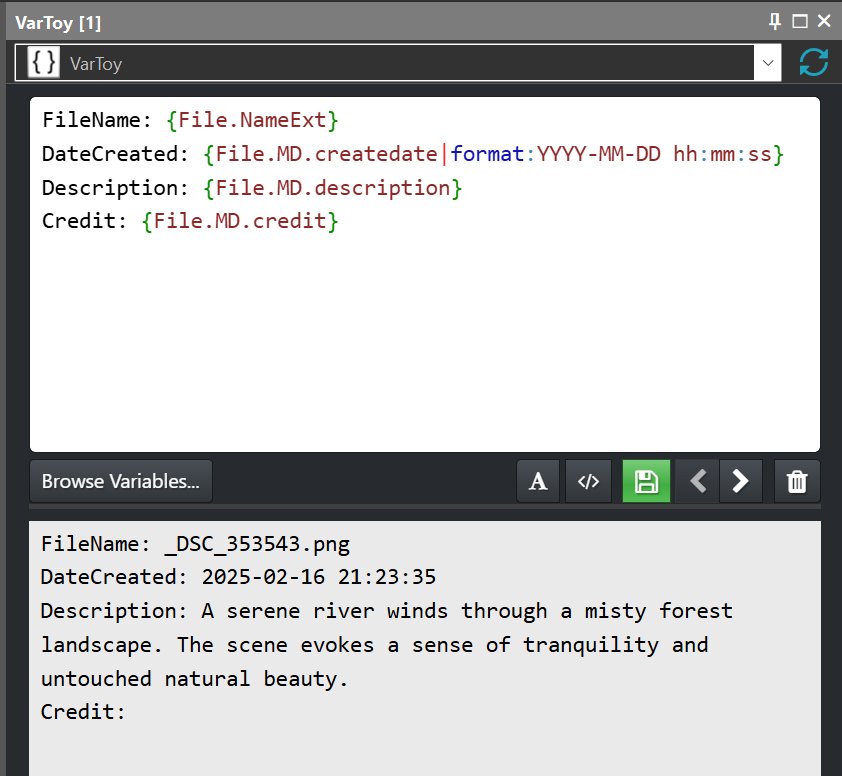
The Var Toy lets you test variables interactively. Paste variables and text into the upper edit field, and the app immediately shows the result for the currently focused file. Use the Browse Variables button to open the standard Variable Browser.
Copy as Variable
The Metadata Panel includes a useful command that copies the corresponding variable for a metadata tag to the clipboard. Right-click any caption in the Metadata Panel to open the context menu:
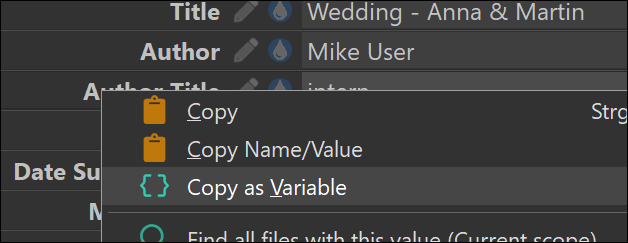
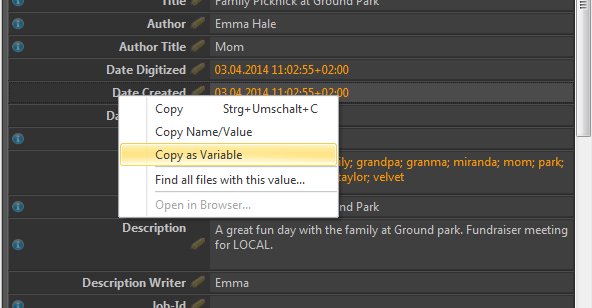
The Copy as Variable command copies the variable for the selected metadata tag to the Windows clipboard. From there, you can paste it into the Var Toy App or any other feature that supports variables.
Running the Text Export
Select the files you want to include in the export and drop them onto the Text Export module in the Import & Export Panel. You can also drop one or more folders, categories, collections, or timeline nodes.
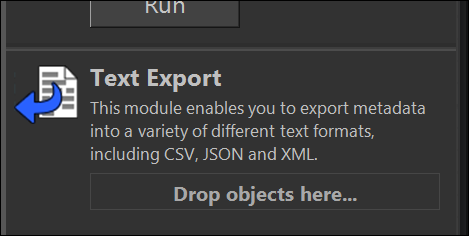
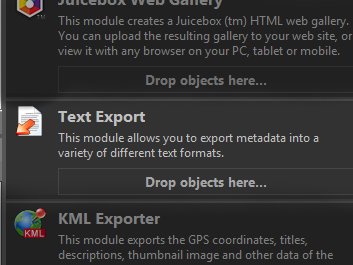
Drop files or other objects onto the Text Export module in the Import & Export Panel.
If the panel is not visible, open it via View > Panels > Import & Export or <F9>,<X>.
After you drop the objects, the Text Exporter opens a dialog box where you can configure the export format and options:
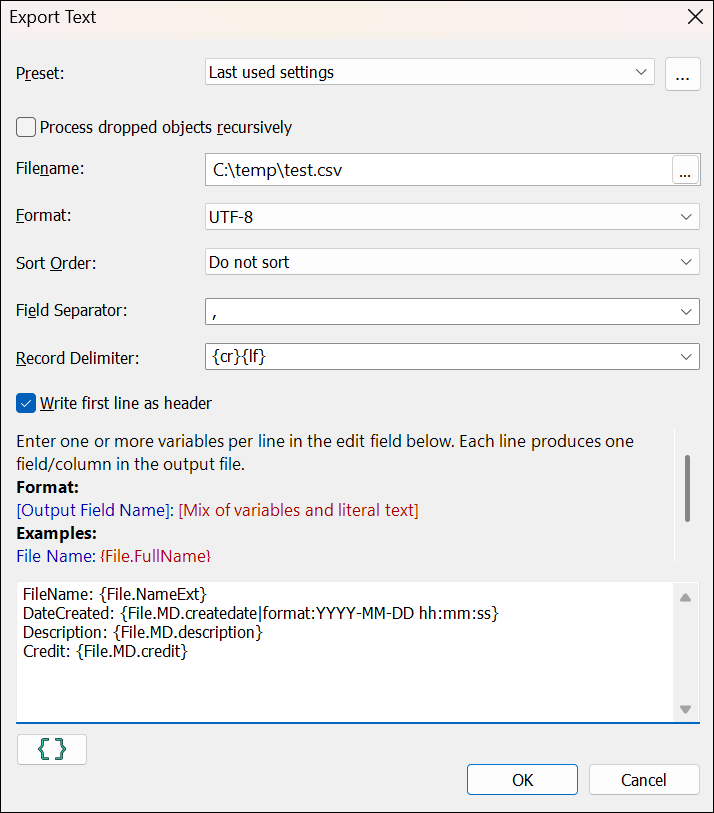
Most options in this dialog are self-explanatory. Press <F1> to open the corresponding topic in the IMatch help, which explains each option in detail. The help also includes examples and suggested output formats for a range of common applications.
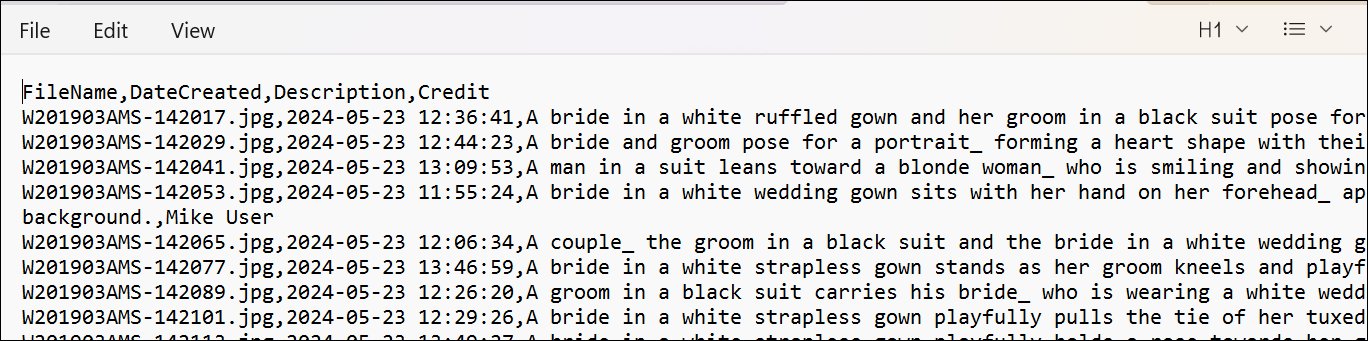
In this example, we create a standard CSV (comma-separated values) file. Fields are separated by commas, and each row, or record, is delimited by a carriage return and line feed pair. This is the format expected by many Windows applications and Office suites.
At the bottom of the dialog, you can see the field definitions created earlier. In this example, they were copied from the Var Toy App into the input field of the Text Export module. You can also enter and edit them directly in this dialog.
The Result
After exporting three sample files, we can open the result in Windows Notepad for a quick check:
Or open it directly in Microsoft® Excel or OpenOffice:
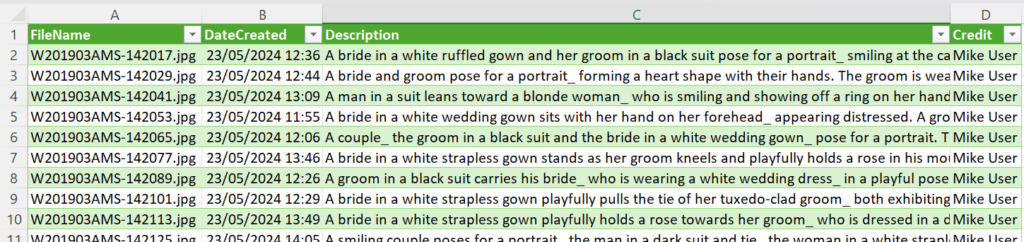
CSV files that use commas, semicolons, or tab characters as field separators can be imported by most Office applications, statistical tools, and database systems.
XML Output
If you work with more advanced applications, they often support XML or JSON for import. If we run the same export again but switch the output format to XML, we get a result that can be reformatted and imported by a wide range of applications across platforms:
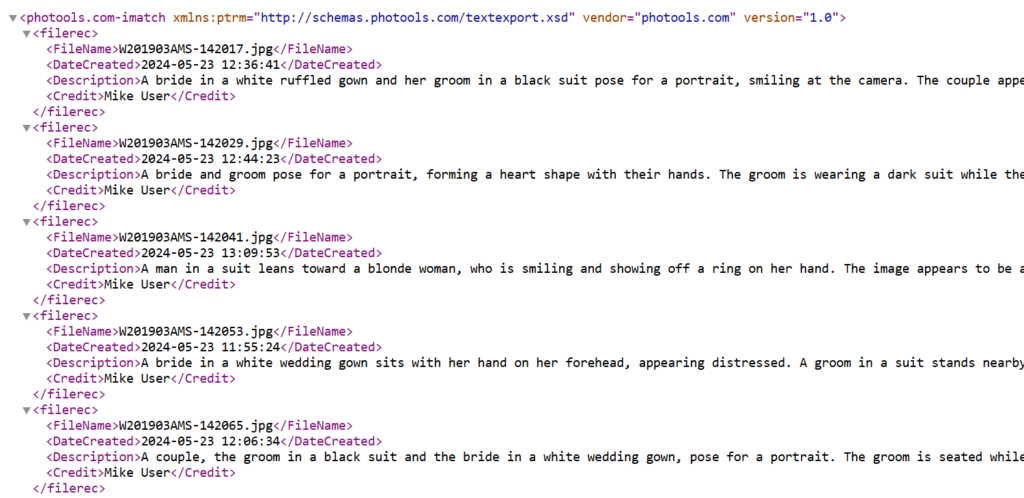
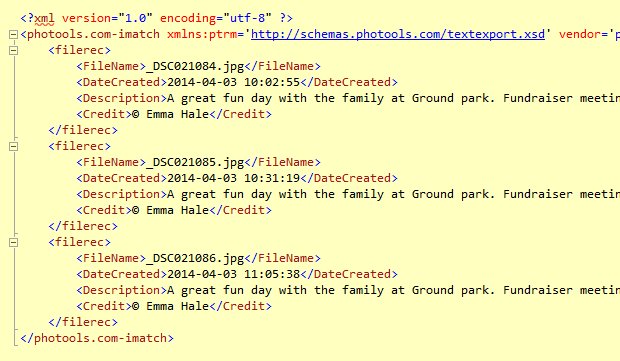
The only change here is the output format. The field definitions remain the same. The Text Export module automatically uses the field names as node names in the XML file and converts the values into valid XML records.
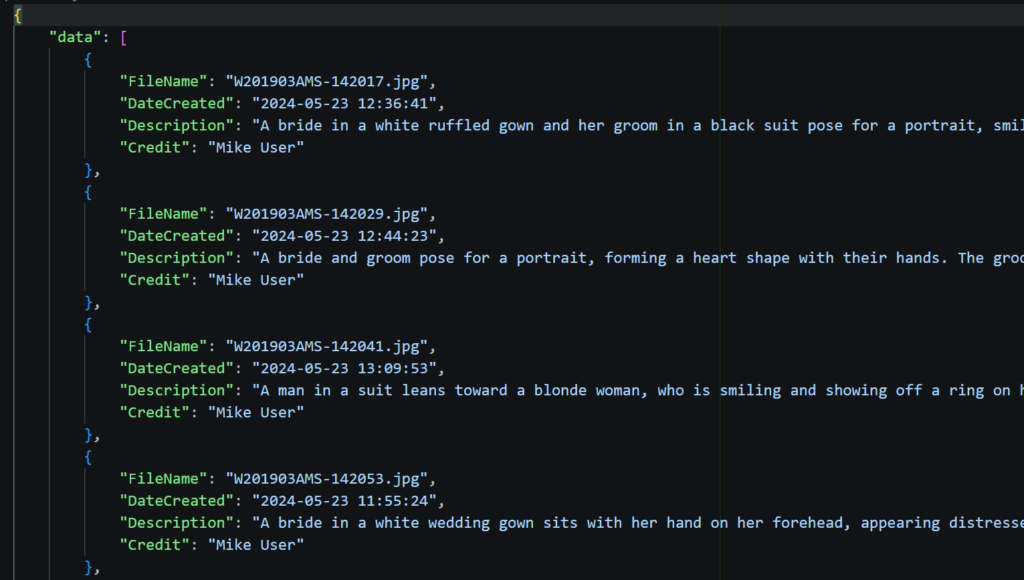
JSON Output
In the same way, you can export virtually any data IMatch maintains for files, including metadata, attributes, and categories, in JSON format.
Summary
The IMatch Text Export module provides a flexible way to export metadata and attributes to other applications. It supports plain text and CSV, as well as structured formats such as XML and JSON. By combining IMatch variables with literal text, you can control both the exported data and its output format.
Whether you want to reuse data from your IMatch database in Excel, a word processor, or another database system, the Text Export module offers a straightforward and reliable workflow.
See also the related know-how article Using the Copy Data App With Your Office Application for another way to quickly transfer data from IMatch to other applications.

Mario M. Westphal is the developer of IMatch, the digital asset management system (DAM) for Windows. He has a strong background in software development and photography, gained through working for over 30 years in the field for many clients. His special interests are photography, music. literature and of course software development, with a strong focus on digital asset management, database systems and image metadata. He hails from Germany.
You can reach him in the IMatch user community and via support@photools.com.