
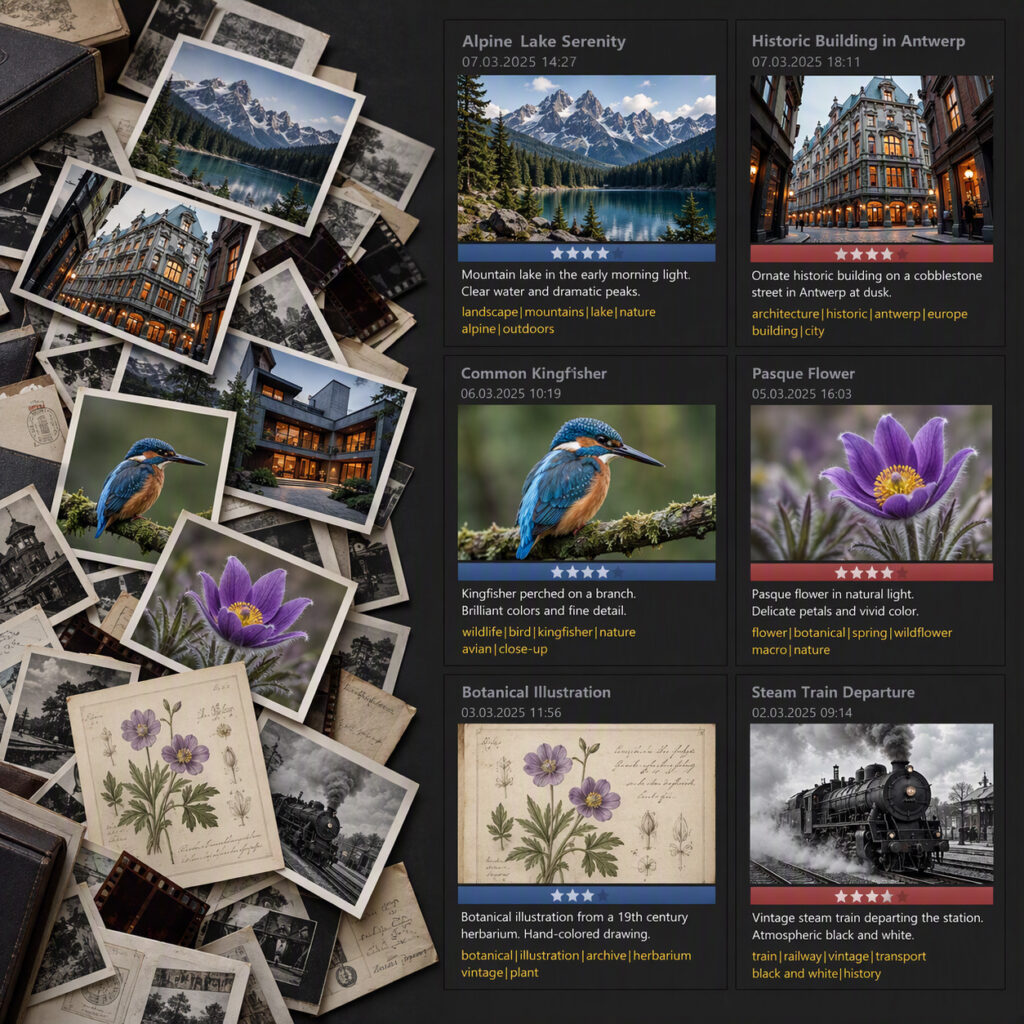
Getting Started with Digital Asset Management in IMatch
If you have a sea of images collected over 10, 20, 30, or more years, finding a particular file can be difficult. Your photos may be spread across disks and thousands of folders, with inconsistent names and little metadata. Digital asset management (DAM) helps you turn that collection into something you can search and use.
This guide walks through the first steps with IMatch from photools.com: indexing files, finding duplicates, choosing a naming convention, and adding useful metadata. The examples focus on photos, but the same principles apply to other digital assets.
Can You Find the Images You Need?
A useful way to assess your current organization is to try a few searches:
- How quickly can you find all images taken on today’s date, two years ago?
- Can you quickly find the photos you took during your trip to Venice a couple of years ago?
- Can you find all images showing your wife and your mother together?
- Can you find all images showing your dog?
- Can you find the best shots from last year’s trip to London?
- Can you tell which lens you use most?
If these searches are difficult or time-consuming, better organization can make your collection more useful. Descriptions, headlines, keywords, and location data help you find photos by what they show—not just by where you stored them.
Why Use Digital Asset Management Software?
Digital asset management software brings together tools for organizing, searching, and using images and other files. It uses existing metadata to group files automatically and provides tools for adding the information that is missing.
The aim is straightforward: spend less time managing files and more time using your collection.
Add Your Files to IMatch
Start with one representative folder rather than your entire collection. Add useful metadata, try the searches that matter to you, and refine your approach before applying it more widely. You do not need a complete keyword hierarchy or a new naming scheme on day one.
The first step is to add your files to the DAM system. How this works depends on the software: some systems import files into managed storage on a server or in the cloud.
IMatch indexes your files where they are. Your files remain under your control, and you do not need to reorganize your existing Windows folders before getting started.
Before renaming files, changing metadata, or removing duplicates, make sure you have a current backup and can restore files from it. Include the original assets, any sidecar files, and your DAM database in your backup plan. Organizing a collection and protecting it are separate tasks; you need both.
Find Duplicate Images
Collections built over many years, especially by several people, often contain copies of the same image under different names or in different folders.
This can happen when photos from multiple cameras or devices are copied to a PC or network-attached storage (NAS).
Finding duplicates is a useful early cleanup step. IMatch can identify copies during indexing and group them for review. Removing unneeded copies saves disk space and avoids repeating metadata work.
Before deleting a duplicate, check why you have both files. An intentional backup, an edited version, and an export for sharing serve different purposes. Keep the versions you need, and compare their metadata before deciding which copies are redundant.
Choose a Consistent File Naming Convention
Next, consider how you name your files and folders. Batch-renaming tools help you apply a file naming convention consistently and automatically.
A few practical guidelines:
- For a conservative, portable naming scheme, use ASCII letters, numbers, hyphens, and underscores. Avoid spaces and punctuation such as parentheses, brackets, braces, and @. Keeping names simple can reduce compatibility issues across Windows, Linux, and macOS tools.
- Date-based folder names such as YYYY-MM-DD work well. If you have several shoots per day, append a sequence number, shoot name, or client code—for example, “2026-05-11_Louvre-Museum”.
- Keep descriptive details such as keywords, people’s names, and locations in metadata rather than packing them into file names. This keeps names short and readable. Dates can still be useful as part of a consistent naming scheme.
- For personal collections, a pattern such as YYYY-MM-DD or YYYY-MM-DD_HH-MM-SS followed by a unique serial number or globally unique identifier (GUID) can work well. A date-based prefix also lets you sort files by date and time in software that does not read embedded timestamps.
- If you manage files for a museum, library, photo agency, or company, follow any established file naming convention.
- Choose a convention that works for you, then apply it consistently.
IMatch provides tools for renaming and moving files into dynamically created folders. Define your file and folder naming rules once, then apply them on demand or automatically when you add files.
Check File Integrity and Metadata Quality
A collection may contain tens or hundreds of thousands of files accumulated over decades. Indexing it in a DAM system can reveal problems that have gone unnoticed.
Corrupted Files
Some files may be corrupted and unreadable; others may use a proprietary format variant that your software does not support. A DAM system can flag these files during indexing so you can investigate them.
Incomplete, Inconsistent, or Noncompliant Metadata
Images and some other file formats can contain embedded metadata. EXIF metadata records technical details such as camera make and model, lens, ISO, shutter speed, and aperture. Some images also contain GPS coordinates.
Older images may store descriptions and keywords in legacy IPTC IIM metadata. More recent workflows often use XMP metadata, either embedded in the image or stored in a separate XMP sidecar file.
Metadata quality can vary, particularly when files have passed through several applications. Producing standards-compliant metadata is complex, and applications do not always handle it correctly.
For example, editing software may rewrite an image without correctly preserving or updating the camera’s embedded EXIF maker notes, damaging that metadata.
Another common problem is incomplete synchronization. The same value may appear in both EXIF and XMP, but an application may update only one copy. The file then contains conflicting values for timestamps, GPS coordinates, descriptions, or keywords. Different applications may display different information for the same image.
These problems may remain hidden until a DAM system reports them. In IMatch, the Metadata Analyst helps you investigate files flagged as problematic.
IMatch writes standards-compliant metadata and synchronizes corresponding values across metadata formats.
Organize Images by the Information You Need
With your files indexed and the initial cleanup underway, you can organize them around the ways you search. Common criteria include:
- By Date and Time
A timeline helps you find images taken on a particular day, during a week, month, or year, or over a period such as a vacation or field trip. - By Location
Location data lets you browse images by country, city, or specific place, rather than remembering which folder contains them. - By Keywords
Keywords group images by subject. Search for “Car” to find images tagged with that keyword, or combine “Family” and “New York” to find family photos taken in New York. - By People
Once people are identified, you can find images of a particular person or a combination of people—for example, photos of Claudia or photos showing both Claudia and Peter. - By Technical Data
Technical metadata such as camera model, lens, shutter speed, and aperture helps you find images taken with particular equipment or settings. It can also reveal shooting habits, such as which lens or shutter speed you use most. - By Your Own Criteria
Your collection may need groups such as “Family”, “Friends”, or “Clients”, or a structure based on car brands, photographic styles, subjects, or projects. Categories let you organize files around those needs.
Let Your DAM Do the Work
IMatch uses existing metadata to automate much of this organization. Timestamps place files on the timeline, while EXIF data supplies camera and exposure details. Reverse geocoding converts GPS coordinates into country, city, and location information. Existing keywords and keywords you add in IMatch automatically group files in the @Keywords category.
Add Useful Photo Metadata
Metadata can be embedded in your images or stored in XMP sidecar files. If you are new to the topic, “A Friendly Guide to Photo Metadata for Regular People” explains the basics and links to further information.
How much metadata you add depends on your needs and any requirements set by your institution or company. The following sections cover the information most useful for finding and understanding your images.
For scans, research documents, and other non-photo assets, start with the same questions: what is this, where did it come from, and how will I find it again? Useful details may include a source collection, catalog or accession number, project name, and a description. Use identifiers and terminology that match your institution’s existing records.
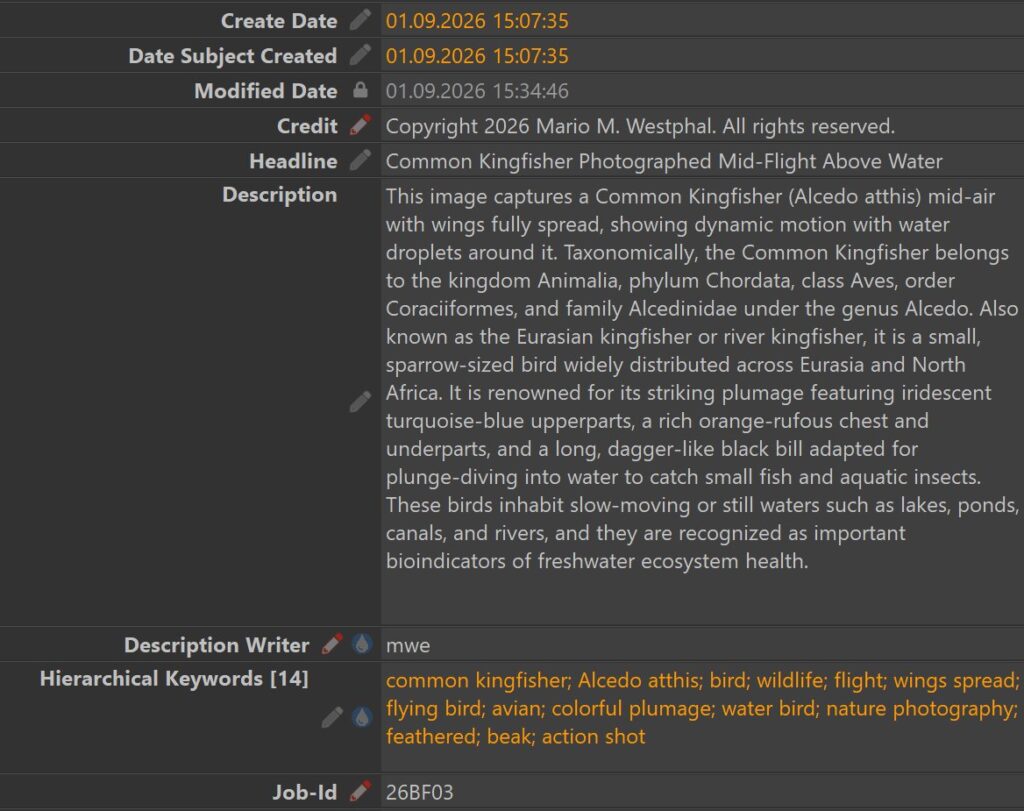
Start with the Five Ws
You do not need to fill every metadata field for every file. Start with the information needed to answer your most common searches. Add more detail to important or hard-to-identify items, and leave specialist fields for collections that need them.
Use Who, What, Where, When, and Why as a checklist. Existing metadata may answer some of these questions; you can fill in the gaps.
Who
Face recognition can help you record who appears in an image. Alternatively, use hierarchical keywords such as “Who|Peter Smith” or “Who|Bianca Miller”.
Once you have added this information, you can search for images showing a particular person or combination of people.
What and Why
Use a headline and description to explain what an image shows and, when relevant, why it was taken. A descriptive caption might read:
“Susan standing in front of the statue of Charles Darwin at the Natural History Museum in London, U.K.”
A good description is one of the most useful pieces of metadata you can add. It supports searches and preserves context you know today but may not remember in 20 years.
Where
GPS coordinates and location fields record where an image was taken. Smartphones and GPS-enabled cameras can embed these coordinates when location recording is enabled. IMatch can use reverse geocoding to convert them into country, city, and location metadata.
For images without GPS coordinates, you can add coordinates in IMatch or enter the country, city, and location manually.
In IMatch, you can view and edit GPS coordinates and location data in the Map Panel:
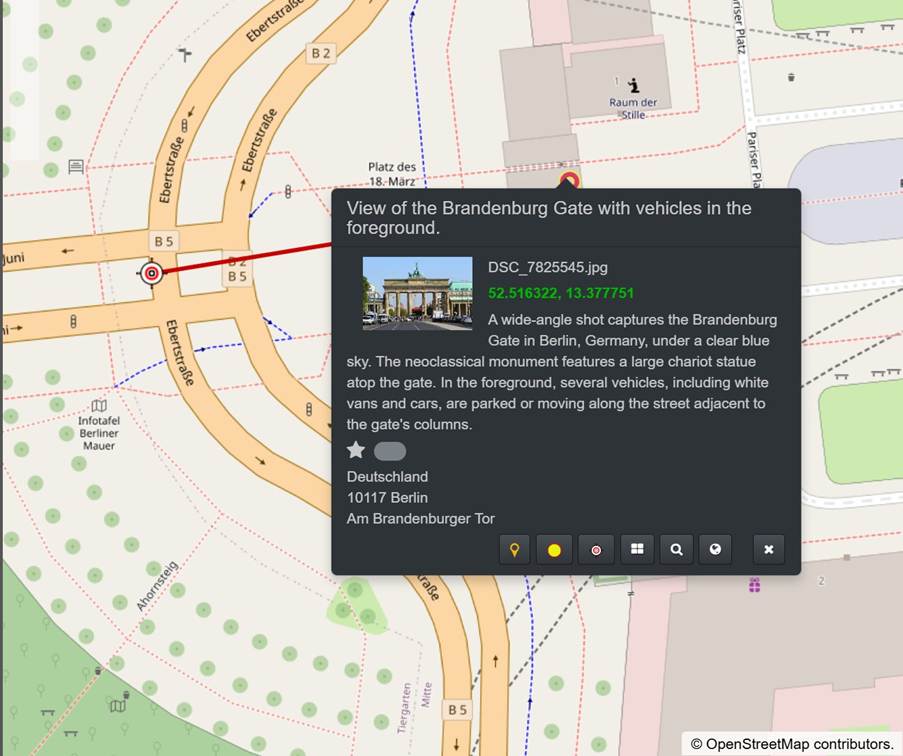
With coordinates and location data in place, you can find images taken in a country, city, or venue, or within a particular geographic area.
When
Timestamps record when an image was created. Your DAM can read them from existing metadata, or you can enter them yourself.
In IMatch, the relevant fields are “Create Date” and “Date Subject Created”. For photos taken with a digital camera or smartphone, these timestamps are usually identical.
For historical photographs and scans, the distinction matters. “Create Date” records when the digital image or scan was created; “Date Subject Created” records when the original photo was taken. For example, a photo taken on 1931-03-01 and scanned on 2022-04-30 would use those dates for “Date Subject Created” and “Create Date”, respectively.
Tip: The knowledge base article Lost in Time? Tackling Uncertain Dates with Old Photos and Digital Asset Management provides tips and solutions for dealing with uncertain dates.
Keywords
Keywords group images by subjects, people, locations, and other details. They make your collection searchable without requiring you to remember individual file names.
You can use flat keywords or organize them hierarchically, for example, “WHERE|United States of America|New York|Broadway”. IMatch supports both approaches, so choose the structure that suits your collection.
Keep Keywords Consistent
Consistency means using the same keyword for the same thing. A controlled vocabulary helps you choose standardized terms instead of alternating between “car”, “auto”, and “automobile”. IMatch also supports keyword synonyms: you can configure “auto” and “automobile” as synonyms so they are assigned along with “car”.
Copyright and Legal Data
Copyright and rights metadata lets you store authorship details, a copyright notice, and usage or distribution terms inside your images.
This information is particularly useful when publishing images online or delivering them to clients. The appropriate notice and usage terms depend on the rights and permissions that apply; “ALL RIGHTS RESERVED” is not a universal requirement.
Artwork and Objects
For photographs of artwork, buildings, cars, animals, and other subjects, metadata can hold more detailed information about what is shown. Fields such as the “Artwork or Object” group in XMP provide a structured place to record object details.
Use AI to Create Descriptions, Headlines, and Keywords
IMatch AutoTagger uses AI to generate descriptions and keywords. Options include cloud-based services such as OpenAI and Google Gemini, as well as privacy-protecting local AI setups using tools such as Ollama, LM Studio, llama-server, or Unsloth Desktop.
Before using a cloud-based AI service, check what image data it receives and whether that use fits your client agreements or institutional policies. Make that decision before submitting confidential or restricted material.
AI simplifies describing large collections. Modern models can generate clear, detailed descriptions and useful keywords at zero or low cost, with minimal manual effort.
Review AI-generated descriptions and keywords before relying on them for searches or catalog records. Check specific names, places, dates, and object identifications against information you can verify. For research and archival collections, keep generated descriptions distinguishable from documented facts.
IMatch offers dedicated AI tags like “AI.description” and “AI.keywords” to optionally separate manually entered data from AI-generated data.
IMatch AutoTagger lets you control the style and detail of generated descriptions and the format of keywords. Its trait tags can also classify images by criteria such as lighting, indoor or outdoor settings, objects, and photographic style.
Group Files with Categories and Collections
Many DAM systems offer categories, collections, or similar ways to group files. These groups let you organize a collection around your own criteria, manually or automatically.
For example, you might group images under “Family”, “Friends”, “Teams”, or “Clients”. Nature photographers and researchers may organize subjects by taxonomy; plane or train spotters may prefer vehicle types, individual vehicles, and locations.
Manual groups contain files you assign yourself. Automatic or smart groups use rules and metadata to determine which files belong in them.
IMatch offers manual categories, formula-based categories, and data-driven categories that populate automatically from metadata:
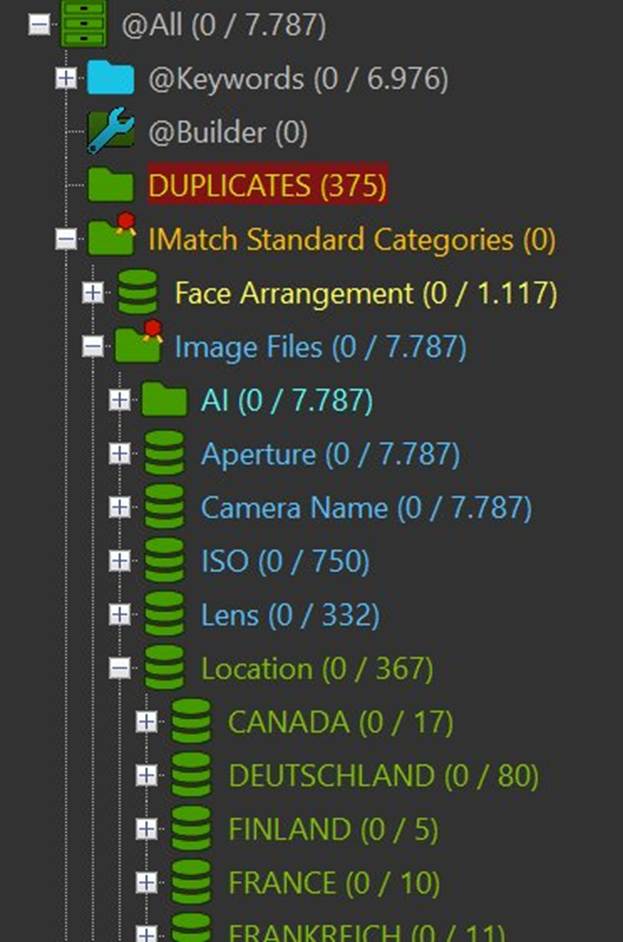
The screenshot shows a small subset of the categories IMatch automatically maintains.
The DUPLICATES category groups files detected as copies during indexing, making them easier to review.
The Face Arrangement category groups files by the number and arrangement of faces, for example, one person, two people, or several people close together.
Technical categories group images by metadata such as lens or camera name.
The Location category organizes images into country, city, and location levels. Selecting a country shows the images assigned to it.
The @Keywords category organizes your files based on the keywords they contain. For example:
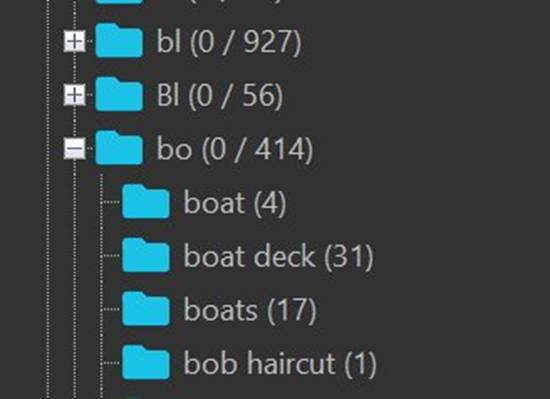
Selecting a keyword shows files tagged with it. You can also combine keyword criteria to find files containing all the terms you need.
Workflow Categories
Workflow categories help you see what still needs attention, especially when you are organizing a collection for the first time. In IMatch, they can highlight missing metadata:
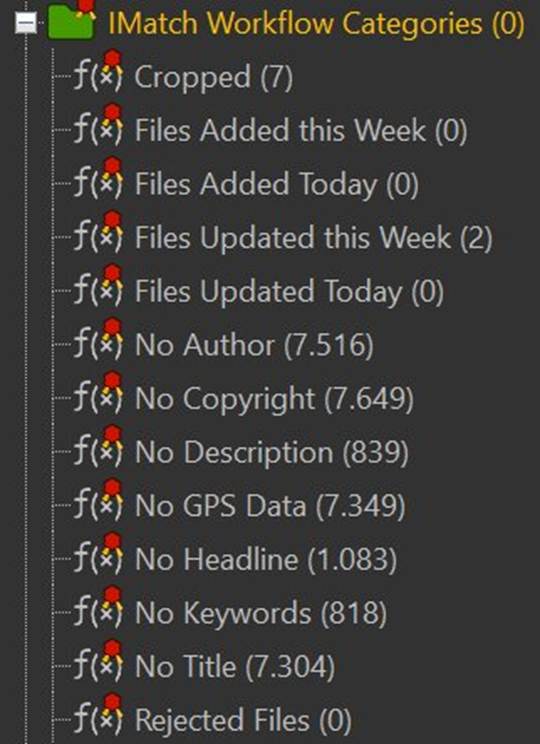
Dynamic categories such as “No Description” and “No Headline” show which files need those fields filled in. When you add the missing information, the file leaves the corresponding category automatically, making progress easy to track.
These examples use IMatch; other DAM systems may provide similar grouping tools under different names.
Rinse and Repeat
Use the same small routine for each new batch: index the files, review duplicates, check dates, add the descriptions and keywords you need, and check workflow categories for missing information. Keep new files organized as they arrive, and work through older material in manageable batches.
Put Your Organized Collection to Work
Consistent organization and useful metadata turn a sea of images into a collection you can work with. Depending on the DAM system and tools you use, that can mean:
- Your folders and files use a consistent naming convention.
- You can find any image instantly by a wide range of criteria.
- You can visualize your images on a timeline.
- Your images are organized automatically by date, people, location, keywords, and technical data, alongside any categories or collections you maintain manually.
- You can browse and view your images for culling, comparison, or review.
- You can open images in other applications with a single click.
- You can design prints, photo books, fact sheets, or albums and print them or export them as a PDF for sharing.
- You can batch-convert and export images in multiple formats, with or without metadata (for privacy).
- You can upload images to websites and services.
Before sharing an exported file, review which metadata will travel with it. Keep useful descriptions and rights information where appropriate, but exclude private notes, personal details, or precise location data when they are not intended for the recipient. Check the exported copy rather than assuming the settings produced the intended result. The IMatch Batch Processor gives you detailed control over whether to include metadata and which fields to include in exported files.
Summary
Getting started with digital asset management does not require reorganizing your entire collection at once. Begin with a manageable set of files, keep a reliable backup, and focus on the information that helps you find what you need. Consistent names, useful descriptions, accurate dates, and a practical set of keywords provide a solid foundation.
IMatch builds on that foundation with timelines, categories, metadata tools, and automation while leaving your files where they are. Review automated results, check what you share, and apply the same routine to each new batch. Whether you manage photographs, scans, or research material, the goal is a collection you can search, understand, and use, not a catalog with every field filled in.

Mario M. Westphal is the developer of IMatch, the digital asset management system (DAM) for Windows. He has a strong background in software development and photography, gained through working for over 30 years in the field for many clients. His special interests are photography, music. literature and of course software development, with a strong focus on digital asset management, database systems and image metadata. He hails from Germany.
You can reach him in the IMatch user community and via support@photools.com.