
IMatch Events: A More Natural Way to Organize Photos
If you’ve ever tried to organize years of photos with folders alone, you already know where it gets messy: real life doesn’t happen in neat directory trees. You remember moments—Paul’s birthday, the family vacation in the Bahamas, that spontaneous city trip to London—not “\2024\07\15” or “\DCIM\100CANON”.
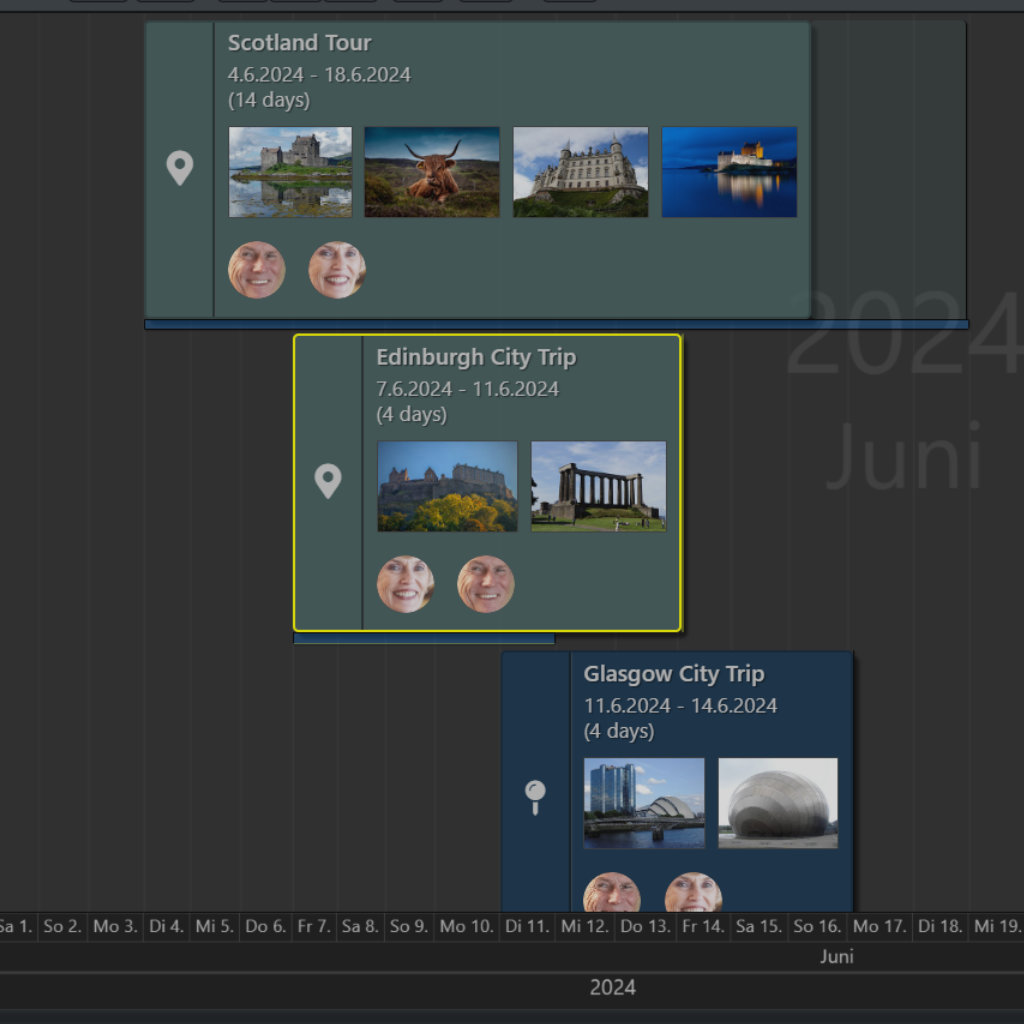
That’s the idea behind IMatch Events: a unique way to group related files into “event containers” and place them on a visual timeline, based on the date range of the files they contain. The result is a more natural, story-like way to revisit your photo history—without forcing you to reorganize your archive or change how you already work.
What Is an “Event” in IMatch?
An event in IMatch is a container that brings together files which belong together in your mind—because they belong together in time and topic. Each event has:
- a title (e.g., “City Trip to London”)
- one or more cover images used to represent the event in the timeline
- a time span (start date and duration), derived from the files inside the event
- optionally, an icon and colors (for example, from categories) to make events easier to scan visually
See IMatch Events in the IMatch Help System for detailed information.
IMatch then arranges your events along a dynamic timeline. Scroll back 5, 10, or 20 years and you can quickly jump between the “chapters” of your photo life—vacations, birthdays, weddings, client shoots—without having to remember where you stored them.
Why Events Feel More Natural Than Folders (Especially Over Time)
Folders are great for storage. But when you’re finding and using photos, folders often force you to think like a file system: What year was it? Which camera? Which import batch? Did I put the edited JPEGs next to the RAWs or in a separate folder?
Events flip that around: you organize (or at least navigate) by meaning. “Paul’s birthday 2025” is an event—even if the photos come from two phones, a DSLR, and a short video clip. “Family vacation in the Bahamas” is an event—even if you imported the images in three batches over two weeks. This matches how we naturally remember photos: as experiences, not as paths and timestamps.
You still manage your files in folders and organize them, e.g., with IMatch categories. Events work on top of that, allowing you to combine any number of files from one or more folders/categories into an event, such as “Car Show 2026”.
Event Types: Build Events From What You Already Have
Events in IMatch can be created in different ways, depending on how you prefer to work (or how your database is already organized). Events can be based on:
- Folders
- Categories
- Date ranges
- A set of selected files
This is important because it lets you reuse existing structures. If you already have a folder per trip, create folder-based events. If you’re a category person (think “albums”), create category-based events. If you want to capture a weekend or holiday across multiple sources, create a date-based event. And if you just want to pick “the best 120 shots” from anywhere, create an event from a file selection.
Events are dynamic when they are based on folders, categories, or date ranges: add a new file to the folder/category (or into the covered date range) and the event updates automatically. A special case are file-based events created from an explicit file set: their contents stay fixed unless you add or remove files yourself.
Tip: With the Pin feature you can pin an event anywhere on the event timeline.
Creating Events (Without Changing Your Workflow)
You can create events from several places in IMatch: from the Media & Folders view (folder-based events), the Category View (category-based events), any File Window (events based on the files you select), and in the Timeline View (date-based events). This makes events feel less like a separate feature and more like an additional “lens” on top of the same database.
Working in the Event View: Timeline + Thumbnails
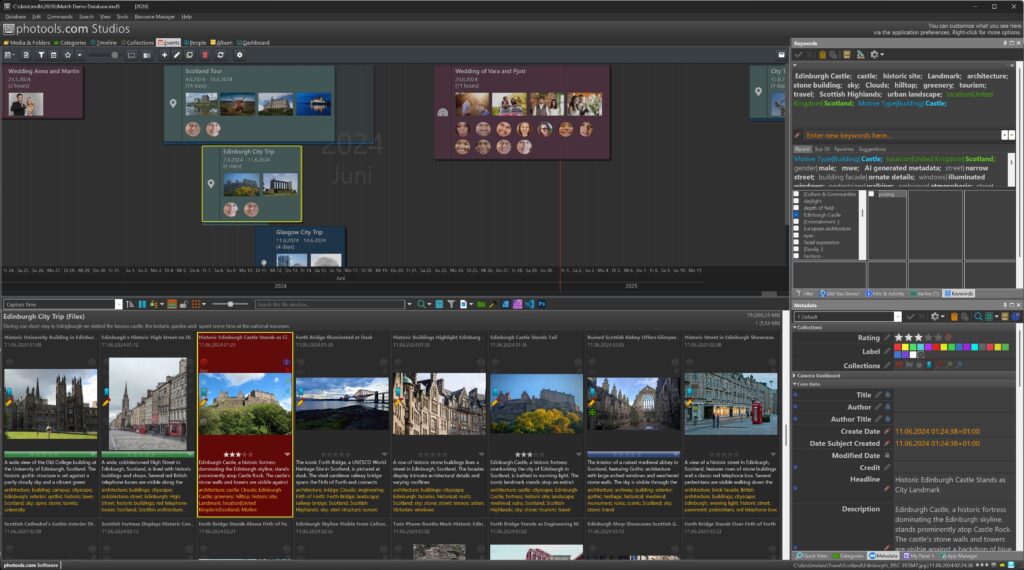
The Event View combines two things: the event timeline and a File Window. The timeline shows all events you’ve created; the File Window shows the files contained in the currently focused event. In practice, this makes browsing fast: pick an event on the timeline, immediately see the matching files in the File Window, and continue from there (filter, rate, tag, export, etc.).
Practical Ways Photographers Use Events
Here are some real-world patterns where events tend to work especially well:
- Trips and vacations: one event per trip, even if photos come from multiple cameras and folders.
- Family milestones: birthdays, weddings, school events—easy to revisit every year.
- Recurring activities: “Saturday hikes”, “Car shows”, “Birding at the lake” as a long-running series of events on the timeline.
- Projects and shoots: keep a client shoot, a personal photo project, or a multi-day workshop together.
Tips for Getting the Most Out of Events
- Name events the way you would tell the story. “Family Vacation – Bahamas (2024)” is easier to scan than “2024-07-Trip”.
- Choose meaningful cover images. The timeline is visual—strong covers make it faster to recognize events at a glance.
- Pick the right event type. Use folder/category/date-range events when you want automatic updates; use file-based events when you want a curated, fixed set.
- Don’t replace categories/keywords—complement them. Events are a time-and-topic “container”; metadata and categories still do the heavy lifting for search, filtering, and consistency.
- Think in ‘chapters’, not in micro-events. If you create an event for every short walk, the timeline becomes noisy. If you create only one event per year, it becomes too broad. Find a granularity that fits your photography.
FAQ
Do events duplicate or move my files?
No. Events are organizational containers inside the IMatch database. Your files stay where they are on disk.
How does IMatch determine the date range of an event?
Events have a start date and duration based on the files they contain (see: How IMatch uses Date and Time Information}. That’s what allows IMatch to place them on the timeline.
Will an event update automatically when I add more photos later?
Yes—if the event is based on a folder, category, or date range. File-based events are fixed unless you change them manually.
What if the capture dates in my files are wrong?
Because events rely on file dates, it’s worth fixing incorrect timestamps (for example after scanning or camera misconfiguration). Once the file dates are correct, the event’s position and span on the timeline will reflect that.
Tip: The IMatch TimeWiz is the ideal tool to add and modify timestamps for any number of images in one go.
Conclusion: Organize Photos Like You Remember Them
IMatch Events add a simple but powerful perspective to a DAM database: a visual timeline of the things that matter to you. Instead of navigating by folders or trying to reconstruct date ranges, you can jump straight to “that weekend”, “that trip”, or “that shoot” and immediately work with the right set of files. If you want to go deeper, the IMatch help has a full reference for creating and managing events, event types, and the Event View.

Mario M. Westphal is the developer of IMatch, the digital asset management system (DAM) for Windows. He has a strong background in software development and photography, gained through working for over 30 years in the field for many clients. His special interests are photography, music. literature and of course software development, with a strong focus on digital asset management, database systems and image metadata. He hails from Germany.
You can reach him in the IMatch user community and via support@photools.com.