
How to Find and Remove Duplicate Images in IMatch
New users establishing a digital asset management (DAM) workflow with IMatch often discover that their photo collection contains numerous duplicate images. Over time, duplicates can accumulate as files are downloaded from cameras and devices, copied between drives, or contributed by multiple people. These issues can complicate image organization and slow down DAM processes.
In business environments, the problem is usually more pronounced. Over the years, many team members may have added images, storage locations may be scattered across different devices, and there is often a lack of standardized file naming conventions or organizational structure.
What Are Duplicate Images?
IMatch identifies two main types of duplicate images:
- Copies — Files that are exactly the same, including metadata and all file data.
- Duplicates — Files where the image data is identical or nearly identical, regardless of metadata or other file information. This is determined by an image fingerprint algorithm used by IMatch. This method finds visually identical images even if metadata has been changed in the image or the image was slightly cropped or modified.
How to Find Copies
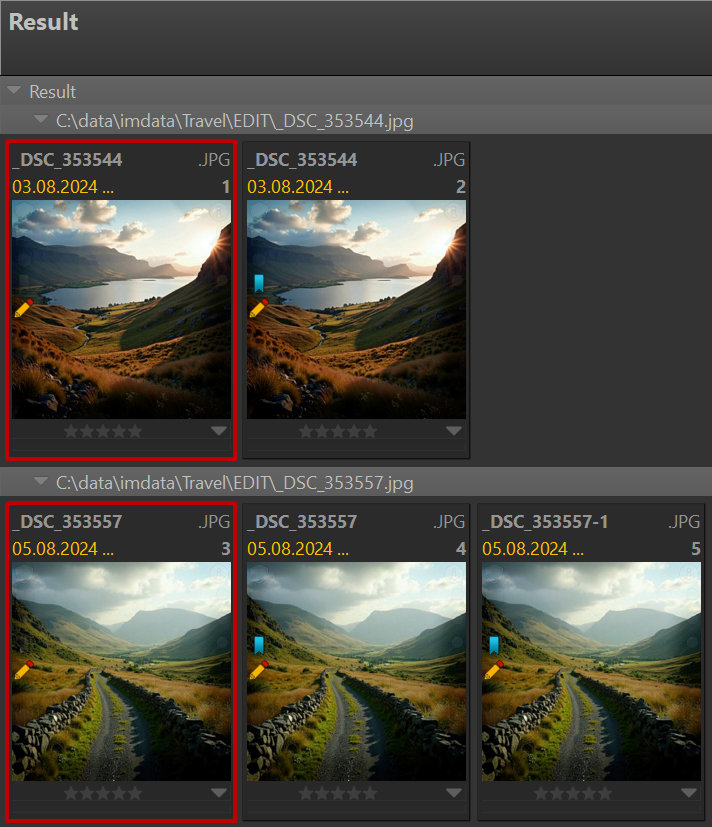
To locate copies, select the images you want to examine in a File Window. These are considered originals. Next, choose Search menu > Copies (binary identical). IMatch searches the database and displays a Result Window showing all files with at least one identical copy. The Result Window highlights original files with a red border, followed by the identified copies.
How to Find Duplicates
To search for duplicate images, select one or more files in the File Window and run Search menu > Duplicates. IMatch will open a Result Window showing all selected files that have one or more duplicates.
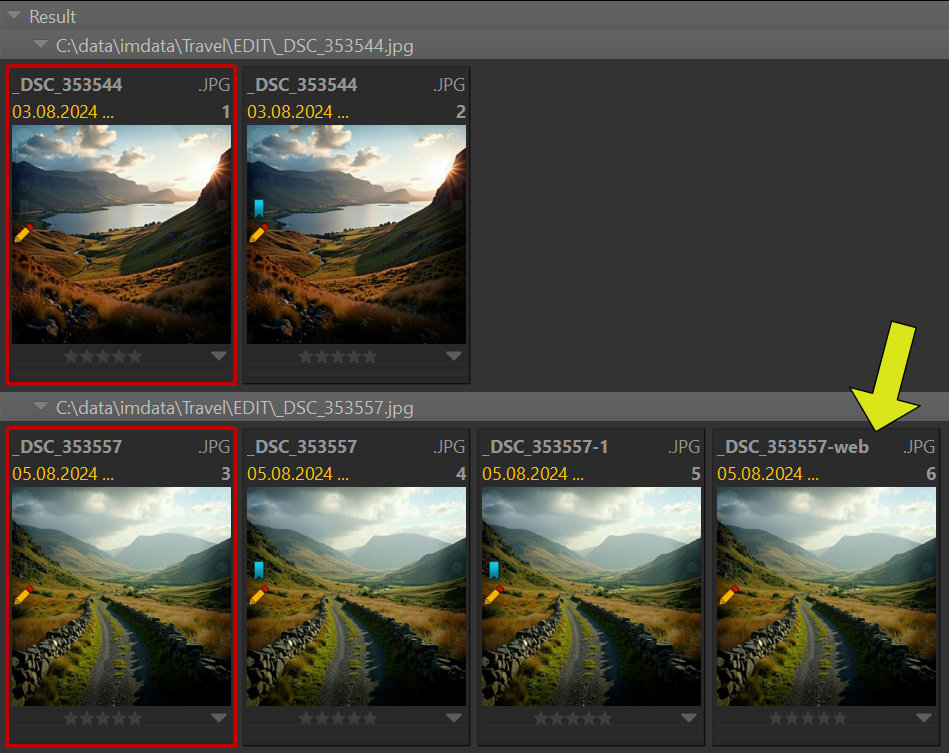
For images where metadata has changed, the duplicate search may return visually identical files that are not 100% binary copies. For example, if a photo’s metadata was edited, it will be flagged as a duplicate but not as a direct copy.
Note that for the second image searched in the example shown above, the search duplicate command returns one additional image (yellow arrow). This image looks the same as the others but contains changes in its metadata record. It is no longer a 100% binary identical copy of the original image.
Why IMatch Offers Multiple Duplicate Search Modes
Both search modes serve valuable but distinct purposes. The Copies search command only identifies files that are 100% identical in every way.
To find visually identical images—even if their metadata has changed or they have been slightly edited or cropped—use the Duplicates search command.
How to Consolidate Copies and Duplicates
The IMatch Result Window functions like a regular File Window and provides commands to move, copy, rename, and delete files. This functionality makes it easy to remove unnecessary copies, navigate to folders containing duplicates, and decide which instance to retain.
If duplicates exist in separate folders, you can utilize IMatch’s standard file move features to organize and consolidate them into a single folder, streamlining your image library.
Tip: The IMatch Clipboard is a powerful tool for consolidating images from various folders efficiently.
Quickly Replace Duplicates and Copies
For frequent scenarios where you need to consolidate copies and duplicates by replacing originals with duplicates (or vice versa), the Result Window offers dedicated commands to make this process fast and straightforward.
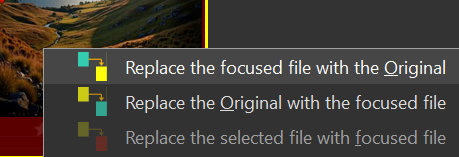
For more details, see Cleaning Up Duplicate Files Quickly in the IMatch help system.
Automatically Detecting Duplicate Images
IMatch provides an automated way to search for duplicate images when new files are added to your database. Through the Edit menu > Preferences > Indexing dialog, you can configure whether and how IMatch scans for duplicate photos during folder indexing. This feature helps maintain a clean and organized library, improving your digital asset management workflow.
If duplicates or copies are found, IMatch automatically assigns them to a dedicated category and displays a notification. You can then review the duplicates category and choose the appropriate action, making it easy to manage and remove redundant images.
Creating Version Sets from Copies and Duplicates
IMatch offers advanced version control features for digital images. In addition to creating versions from file names, XMP metadata, or manually, IMatch can generate versions from copies and duplicate files, streamlining your photo management process.
This process automatically groups originals and duplicates into version stacks. Versions are displayed in the Version Panel and shown in master thumbnail tool tips within File Windows, making it simple to track and manage different versions of your images.
For more information, see the File Relations Configuration help topic in the IMatch Help system.
Sort by Visual Similarity
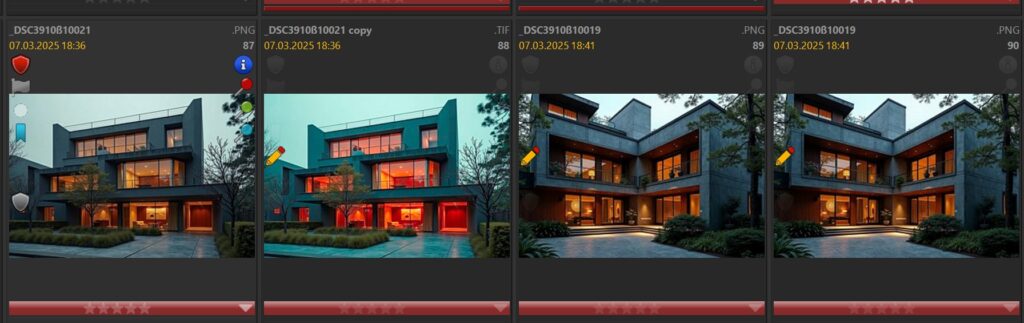
The special Sort Profile Similar Images can be used to quickly identify copies or duplicates just by sorting the File Window. Duplicates or copies will be sorted next to each other.
In the screen short below, the second image has been processed and shows different colors that the original on the left. It is still sorted next to the original because their similarity is high. The two images on the right are actual copies.
Summary
IMatch provides two distinct search modes for managing duplicate images: “Copies” identifies files that are completely identical, while “Duplicates” finds visually similar images even if they’ve been modified. The Result Window allows users to efficiently consolidate, organize, and replace duplicates and copies using built-in commands and tools like the IMatch Clipboard.

Mario M. Westphal is the developer of IMatch, the digital asset management system (DAM) for Windows. He has a strong background in software development and photography, gained through working for over 30 years in the field for many clients. His special interests are photography, music. literature and of course software development, with a strong focus on digital asset management, database systems and image metadata. He hails from Germany.
You can reach him in the IMatch user community and via support@photools.com.