
File Naming Conventions Made Easy with the IMatch Renamer
File naming conventions help you keep images and other digital assets consistent and easier to find, sort, share, and archive. That matters for professional workflows with clients and teams, but it also pays off for hobby photographers, scientists, and librarians.
This post is not about “the perfect” convention—because there isn’t one. Your requirements determine what goes into the file name. What matters most is consistency: once you settle on a convention, stick to it. If you change it later (common), a good DAM like IMatch can re-apply the new convention to existing files automatically.
Common Building Blocks of a File Naming Convention
Date (Start with the year)
For many workflows, the date is the most useful part of the file name. It conveys when something was created and it makes sorting reliable—even in tools that only sort by text.
Use a year-first format (ISO 8601 is a good default):
2026-01-31.jpg
20260131.jpg
Starting with the year, then month, then day makes file names naturally sortable. If you have to, add the time in hh:mm:ss (24 hour format or with AM/PM indicator) too.
Client and/or project ID
If you deliver files to clients or work in projects, include a stable identifier like a client id and project id:
2026-01-31-PTC-PS1This is an asset created on January 31, 2026 for client PTC and project PS1.
Short description (optional, keep it short)
If you include a description in the file name, keep it brief and predictable. Put full descriptions into metadata instead (e.g., the XMP dc:description field).
2026-01-31-PTC-PS1-(cio-portrait)Author/creator ID (team workflows)
In multi-person environments it can be helpful to include who created or last modified the file:
2026-01-31-PTC-PS1-(cio-portrait)-mweVersion or intended use
If you produce multiple versions during editing and delivery, add a version number or a usage tag:
2026-01-31-PTC-PS1-(cio-portrait)-mwe-02
2026-01-31-PTC-PS1-(cio-portrait)-mwe-web
2026-01-31-PTC-PS1-(cio-portrait)-mwe-deliver
Serial numbers, sequences, and GUIDs
Some environments require a guaranteed unique identifier in every file name. That can be a sequential number (global or per day) or a GUID (globally unique id).
This is easiest (and safest) when a DAM keeps track of global sequences and can generate serial numbers or GUIDs during renaming.
Pro tip: When file names are intended for the web, using hyphens (-) instead of underscores (_) as separators can be beneficial for readability and (lightly) for SEO.
Additional Things to Consider
Uppercase vs. lowercase
The Windows file system is case-insensitive. macOS and Linux systems (and most web servers) often treat Beach.jpg and beach.jpg as different files. Pick a style (many people choose lowercase) and keep it consistent.
File name length and path length
Long file names become a problem when combined with deeply nested folders. Windows compatibility can still be affected by path-length limits (254 characters), depending on configuration and the tools involved. Keeping file names reasonably short improves portability.
Avoid special characters (and be conservative)
Different platforms reserve different characters. For maximum compatibility, avoid:
/\:*?"<>|- spaces and tabs (use
-instead) - non-ASCII characters (e.g.,
ÄÖÜäöüßá,é,í,ó,ú) if you deliver images and other files across systems or to web services
How IMatch Supports Your File Naming Convention
IMatch includes a powerful Renamer that can rename and distribute files (copy/move into existing or dynamically created folders). You build file names using a sequence of steps. Steps are processed top to bottom, and each step uses the output of the steps above it.
The Renamer is powerful, but straightforward to use:
- Combine about 50 different step types like building blocks.
- Store step sequences as Renamer Presets and re-run them any time.
- Create Favorites from presets to rename with one click or keyboard shortcut.
- Use Preview to simulate the rename for all selected files, including collision handling, invalid names, and move/copy targets.
You can access the Renamer via Tools > Renamer (default shortcut Ctrl + F2). If you use the regular rename command (F2) with more than one file selected, IMatch offers to run the Renamer.
Example: Date + per-day sequence (unique and sortable)
A practical “always works” convention is date + sequence number, for example:
2026-01-31-000001.jpg
2026-01-31-000002.jpg
In the Renamer, you can build this with just a couple of steps:
- A date step (emit the date in
YYYY-MM-DDorYYYYMMDDformat) - A – as the separator
- A per-day sequence step (counts
1..nfor each day) or a unique-number safety step

Tip: steps like Day Sequence Number depend on file order—sort by date in the Renamer (or in the File Window) to get consistent results.
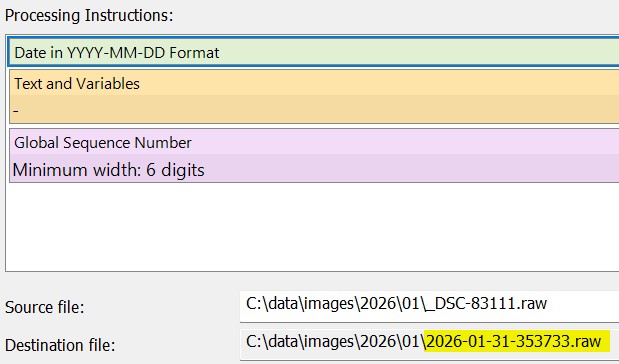
Example: Date + global sequence number (unique and sortable)
For this example, we combine
- A date step (emit the date in
YYYY-MM-DDorYYYYMMDDformat) - A – as the separator
- The global sequence number the Renamer offers and maintains automatically
Example: A more complete naming convention (with prompts and metadata)
Let’s take the earlier example and make it easy to apply in one go:
2026-01-31-PTC-PS1-(CIO Portrait)-mwe-web-V1.jpgThis is where Renamer presets shine. These sequence of steps implements the complex file naming convention explained above, including client id and project code, description, and author tag.
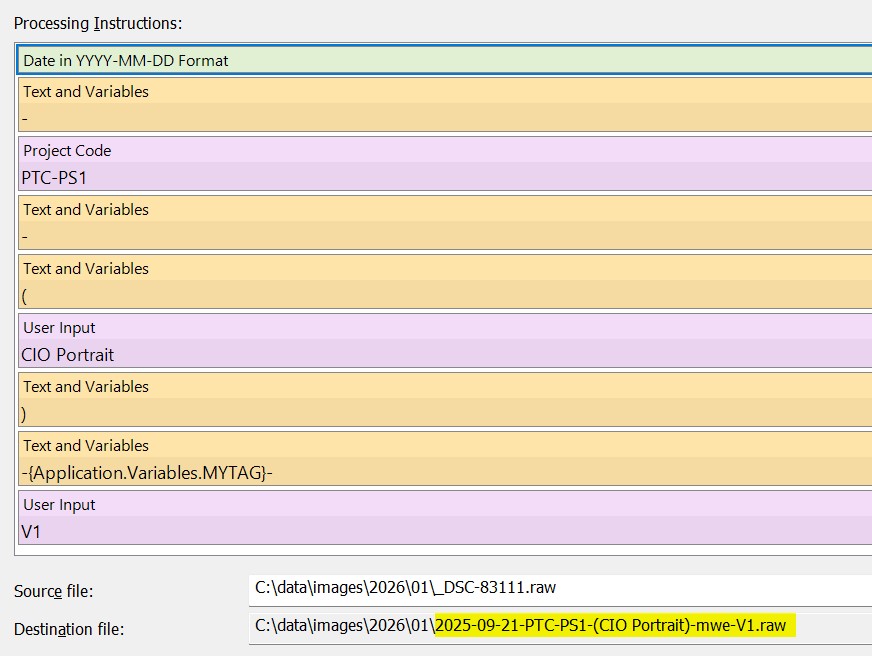
When you run this preset in the Renamer, it will prompt you for input for user-provided values like Project Code and User Input:
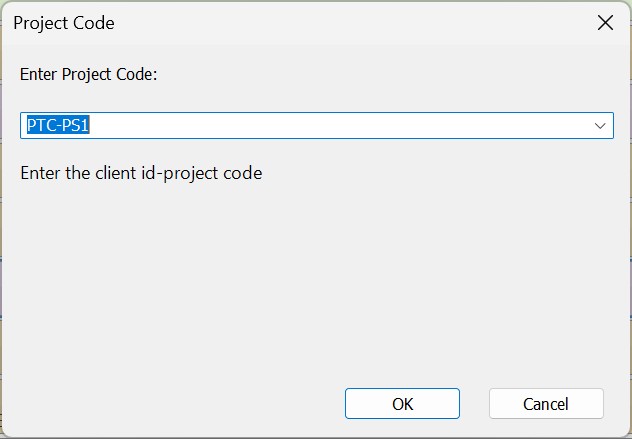
You can of course also hard-code client id, project code and author tag in a Renamer preset and make the Renamer only ask for the short description or version/use of the image.
Tip: Always run Preview before you click Run, especially when you rename large batches or when your preset includes move/copy steps.
Summary
- Pick a file naming convention that fits your workflow, then apply it consistently.
- Use a year-first date (
YYYY-MM-DDorYYYYMMDD) to make file names naturally sortable. - Add only what you really need (client/project IDs, a short description, author ID, version/usage).
- Keep names portable: avoid special characters, keep lengths reasonable, and be careful with case on macOS/Linux/web servers.
- Use the IMatch Renamer to automate the convention with step-based presets, prompts (project code/user input), and Preview to validate results before you rename.
Other DAM Knowledge Base Articles
- Automatically Synchronize Your IMatch Database with Cloud Storage
- IMatch 2025.9.2 Released
- IMatch 2025.8.2 Released
- File Naming Conventions – Made Easy With IMatch’s unique Renamer
- How to Find and Remove Duplicate Images in IMatch

Mario M. Westphal is the developer of IMatch, the digital asset management system (DAM) for Windows. He has a strong background in software development and photography, gained through working for over 30 years in the field for many clients. His special interests are photography, music. literature and of course software development, with a strong focus on digital asset management, database systems and image metadata. He hails from Germany.
You can reach him in the IMatch user community and via support@photools.com.