
Metadata is the backbone of effective digital asset management (DAM). It helps organize, search, and retrieve your files efficiently. If you’re using IMatch on Windows, you have a powerful tool at your fingertips called the Metadata Mechanic. This app simplifies complex metadata tasks that other tools can’t handle easily.
What Does the Metadata Mechanic Do?
The Metadata Mechanic is designed to help you:
- Fill in missing metadata values.
- Replace existing metadata values (e.g., correct typos or update names).
- Change the name of a person after marriage in metadata
- Append or prepend text to values (e.g., add prefixes like “web_” or suffixes like “_HDR”).
- Convert text to uppercase, lowercase, or title case (e.g., standardize keywords).
- Replace values using advanced rules with regular expressions.
- Generate numerical sequences for tags (e.g., image series numbering).
This makes it easy to fix common issues like misspellings, add missing data, or perform complex text replacements across your entire collection.
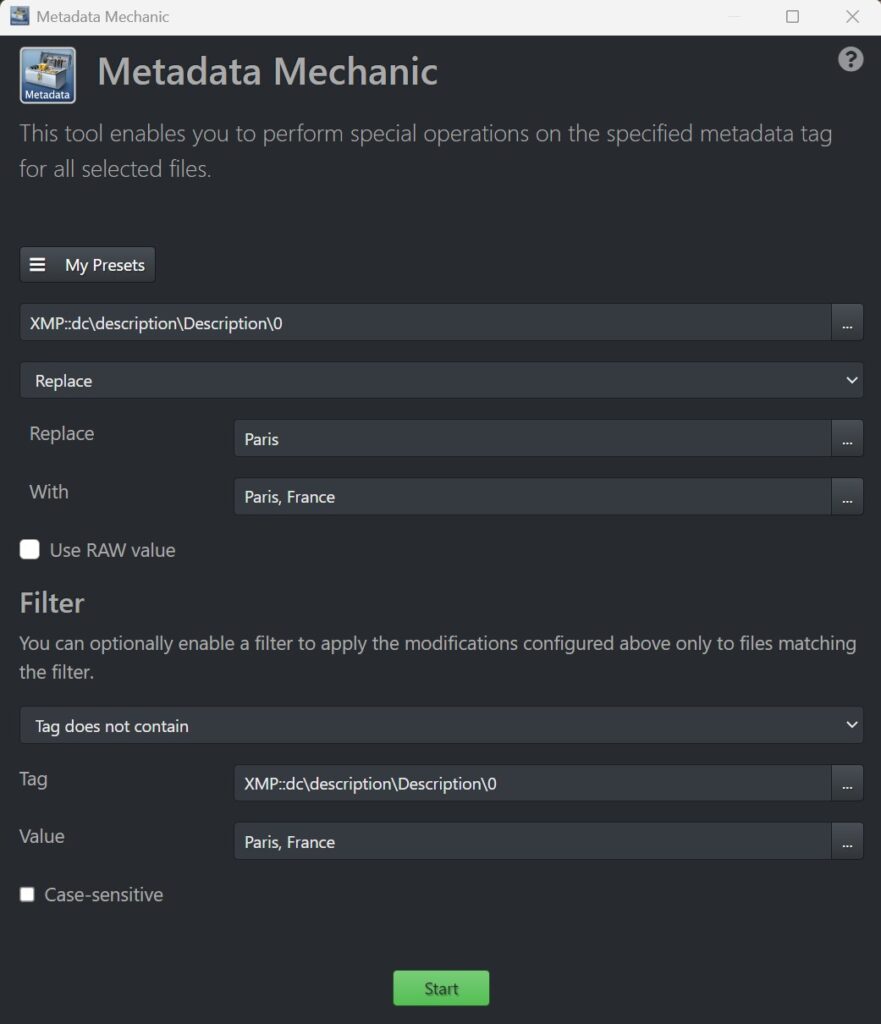
How It Works
Using the Metadata Mechanic is straightforward:
- Select the files to work on in a File Window.
- Open Metadata Mechanic from the Tools menu in IMatch.
- Specify the Target Tag: Choose the metadata tag you want to modify (e.g., keywords, artist name, location).
- Select an Operation:
- Set: Replace the entire value with a new one.
- Replace: Swap specific text within the value (e.g., correct typos or update names).
- Append/Prepend: Add text to the beginning or end of existing values.
- Text Transformations: Change case (uppercase, lowercase, title case) or format text.
Define the Value:
- Use literal text (e.g., “New York”).
- Pull data from other metadata tags or variables (e.g., copy an artist name to a copyright field).
- Generate numerical sequences (001, 002, …) in a selected tag for sorting or other purposes.
- Use multiple variables to collate text from multiple tags into one.,
The ability to use IMatch Variables makes this tool extra powerful, allowing you to pull dynamic data from other parts of your metadata, IMatch Attributes or file properties.
Key Operations
1. And and Replace Tag Content
- Fill tag values from literal text and/or variables.
- Replace existing metadata tag values with literal text.
- Replace existing content by copying one or more other metadata tags, Attributes or file properties
2. Delete Tag Content
This operation lets you clear a metadata tag entirely. Use with caution!
- Many XMP tags are mapped to EXIF, GPS, or IPTC tags during write-back.
- Always delete the XMP version if it exists to avoid leaving orphaned data in other formats.
3. Use Filters for Selective Replacements
You can add filters to control which files or values get processed:
- Append text only if the tag doesn’t already contain it (e.g., avoid duplicates).
- Replace text based on conditions (e.g., update a family name after marriage).
- Change tag values only when another tag has a specific value or vice-versa.
4. Handling Date and Time Tags
When setting date and time tags from variables, always use the correct format: YYYY:MM:DD HH:MM:SS.
Why? Variables default to your local date format, which does not match the actual date and time format used in metadata tags.
Example:
{File.MD.XMP::xmp\CreateDate\CreateDate|format:YYYY:MM:DD hh:mm:ss}Typical Use-Cases
Here’s how you can use the Metadata Mechanic in real-world scenarios:
Fix Typos:
Replace incorrect spellings in keywords, artist names, or locations across thousands of files.
Batch Editing:
Append a prefix (e.g., “web_”) to all filenames or add suffixes like “_HDR” to high-dynamic-range images.
Name Changes:
Update metadata when someone changes their name (e.g., after marriage). Replace old names with new ones in one batch operation. Optionally use a filter to avoid replacing the name multiple times.
Location Updates:
Correct GPS coordinates or location tags if they were entered incorrectly during import. Change location data like city name or street name when things have changed.
Keyword Management:
Standardize keywords by converting them to lowercase, capitalizing the first letter of each word, or replacing synonyms (e.g., “USA” with “United States”).
Tip: You can also use the features provides by the IMatch Universal Thesaurus to globally change keywords.
Create Numerical Sequences:
Generate sequential numbers for tags like image series or batch IDs in a selected tag. This can help to persist a sort sequence for other applications to use.
Text Transformations and Normalization:
Convert all text in a tag to uppercase, lowercase, or title case (e.g., turning “new york” into “New York”).
Copy Data Between Metadata Tags:
Copy data from one metadata field (e.g., artist name) into another (e.g., the copyright tag), including adding the current year and a copyright symbol.
Combine Tag Values:
Using multiple variables to collate contents from multiple tags into one.
Import File Properties into Metadata
Sometimes file names contain useful information like dates or location names. The Metadata Mechanic makes it easy to access, transform and copy this data into metadata tags.
Note: There is some overlap in this regard between the Metadata Mechanic and Metadata Templates.
Tips for Success
- Test First: Always test your operations on a small batch of files before applying them to your entire collection.
- Use VarToy: If you plan to use complicated variables, test them in IMatch VarToy, then copy them into the Metadata Mechanic
- Use Variables Wisely: Leverage variables to pull dynamic data from other tags or file properties (e.g.,
{File.Name}). - Check RAW Values: If working with numerical data, verify that the raw value is being used correctly.
Summary
The Metadata Mechanic is a versatile and powerful tool that can significantly streamline your metadata management in IMatch. Whether you’re fixing typos, updating information, or performing complex operations, this app provides the flexibility and control you need. By mastering its features—from basic text replacements to advanced filters and raw value handling—you’ll enhance your workflow and ensure accurate, consistent metadata across your datasets.
Next Steps
- Check out the Metadata Mechanic help topic in the IMatch Help System.
- Use the Metadata Mechanic with a few sample files to see what it can do for you.

Mario M. Westphal is the developer of IMatch, the digital asset management system (DAM) for Windows. He has a strong background in software development and photography, gained through working for over 30 years in the field for many clients. His special interests are photography, music. literature and of course software development, with a strong focus on digital asset management, database systems and image metadata. He hails from Germany.