Welcome to IMatch 2026!
This new version introduces a range of new and exciting features, enhancements
to existing functionality, important security updates for third-party components, performance and usability improvements,
and bug fixes.
Read this page carefully to make your upgrade quick and smooth.
Items marked with TODO may require you to take action.
If you are upgrading from a version older than IMatch 2025,
make sure to read the previous upgrade guides:
IMatch 2023 to IMatch 2025 -
IMatch 2021 to IMatch 2023 -
IMatch 2020 to IMatch 2021 -
IMatch 2020 Migration Guide
What's New?
Lots! If you haven't already, check out the IMatch 2026 overview page and read the Release Notes.
File Window Tips Are Now Using Overlays
File Window Tips now use the same overlay technology as the Peek View, the Viewer, and My Panel. This makes creating and styling your own File Window Tips much easier than working with XAML.
TODO Virus Checker
IMatch 2026 has a new file name for the IMatch executable (IMatch2026x64.exe).
If you have an exclusion/exception configured for the IMatch executable in your virus checker, make sure to update it accordingly.
TODO Migration From Old File Window Tips
There is no automatic conversion available that converts existing File Window Tips into the new overlay-based variant.
When IMatch 2026 loads the existing File Window Tips for the first time, it preserves existing tip content by converting each tip row into an overlay row. The XAML formatting is ignored and no longer functional, but if you have used custom variables, they are preserved. You can strip the XAML tags and replace them with HTML formatting as needed. See Overlays for formatting guidance.
Loading the New Default Tips
If you have not customized the File Window Tip or you want to start over, you can load the new overlay-based layouts via the Load button in Edit > Preferences > File Window Tip.
Load the C:\ProgramData\photools.com\IMatch6\Presets\system-LL.imfwt2 preset. The LL stands for the
language code, such as 'en' or 'de'.
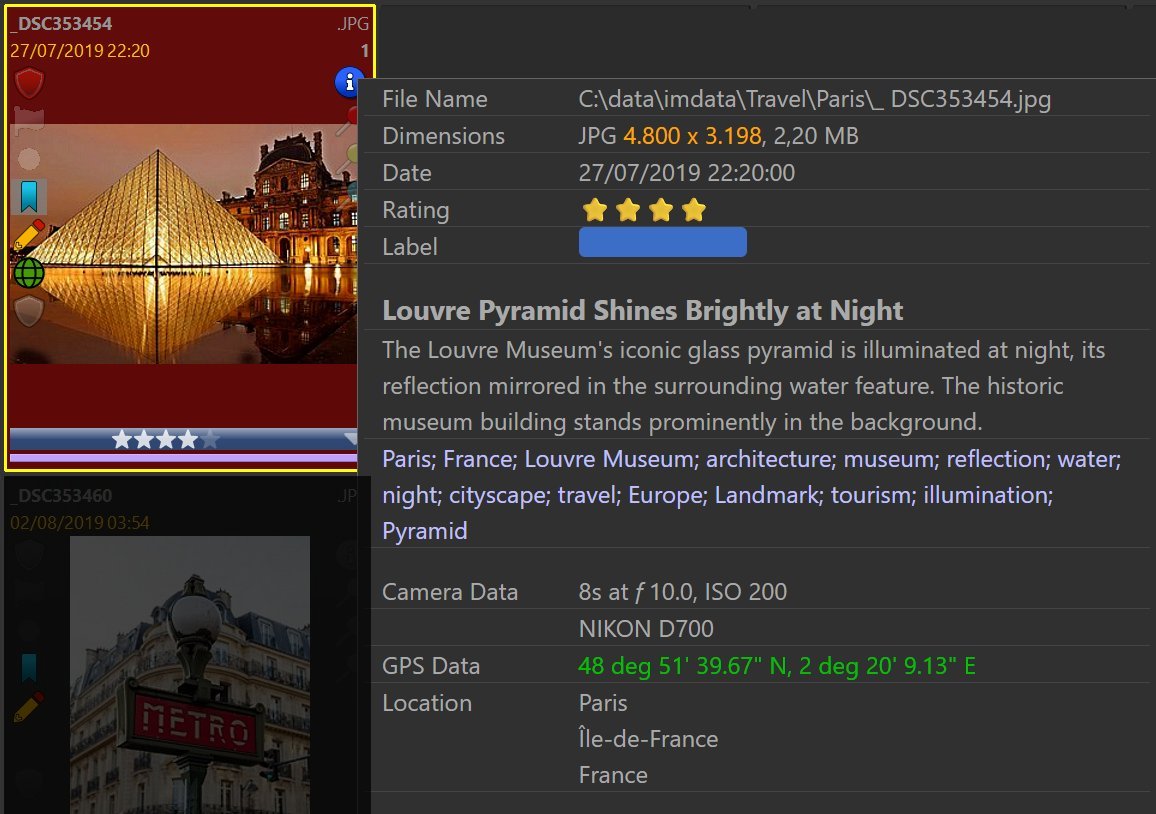
The default File Window Tip in IMatch 2026.
TODO Improved Visual Query Technology
We have improved the technology behind features like Find Visually Similar Images, Sort By Visual Similarity, and duplicate detection during file import.
To benefit from these enhancements, you need to rebuild the visual query index for your database. Run Database menu > Tools > Rebuild Visual Query Data.
TODO Set Language Used for Metadata
IMatch uses this language when it processes metadata in certain features, such as the new sorting by keywords or grouping files by their keyword similarity. Setting the correct language is important for internal processing IMatch performs, such as stemming.
To set the language, go to Edit menu > Preferences > Metadata 2: Settings.
By default, IMatch sets this language to the user interface language you have configured.
Optional Set Allowed Assignment Time Range for People
You can now define a time range for IMatch to consider when automatically assigning persons to faces. For example, you know that there can be no photos with "Susan" before 2016. Or you know that there cannot be any photos with "Paul" after 2024, because he left the company or moved away.
You can now configure this for "Susan" and "Paul", and IMatch respects the time range when considering a person for a face.
Optional IMatch AI
IMatch now has an integrated AI that is currently used for the new semantic search feature and will be used for other features we plan to introduce in the future.
Check out the IMatch AI configuration options and the help topic for semantic search to learn more.
Optional Support for Llama-Server and Custom AI Services in AutoTagger
If you want to work with the latest models, custom models, or just models not supported by Ollama/LM Studio yet, you can run lama-server directly on your PC. This is part of the llama.cpp project that is the base for projects like Ollama or Unsloth Desktop.
The Custom AI Service is AutoTaggers new and most flexible AI connector.
You can use it to use software like Unsloth Desktop or to connect to cloud-based AIs different than OpenAI, Google Gemini, or Mistral AI.
If the service you use supports the standard OpenAI chat/completion endpoint and structured responses,
AutoTagger can use it.
Optional ExifTool Language Setting
Until now, IMatch always used en (English) when importing and displaying formatted tag values.
ExifTool produces formatted values like Flash not fired or Aperture-priority AE.
IMatch stores these values in the database and displays them in the Metadata Panel, in Variables, etc.
There is now a new option in Edit > Preferences > Metadata that allows you to change the language used to one of the other languages supported by ExifTool:
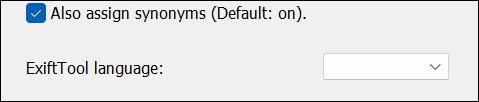
- For existing databases, this field is empty, which means default. The default is 'en' (English), as before.
- For new installations, the language is set to the same language the user selects for the IMatch user interface. This shows formatted tag values in the native language of the user.
What It Does
If the ExifTool language setting is changed to, e.g. 'de' (German), metadata of images
added or rescanned after the language setting was changed uses formatted values
in that language. For the two values used above, we now get Blitz nicht ausgelöst or Blendenpriorität.
In the Metadata Panel
The Metadata Panel uses the ExifTool language setting when loading available values for list-style tags like Exposure Program.
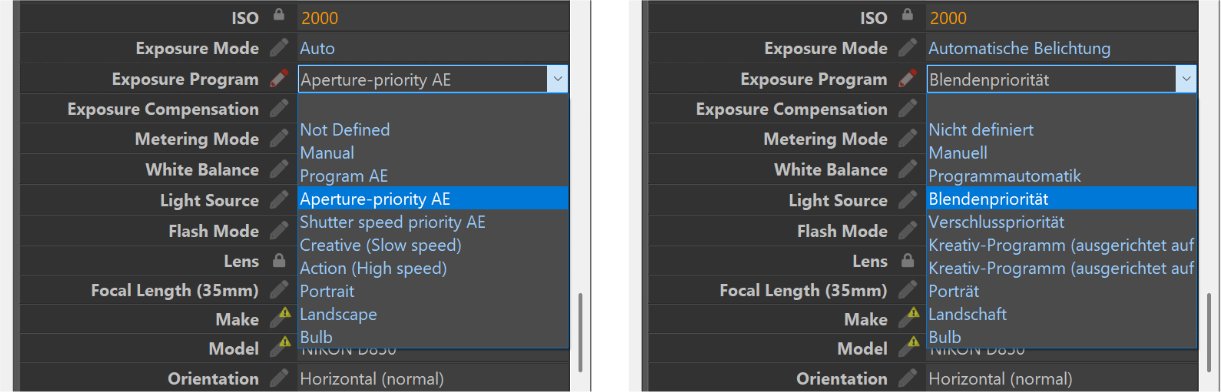
The Metadata Panel using English or German for list-style tags.
(IMatch user interface language is set to English).
This creates a small issue for some tags, which have only a text value and no associated key or raw value. The drop-down control contains a list of values in the language set as the ExifTool language. But the tag value stored in the database may be in a different language and therefore may not appear in the current list of values.
IMatch handles this gracefully by falling back to values in the default language 'en' for the lookup. If the value stored in the database is not found in the English values either, it is displayed 'as-is'.
Developers Improved IMWS Security
IMatch 2026 no longer allows unauthorized access to the IMatch Anywhere WebServices™ (IMWS) embedded in IMatch. This change was implemented for security reasons. Scripts or web browsers can no longer access IMWS endpoints, unless the Allow external access option has been enabled in Edit menu > Preferences > Application: IMatch Anywhere WebServices.
IMWS offers potentially dangerous functionality like deleting files or modifying metadata. A malicious agent or a local AI in agentic mode can theoretically access IMWS and delete all folders managed in IMatch or manipulate metadata. The chance for this to happen is much higher today than it was when IMWS was introduced years ago.
IMatch now ensures that only WebView2 instances running in an App Panel or an app-based View like People or Events can authenticate with IMWS and call protected endpoints.
A number of "non-dangerous" endpoints like v1/files/image can still be accessed without
authentication, which still makes it possible to, for example, fetch a thumbnail from inside an overlay.
Check out the IMatch 2026 overview page and the detailed release notes to learn more about all changes and additions in this release.