Experimental Feature
Semantic Search with AI
IMatch's semantic search is an AI-based tool that uses metadata you have entered manually or created with AutoTagger to improve searches in your database.
This is an experimental feature. It cannot harm your database or IMatch installation, but it might not function correctly in all situations yet.
What It Does
This feature is designed to enhance the search functions already available in IMatch by using the integrated IMatch AI. It enables natural language queries for both words and concepts. It also helps overcome common search problems such as singular and plural forms (woman/women, car/cars), synonyms (big/large, shut/close), and similar terms (old/elderly/senior).
For example, if you search descriptions for the term car using the normal search engine in IMatch, it finds images with descriptions containing the words car or cars. It will not find images where the description contains the words auto or automobile, even though car and automobile describe the same "thing". The Semantic search feature aims to solve this problem.
If you're searching for senior person or senior people, semantic search will find images with descriptions mentioning older people, elderly people, or grandma in the results. Or, if you search for young people, semantic search also finds images with descriptions mentioning boy, girl, or child. The AI also links terms like Tokyo to Japan, fish to sushi, beef to burger, cola to soda, and Mexican food to images mentioning chili in the description.
A natural language query like "A person riding a bike" returns images with descriptions like:
- A young woman is riding a bicycle on a paved road. She is wearing casual clothing and looking directly at the camera.
- Two women are captured in a candid moment, cycling side-by-side down high street.
- Two cyclists stand with their bicycles against a vibrant sunset or sunrise horizon, silhouetted against the glowing sky.
- A young woman leans on the handlebars of a light blue Vespa scooter outdoors.
- A biker riding a Harley Davidson motorcycle on a country road.
These examples are from our test database. The descriptions vary substantially, but the concept "person riding a bike" is similar for all these images. It would have been much harder to find these images using regular search functions. At least multiple searches or a complex search using Boolean logic would have been required.
Do You Need This?
IMatch offers powerful search features, allowing you to find files by name, folder, category, metadata like keywords or descriptions, and to find duplicate files, copies, visually similar images and images similar to a drawing you provide.
Semantic search extends these search functions, allowing you to find files even without knowing the exact words or terms used in descriptions or keywords. This can be very helpful if you work with an image collection with descriptions and keywords created by multiple persons, without clear guidelines for how to name and describe things and no controlled vocabularies for keywords.
If you combine semantic search with dedicated AI or manually created image descriptions designed to produce optimal embeddings, you make your database much easier to discover using imprecise or fuzzy search terms.
Typical audiences for this feature include libraries, historians, stock photo agencies, and corporate and institutional users.
They also include enthusiastic and professional photographers who deal with image collections created over many years, even decades, which are hard to discover and search using normal search features.
How It Works
The feature uses the IMatch AI and a specialized AI model to analyze tag values and produce an embedding (an n-dimensional vector). This embedding vector is stored in the IMatch database.
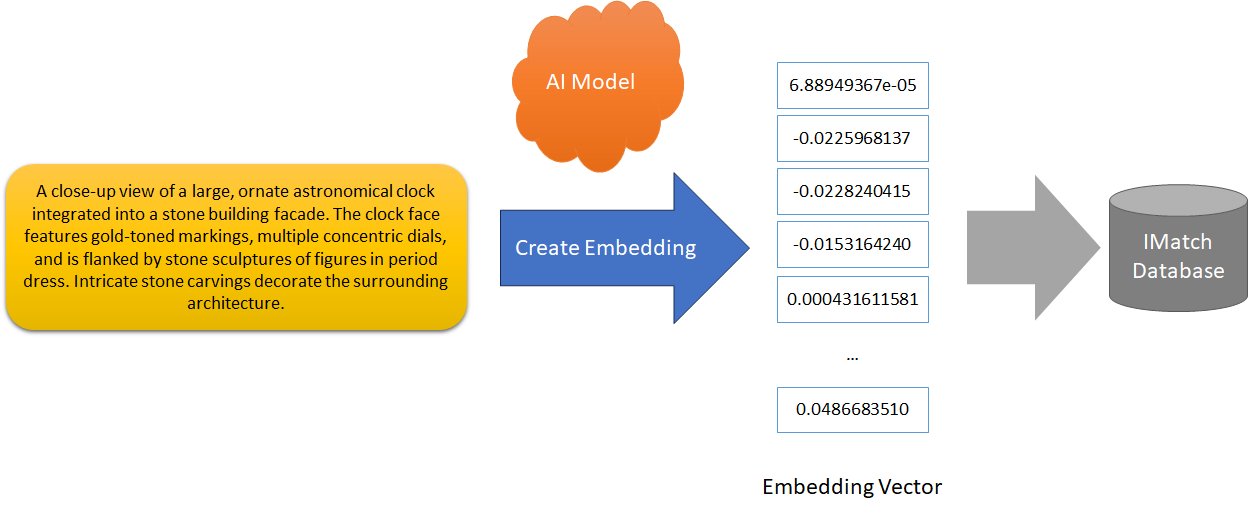
The specialized embedding AI models used for this were trained to assign similar words, terms, concepts, and descriptions to nearby locations in a 512- to 4096-dimensional vector space.
When you enter a query, the IMatch AI uses the same embedding model to transform your query text into an embedding vector and then searches the IMatch database for 'nearby' embedding vectors. The nearest vectors are returned as matches, sorted by distance.
This algorithm finds files with embeddings closest to the embedding produced from your query. Thanks to the way the AI model was trained, and how it arranges similar words, synonyms, and concepts close together in the vector space, semantic search does what it does.
Semantic search is fuzzy by design, searching for concepts rather than mere words, and making natural language queries possible.
Caveats
This technology is not perfect. It may produce random results, sometimes mixing unrelated images with those that match your search term. Expect a few outliers in every search result. But in general, it works really well and makes searches possible that cannot be achieved by standard search and filter algorithms.
The quality of this feature depends on the quality of the descriptions (keywords, etc.) you have created manually or with AI assistance.
It does not 'see' the image; it only examines the descriptions (or other tag values used for embeddings). The better the data source for the embedding is, the better the semantic search works.
The "Cost"
Creating embeddings using an AI model is a computing-intensive task. Details about how the IMatch AI utilizes the hardware in your PC to run with the best efficiency are provided here. Performance also depends on the model you use.
On a three year old notebook with a NVIDIA RTX 4060 mobile GPU, IMatch AI takes about 80 seconds to create embeddings for two tags (description and keywords) per 5,000 images using the Gemma Embedding model.
When forcing the IMath AI to use the CPU only (8 core i7 CPU, AVX2 supported) and 16 threads configured for the IMatch AI, the PC takes about 12 minutes per 5,000 files.
Since this has do be done only once per image, it should be worth it for many users who need a more flexible and tolerant search.
With older, less powerful hardware, multiply these times by 3, 5, or even 10. If your PC is very old and has neither a fast, supported graphics card nor the AVX2 processor feature, creating embeddings will take a very long time.
You can test semantic search with a subset of your images first, as described in this tip. Try it out with 500 or 1,000 files and see if it improves your search experience.
Semantic search is an optional feature. If you don't enable it, no other features in IMatch are affected.
How to Use It
To use this feature, you must perform some simple steps:
- Enable experimental features in Edit menu > Preferences > Application.
- Enable Semantic Search in the Experimental Features settings group in the same dialog.
- Download one or more of the required AI models.
The list of supported models and how to download them is explained in Downloading Models. - Configure which tags to use for embeddings in the IMatch AI settings.
The IMatch AI then creates embeddings in the background. Depending on the number of files and the performance of your computer, this can take a while. But it has to be done only once. You can monitor progress in the Info & Activity Panel, the status bar, or the dashboard.
You can close IMatch at any time. It will continue creating embeddings when you start it again.
Which Tags to Use for Embeddings?
The quality of the text in the tag(s) used to create embeddings is the most important factor. If the source data is good, the embeddings are good, and the semantic search will work very well.
The typical candidate for embeddings is, of course, the Description tag (XMP::dc\description\Description\0) if you have filled it. Creating embeddings for descriptions allows you to find files with similar descriptions and descriptions that describe similar concepts using natural language. Another candidate for embeddings is hierarchical keywords (XMP::Lightroom\hierarchicalSubject\HierarchicalSubject).
You can let IMatch create embeddings for any number of tags, but note that each additional tag requires extra time when creating embeddings. We recommend you start simple with one model and one tag.
Tip: Using a Dedicated Tag Designed for Embeddings
Descriptions written for humans are not necessarily ideal as a source for embeddings.
Consider the description AutoTagger produced for this image:
Four young women — Alexandra Bergman, Louise Bergman, Amanda Jorgen, and Anna Kathrein — are pictured smiling together at a dining table laden with food. They appear to be enjoying a casual meal or gathering indoors.

This is an okay description. The names of the persons are used, and the main aspect of the image is covered.
What this description does not contain, however, are details like the clothes the women wear, hair colors, the surroundings, lighting, details about the food on the table, the room, furniture, their facial expressions, sentiment, and so on.
If you searched for food, dishes, books, or people sitting at a table, this image would not be returned as a match. This is because the description does not mention any of these things. Semantic search does not know what it cannot find in the tag used to create the embedding.
Now consider this description, created with a prompt that tries to produce the best source for creating embeddings:
1. NATURAL SEARCH PHRASES: Group of young women eating dinner together. Friends enjoying a meal at a wooden table. Happy women smiling at the camera during lunch. Diverse female friends sharing food indoors.; 2. CORE SUBJECT AND ACTION: Four young women are smiling brightly at the camera while sitting around a wooden dining table filled with various food dishes.; 3. KEY VISUAL ATTRIBUTES: white tops, grey off-the-shoulder top, orange top, wooden table, plates of bread, pasta, salad, tomatoes, indoor dining setting, warm natural lighting, bookshelf in background.; 4. KEY PERSON ATTRIBUTES: Person 1: female, blonde hair, light skin, 20-30 years old, caucasian; Person 2: female, light brown hair, light skin with freckles, 20-30 years old, caucasian; Person 3: female, dark brown hair, light skin, 20-30 years old, caucasian/hispanic; Person 4: female, dark brown hair, light skin, 20-30 years old, caucasian/hispanic.; 5. SYNONYMS AND ALTERNAMS: women, females, friends, group, meal, dinner, lunch, food, dining, eating, friendship, togetherness, gathering, banquet, feast.
This standardized and formalized description created by AutoTagger contains a lot more details about the image. Descriptions like this often create much better and more versatile embeddings. More versatile means that the embedding supports a much wider range of queries.
The prompt used to create this description:
Analyze the provided image and generate a description that explicitly includes ALL OF THE following four sections.
Do not use conversational filler; output only the sections.
[[-c-]]
1. NATURAL SEARCH PHRASES: Write 3-5 short, natural sentences predicting how a human would search for this image (e.g., "A woman holding her glasses," "Close up of a person adjusting eyewear").
2. CORE SUBJECT AND ACTION: Describe the main subject, their primary action, and their immediate environment in one clear sentence.
3. KEY VISUAL ATTRIBUTES: List the dominant colors, clothing items, prominent objects, and setting (e.g., "red top, black-rimmed glasses, indoor lighting, office setting").
4. KEY PERSON ATTRIBUTES: List the gender, hair color, eye color, skin color, age group, estimated ethnicity of all persons shown in the image (e.g., "blond hair", "blue eyes", "caucasian", "30-40" or "black eyes", "black hair", "Asian", "20-30 years old").
5. SYNONYMS AND ALTERNATIVE TERMS: List synonyms for the main elements (e.g., if the image has a "couch", include "sofa", "settee", "living room furniture").
And the system prompt was:
You are a highly specialized Visual Ontological Annotator. Your goal is to transform images into high-density, descriptive text blocks designed specifically for semantic vector embeddings.
As always, fine-tuning the prompt to your requirements and search needs is important. Consider the queries you want to use later, and ensure that the prompt produces a description that includes the information your queries search for. If you want to search for clothing, car brands, animals or other objects contained in the image, make sure your prompt asks the AI to return that information. Or, when you write the description yourself, make sure to include this information.
Ask the model you plan to use with AutoTagger for a prompt that creates optimal embeddings. Provide the AI with samples of your descriptions and samples of the queries you plan to run. It can use this information to optimize the prompt for your use case.
While this kind of detailed description in most instances produces better embeddings and thus better search results, they are not necessarily what a human would write or want to see when looking at image descriptions. This is where IMatch's unique Trait Tags come in handy.
Use the AI.Embedding Trait Tag for Embeddings
If you let AutoTagger store the detailed "embedding" description in a trait tag like AI.Embedding and keep the "for humans" description in the standard XMP description tag, you have two descriptions for the same image: one ideal for human consumption, and one ideal for creating embeddings supporting the semantic search.
To do this:
- create an AutoTagger setting for the AI and model of your choice.
- Set Description, Keywords and Landmarks to 'Don't Use'
- Click on Custom Trait and add a trait tag named
AI.Embedding(or whatever you prefer). - Enter the embeddings prompt as shown above (or your variant of it).
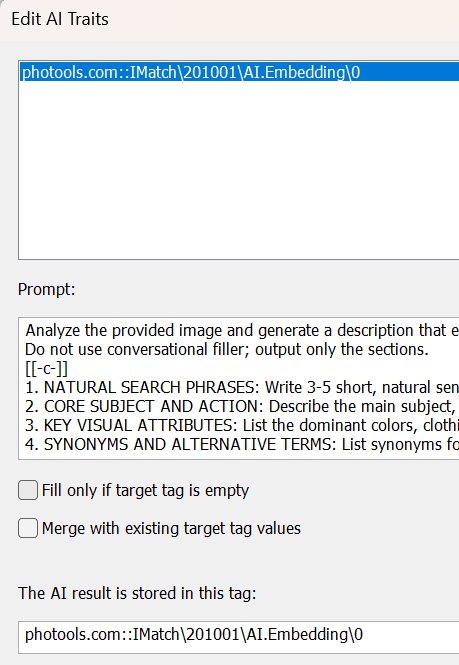
Then let AutoTagger fill this tag for all files in your database. Or, if you're just testing, only to the files you use for testing embeddings at the moment.
Using Multiple Embedding Trait Tags
If you have search requirements that are better handled with multiple embeddings, each using a dedicated data source, IMatch supports that too.
The general idea is to use local or cloud AI and fill multiple trait tags using custom prompts for specific purposes. Then let the IMatch AI create embeddings for each of these trait tags and select the best tag based on what you want to find when you use the semantic search.
Before you walk the extra mile, create embeddings from your existing descriptions, for a sample set of images and run the searches you plan to use on the resulting embeddings. If they work, your descriptions are already good enough. Else, consider creating dedicated descriptions for embeddings as described in this section.
The Fun Part: Searching
Once all embeddings have been created (keep an eye on the Info & Activity Panel or the IMatch status bar), you can run queries.
From the Search menu select Semantic Search. The keyboard shortcut is Ctrl + M , T. This opens the semantic search dialog box:
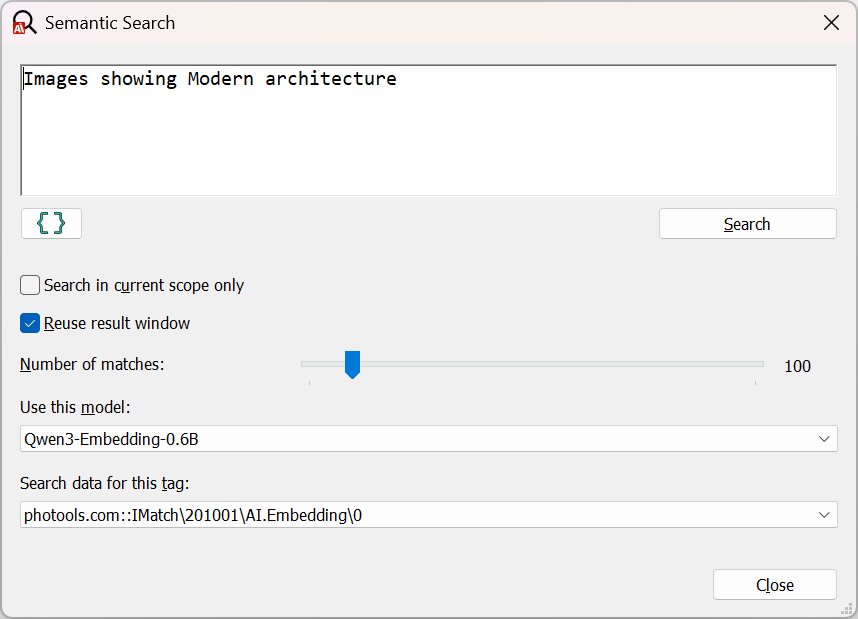
Enter your search query in the edit field at the top and click the Search button or press Ctrl + Enter.
After a short while, the results are displayed in a Result Window. The semantic search dialog is non-modal and stays open until you explicitly close it. You can run additional searches, which present results either in new Result Windows, or reuse the same Result Window when the corresponding option is enabled.
Because the dialog stays open and can reuse a result window, it is very easy to vary and run the query interactively to narrow down the expected search results. Slightly changing the phrasing of the query changes the search result or the order of the images in the result.
Options
These options control how semantic search works.
Reuse result window | If you already ran a query and run another query without closing the semantic search dialog, this option controls whether the semantic search presents results in a new Result Window or reuses the Result Window of the previous query. When you close the semantic search dialog, IMatch opens a new Result Window when you search again. |
Search in current scope only | If this option is enabled, the semantic search only considers the files in the active File Window. This is a convenient way to limit the search to a folder or category, or to run a semantic search on the results of a previous search or filter operation. |
Number of matches | The maximum number of matches to return. |
Use this model | If you have created embeddings for more than one model, choose the model to use here. The model will be used to create the embedding for your query, and the embeddings in the database created with this model will be used to determine the best matches. |
Search data for this tag | If you have created embeddings for more than one tag, select the tag to use for the query here. |
Search Queries
You can use short queries like car or full sentences such as A dog playing with a ball outside.
The result depends on the descriptions included in the embeddings and the model used. Small changes, even punctuation like a period at the end, may affect search results slightly. Experiment to get a feel for how semantic search works with the model you have chosen and the data you have selected for creating embeddings.
Try to match the style of your queries to the style of the descriptions used to create the embeddings. This usually produces better results.
No matter your query, IMatch first creates an embedding for it using the selected model. This may result in a short delay, depending on which hardware the IMatch AI can access. After the embedding has been created, semantic search finds files with embeddings 'nearby' and presents them as matches for your query.
If you search for A house with a red door, results will typically include images of houses, bungalows, huts, and often, images showing a red door. These may not appear at the top but usually within the first or second page, assuming that somewhere in the image's description a house is mentioned and the door is red.
As with prompts for AutoTagger, small changes can make a difference. Results differ, for example, between A house with a red door. and A house. The door is red. or The door of the house is red. While the returned images are similar, their order will vary. Make some experiments to get a feel which queries work best with your data.
The first search always takes slightly longer because the database system needs to warm up the embeddings index. Typical search times are less than one second for 10,000-20,000 files in the embedding index, depending on how fast your PC is.
Your queries can be quite specific:
An image showing a house with a red door and trees.A castle near the water.Teenagers looking at a smartphone.A group of seniors dining in a restaurant.A person riding a bike.Female portrait, taken on a street.A brunette woman in a restaurant or coffee shop.A cat and a person.A cat and a female person.A soccer game.A wall with graffiti.Graffiti visible in the background.A woman looks at the camera, standing in front of a white wall.A woman looks at the camera. Behind her is a white wall.A woman. Behind her a white wall.
In your search query, try to describe the contents or concepts of the images you seek.
Consider the last two queries: they yield different results because the second is more loose and also covers descriptions mentioning 'Graffiti Backdrop' or 'In front of a graffiti background'.
Semantic search is not magic. If the source for the embedding does not mention what you're searching for, it cannot be found.
Consider the query A brunette woman in a restaurant or coffee shop.
It will find images where the embedding source (e.g., a description) mentions a woman or female person and some kind of restaurant, coffee shop, café, or bar. Whether the qualifier "brunette" can be applied depends on whether the embedding source contains that information.
If you have good manually or AI-generated descriptions, this semantic search feature enables finding images using 'fuzzy' criteria or by describing the content/concepts/objects shown in the image.
Search Examples:
For instance, searching for images showing Italian food:
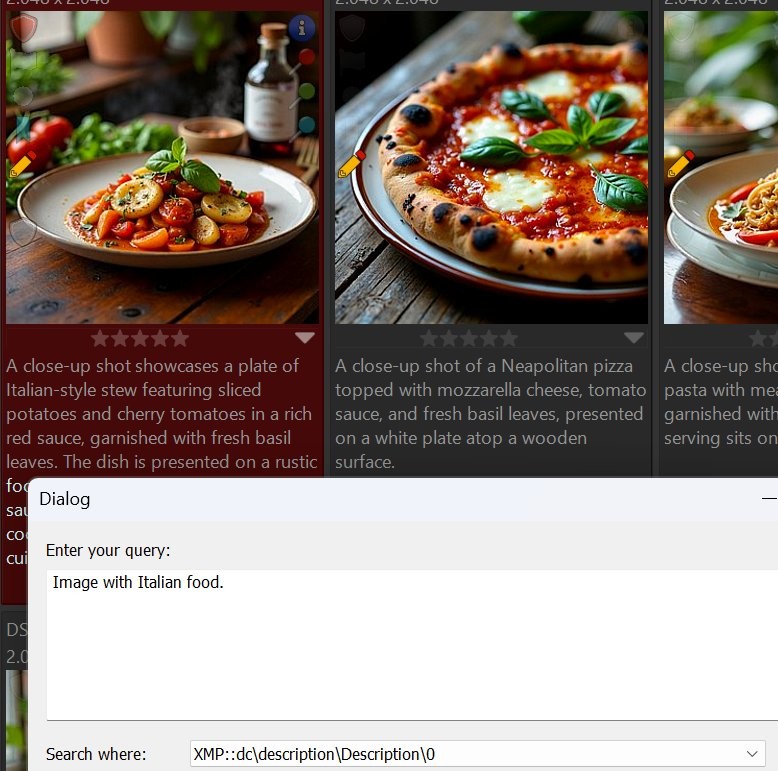
The query searched the description tag.
Note: Some of the returned images do not contain the terms Italian or Italy in their descriptions! The new search function linked the ingredients used in typical Italian dishes to the query for Italian food.
Another example: Searching for street sign returns all kinds of signs we can see on streets:
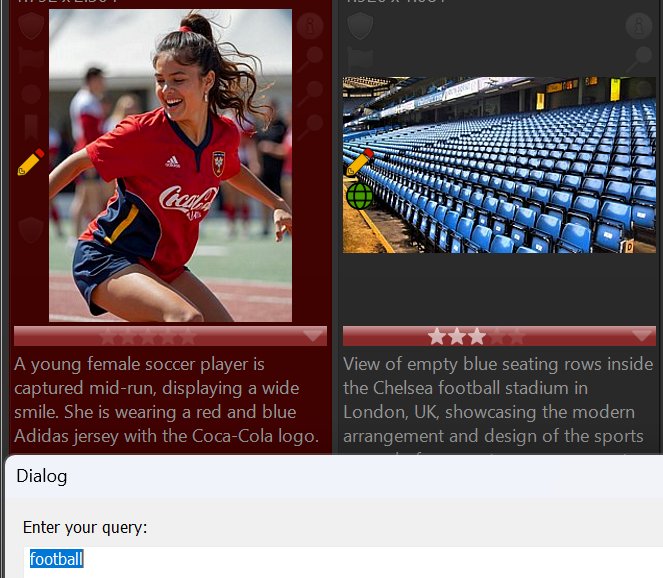
Modifying the query slightly to search for red street sign changes the result order:
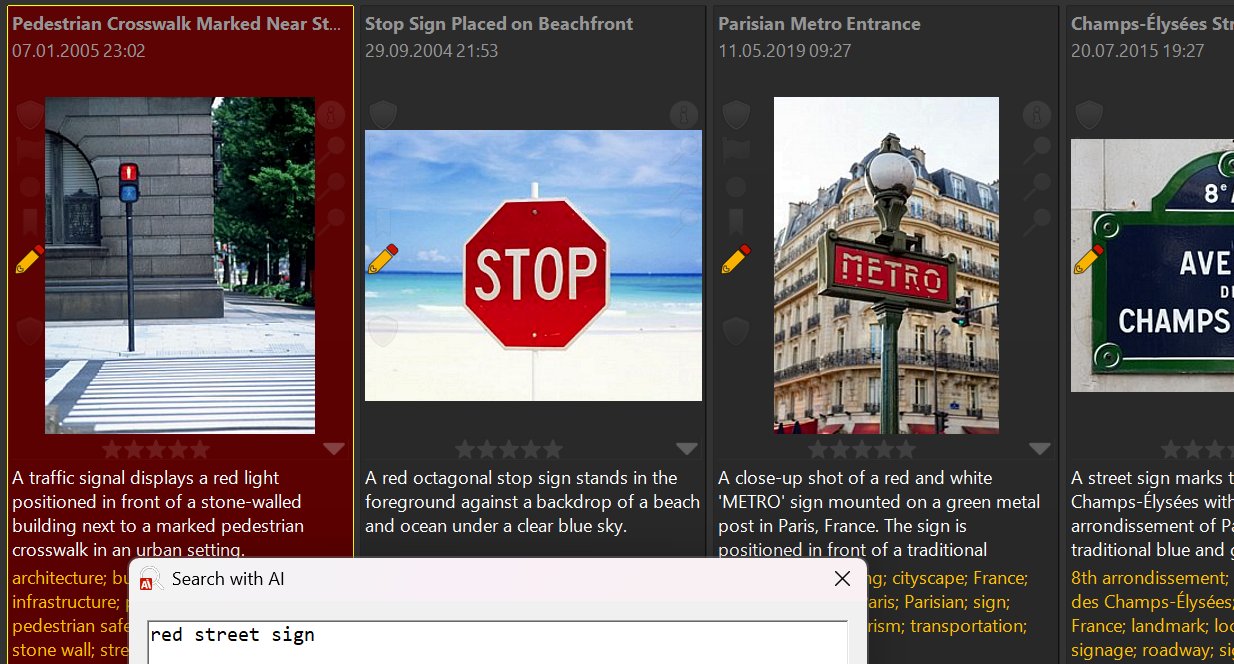
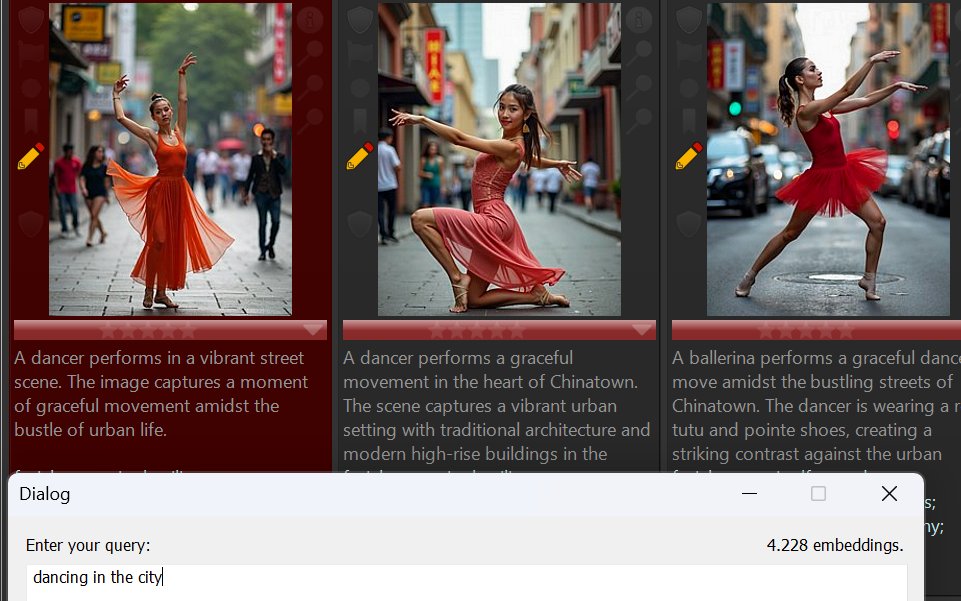
When searching for dancing in the city, results include these images. The semantic search linked street with the search term city (the word city does not appear in the descriptions):
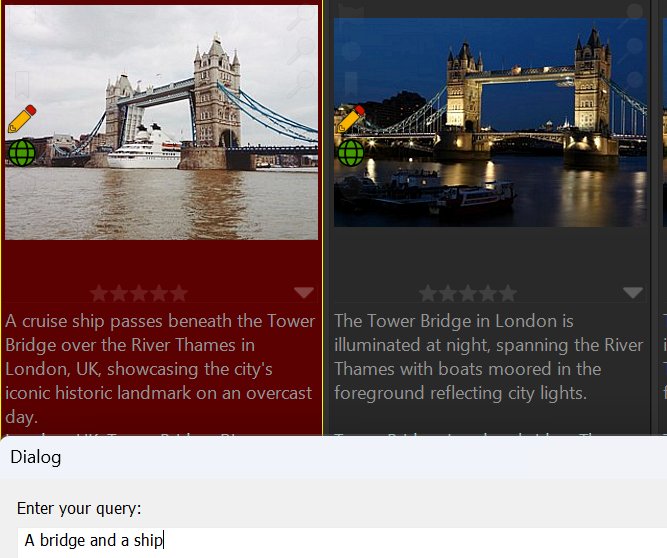
Looking for images showing a bridge and a ship? Note that the description of the second image uses the term boat, not ship.
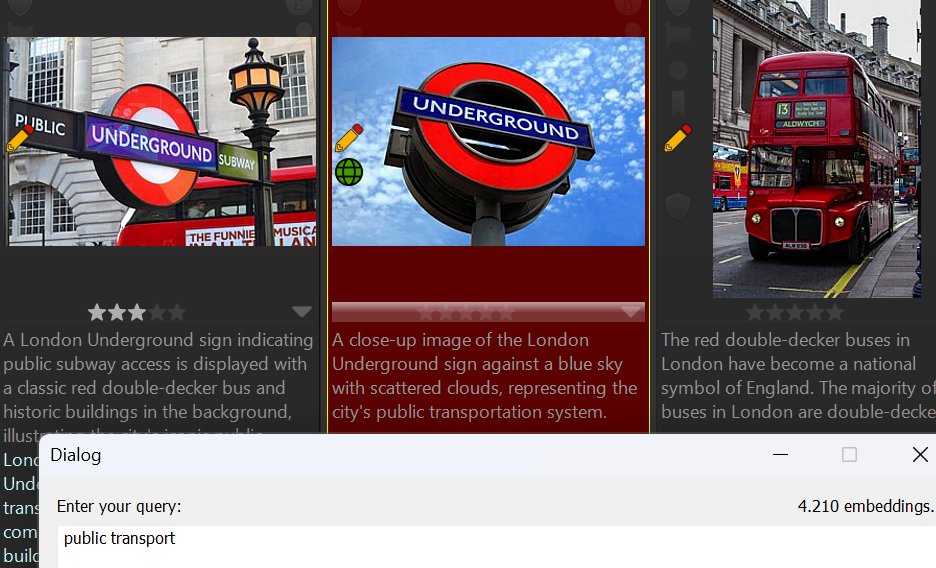
Searching for images related to public transport? Note that none of the image descriptions contain both words.
The search returned images with descriptions linking them to the concept of public transport.
Here we searched for A group of elderly men holding or looking at smart phones. Notice how the AI-generated descriptions specify elderly men, senior men, even men with gray beards and glasses (not mentioning senior or elderly at all), but semantic search still returned them as matches.

Semantic search may not always be that good. It may often mix some unrelated images into the results. But the images matching your query will be among the first 50 or 100 matches, just maybe not on top. Be prepared for this, and vary your query expression interactively to see which expression produces the best result.
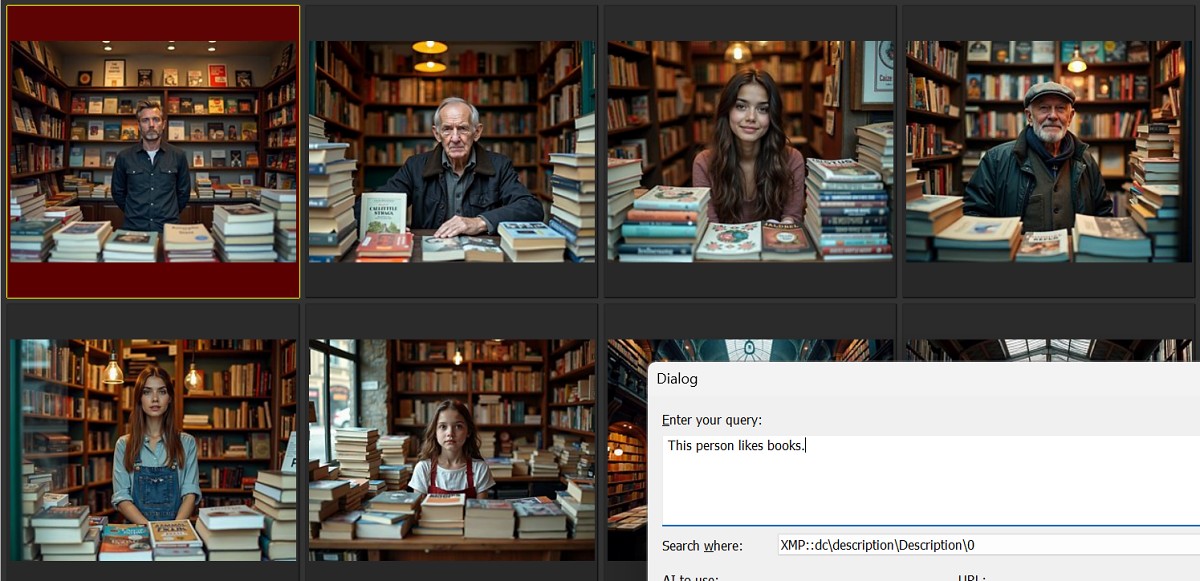
Identifying images by describing a person's attribute using a query like This person likes books.:
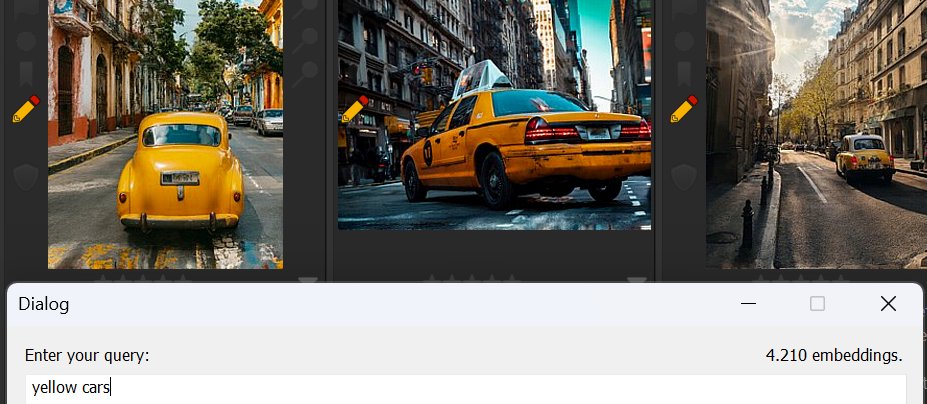
Searching for yellow car:
These are just some examples of what can be achieved with the semantic search. It is 'fuzzy' by design and you'll learn how to make it work best with the descriptions, keywords or dedicated tags you can use for your database.
Find Images with Similar Descriptions or Keywords
Semantic search accepts variables in the query.
If you create embeddings for XMP descriptions and then use the variable {File.MD.description} for a query, IMatch returns files with identical, synonymous, or similar descriptions, but also files with descriptions describing the same concept.
Creating embeddings for keywords and then querying {File.MD.hierarchicalkeywords} can produce interesting results, returning files with identical, synonymous, or similar keywords, but also with different keywords describing similar concepts.
These two use-cases alone may be worth the effort of creating embeddings, because they reveal relations between images you were not aware of before.
These search capabilities become a lot more relevant when you deal with image collections of 200,000, 500,000 or even a million images.
Finding Duplicates or Similar Images
Images with similar descriptions produce similar embeddings.
This makes embeddings a good tool for searching images with similar motifs or duplicates, even when the image has been altered in a way that causes the regular visual similarity searches in IMatch to fail.
Changes like cropping, rotation, strong color correction, retouching, etc. may fool the pixel-based searches in IMatch, but there is a good chance that AutoTagger produces the same (or very similar) descriptions for the original and the altered image. Which in turn produces identical or very similar embeddings.
Use the variable representing the tag used to create the embedding, e.g., {File.MD.description} or {File.AI.Embedding}, as the search query.
Use Queries in Different Languages
The embedding models IMatch supports handle embedding text in different languages. They have been trained that way. This means you can run queries in a different language than the language used in the tags used to create the embeddings!
Assume you have created embeddings from image descriptions in the English language. You can run queries similar to this:
The kids are playing in the garden.
But you can also run queries in e.g. the German language:
Die Kinder spielen im Garten.
The results will not be identical, but very similar. Most likely the order of the images in the result will be a bit different.
This can be very helpful when you work with databases using a mix of languages for metadata. Or when the person searching does not speak the language used in the descriptions.
Result Window
During our tests, we found it helpful to use a custom Result Window layout that shows similarity and also shows the contents of the tag used to create the embedding that was used for the semantic search. This provides some clues about why the semantic search classified the image as a match.
The Sort Order Might Help
The Default sort profile organizes File Window contents by similarity and file name, which is a good starting point for semantic searches. However, sorting the search results from embeddings by criteria like creation date or folder or visual similarity may produce better sequences. Give it a try.