Visual Index
This page contains a visual guide to all major IMatch features. Just click on the images or headlines to open the corresponding help topic.
The Workspace
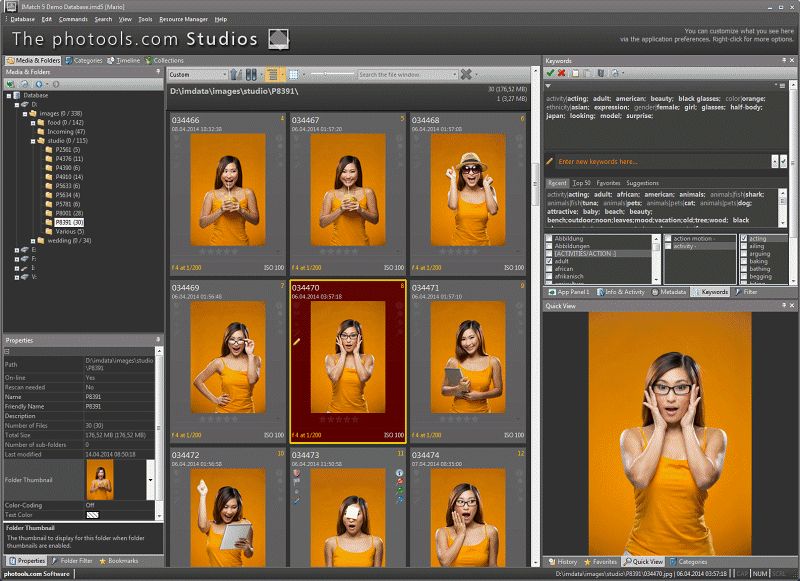
The IMatch window contains a workspace with different views. Each view represents a different aspect of your database, e.g. the Media & Folders View or the Category View.

Media & Folders
This view shows the drives, media and folders managed by IMatch. This is the file manager module in IMatch. Similar to Windows Explorer, but with many unique features.
Categories
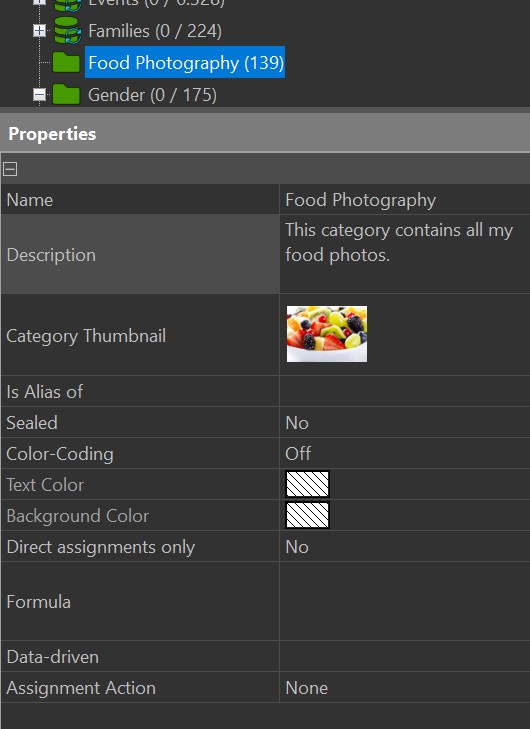
Categories are a flexible and powerful concept to categorize, cluster and organize your files in many ways. IMatch supports manual, formula-based and data-driven categories.
Collections
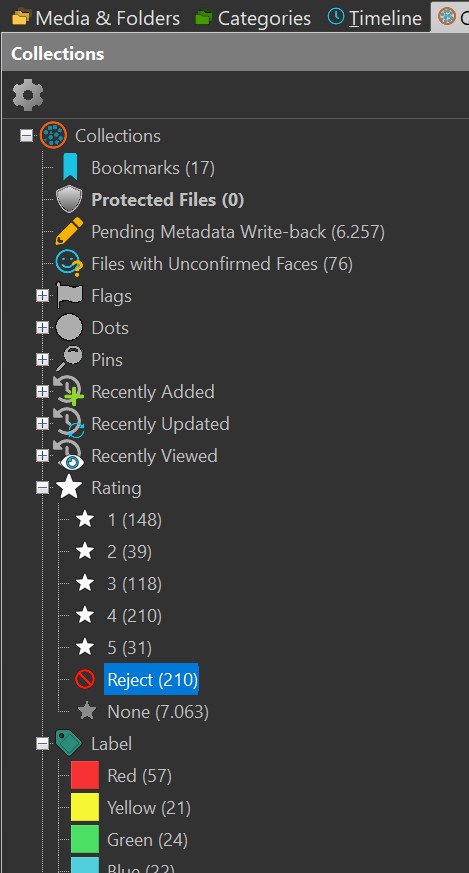
Collections are one of the key features of IMatch. They are a new way to organize files either manually or automatically, using metadata stored in your files or maintained by IMatch.
Timeline
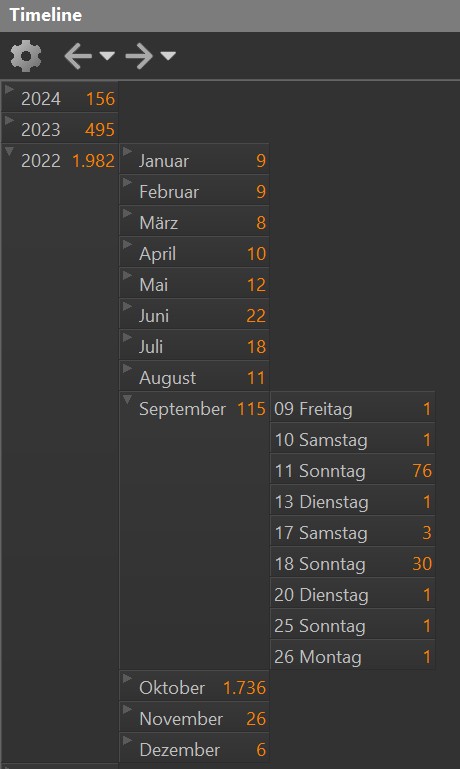
The Timeline View organizes your images automatically based on their creation date and time.
Events
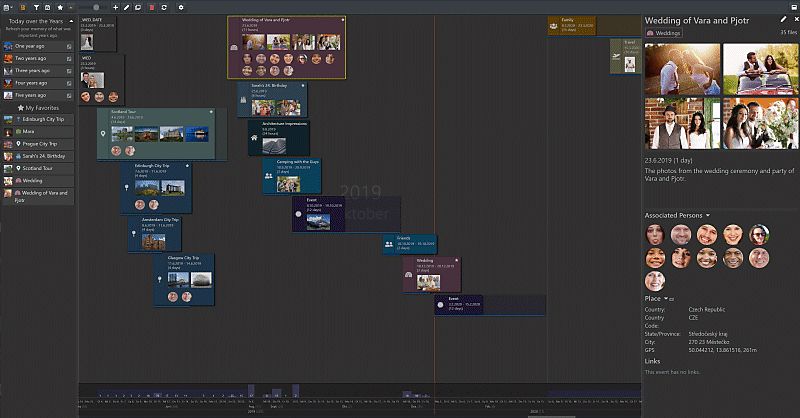
With Events you can organize files based on events like vacations, birthdays, weddings and more.
Events are a very natural and efficient way to structure your image collection.

AutoTagger
Add keywords, descriptions and traits to images with the help of modern AI.
File Windows
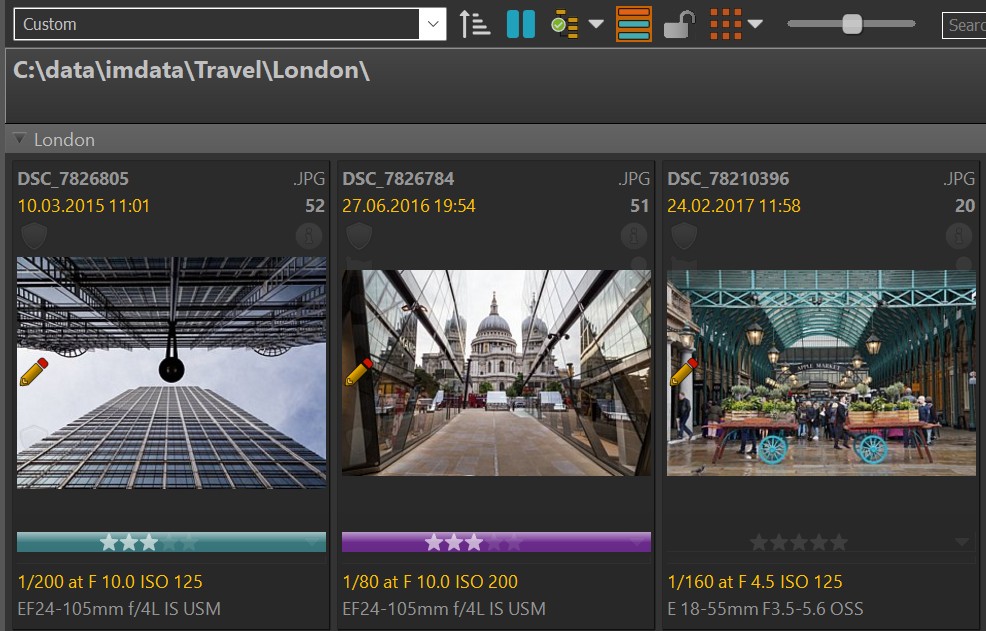
File Windows display the contents of folders, categories, collections and timeline nodes. This is where you view your files and work with them.

Rejecting Files
The XMP-backed ultimate undo mechanism. Reject files instead of deleting them.
Metadata Templates
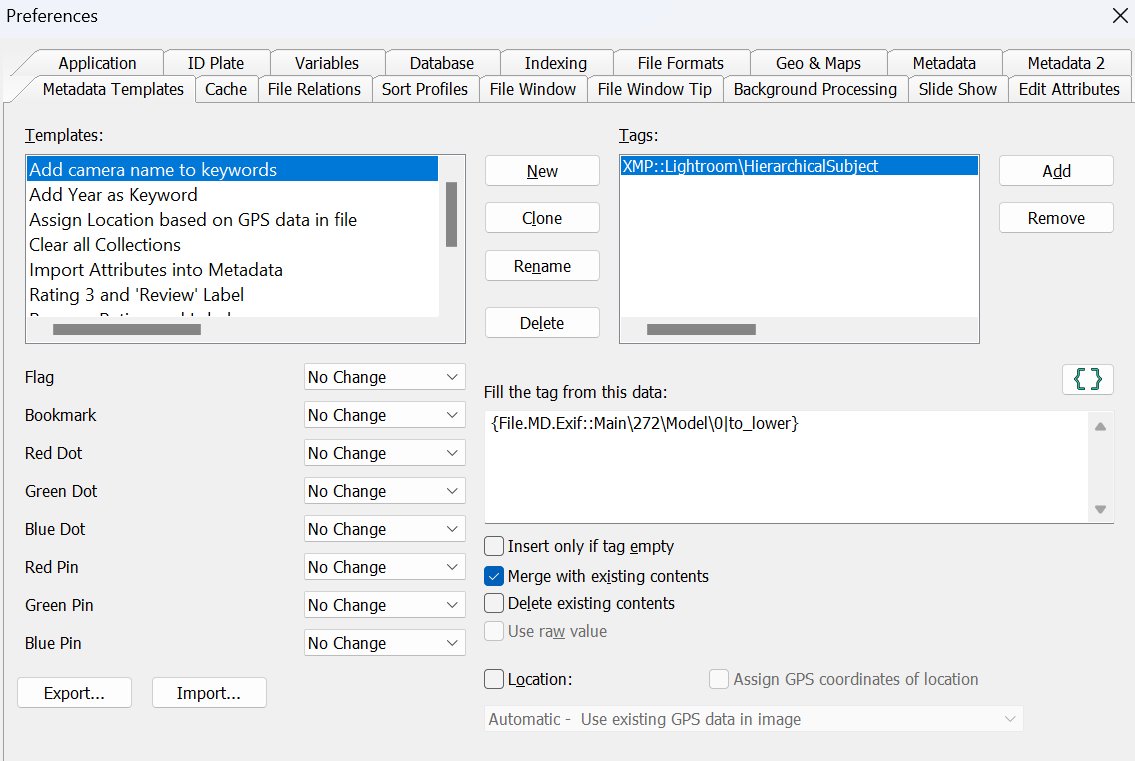
These are a great time-saver feature. Rate, label and bookmark your files with one mouse-click. Add, remove, replace and modify metadata just by running a Metadata Template.

The Time Wiz
Set, modify and shift date and time in your files easily. Camera clock set wrong again? No problem anymore!
The Search Bar
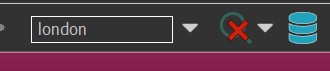
Find any file in seconds using the File Window Search Bar.
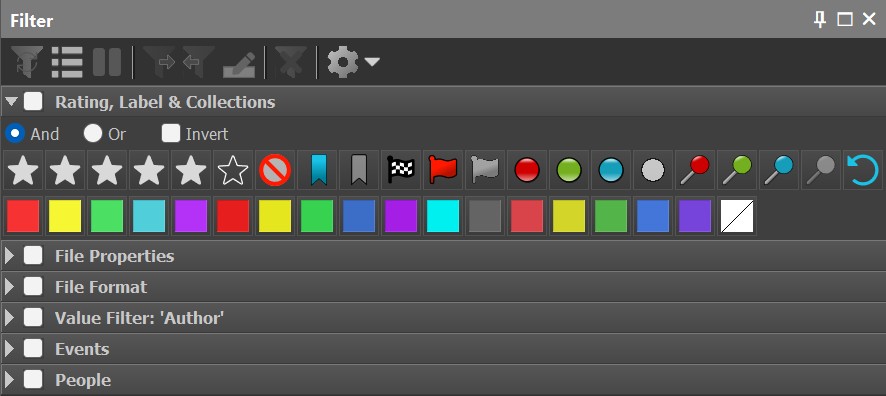
Filter Panel
Filters allow you to control what is displayed in the File Window and to find files using over 100 criteria.
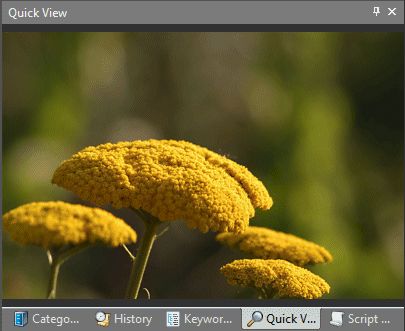
Quick View Panel
View an enlarged version of the currently focused file, browse stacks, see GIF animations and play videos.
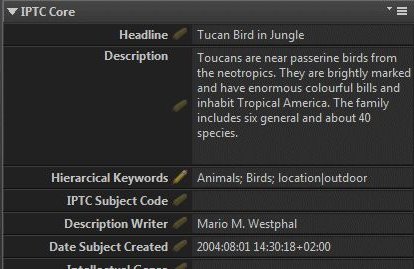
Metadata Panel
The metadata panel allows you to view and edit metadata. It can be customized in many aspects to perfectly fit your requirements and workflow.
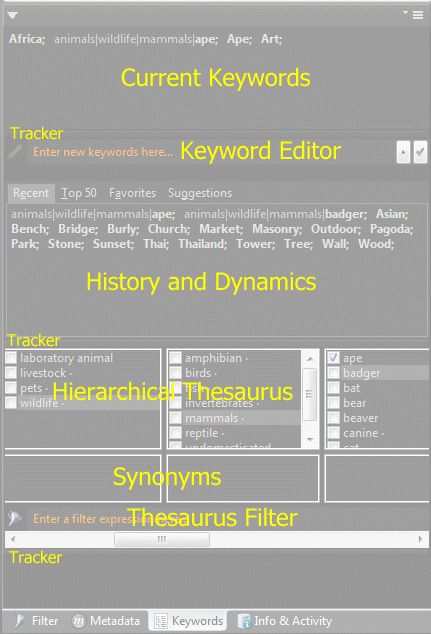
Keywords Panel
This is panel is designed to view and edit hierarchical keywords.
You have direct access to the universal thesaurus and can pick from the automatically maintained Top-50, Recent, Favorites and Suggestions lists.
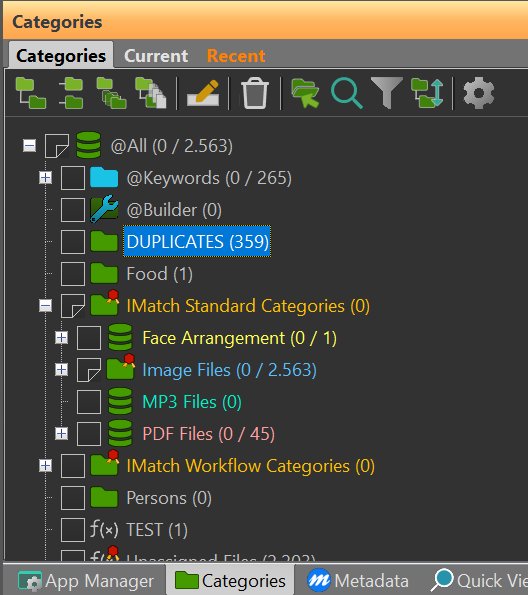
Categories Panel
The Categories Panel gives you access to your category hierarchy and the most frequently used category commands in every view.

History Panel
For each file in your database IMatch maintains a history. The history can be viewed in the History Panel.

Favorites Panel
Favorites allow you to access frequently used categories, folders, scripts, applications and Metadata Templates with one mouse click.
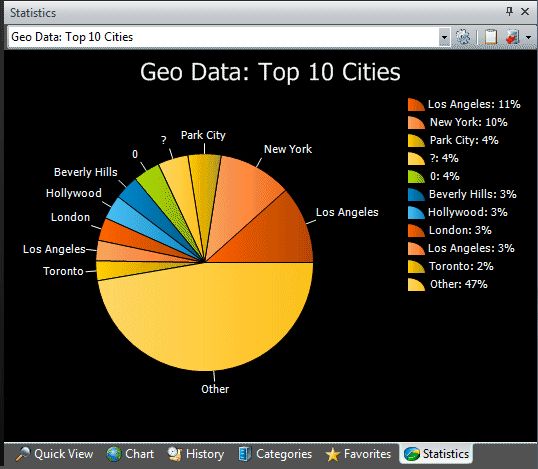
Statistics Panel
The Statistics panel enables you to analyze metadata and display the results in a business chart.
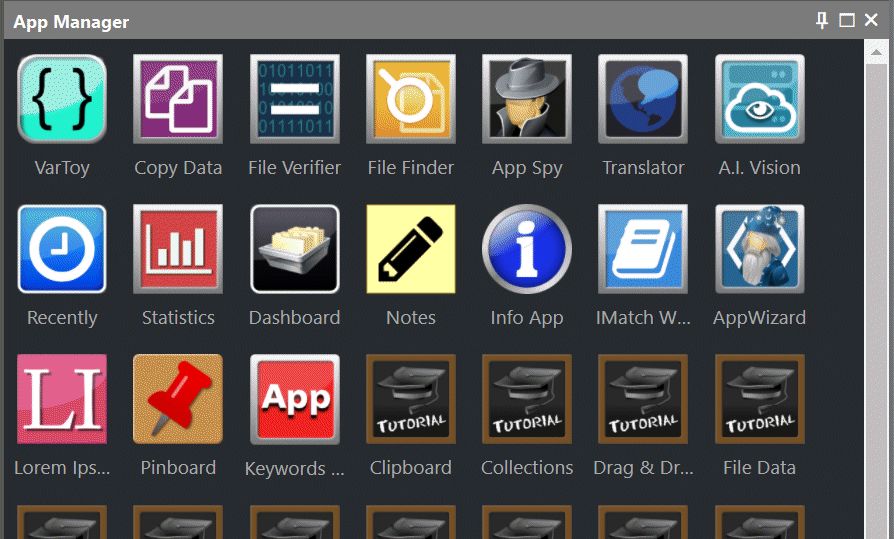
App Manager Panel
The App Manager Panel allows you to access all installed IMatch Apps.

Stacks Panel
Stacking images is a great way to reduce the number of images you have to look at in File Windows. Just stack related images to clean up the File Window.
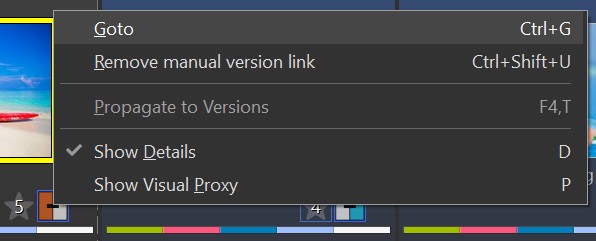
Versions Panel
The Versions concept allows you to track different versions or renditions of the same file, e.g. DNG or JPEG versions of RAW or multiple generations of a PSD or Office file.
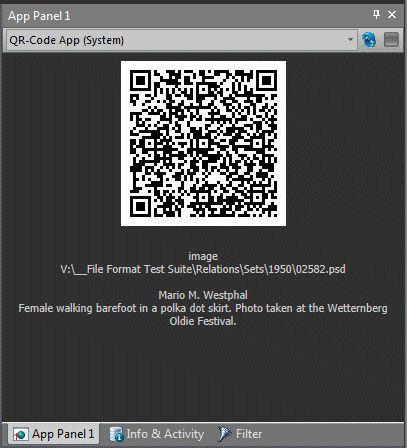
App Panel
In these panels you can run IMatch HTML Templates and HTML Apps.
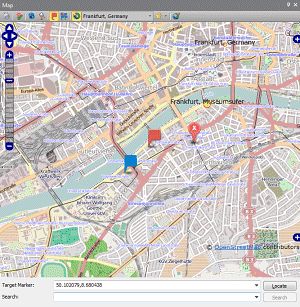
Map Panel
This panel allows you to view and edit the location of your images.
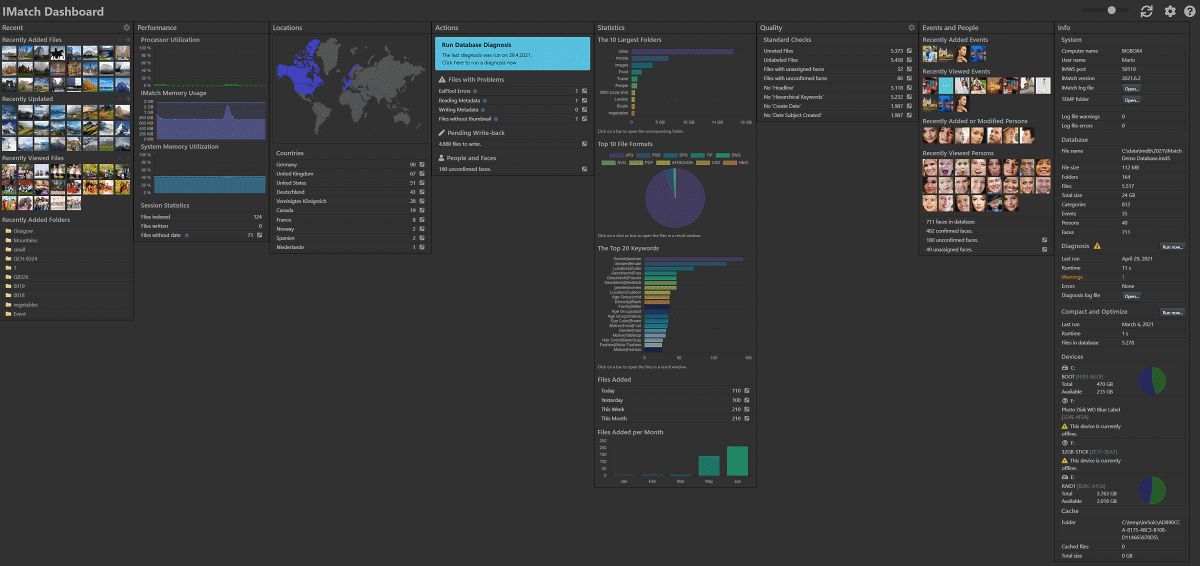
The Dashboard
The dashboard is the single place to see everything that's important about your file collection and IMatch database.

Info & Activity Panel
This panel displays statistical information about your database and allows you to monitor background tasks.
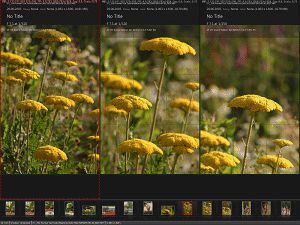
Viewer
This is the main feature for viewing, culling and rating files.
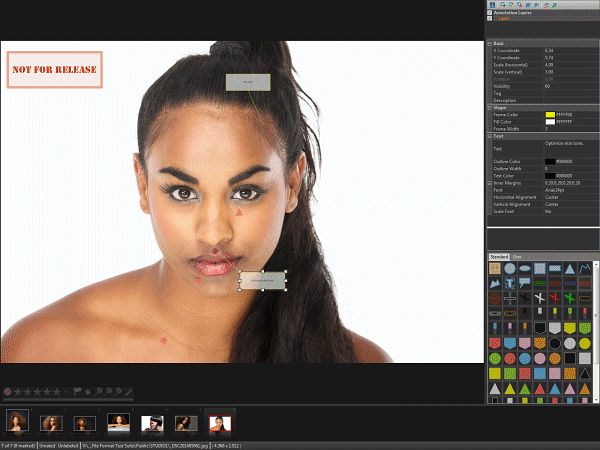
Annotations
IMatch allows you to add and display vector-based annotation objects in the Viewer. These annotation objects can also be used by other IMatch features, e.g. collections or filters.
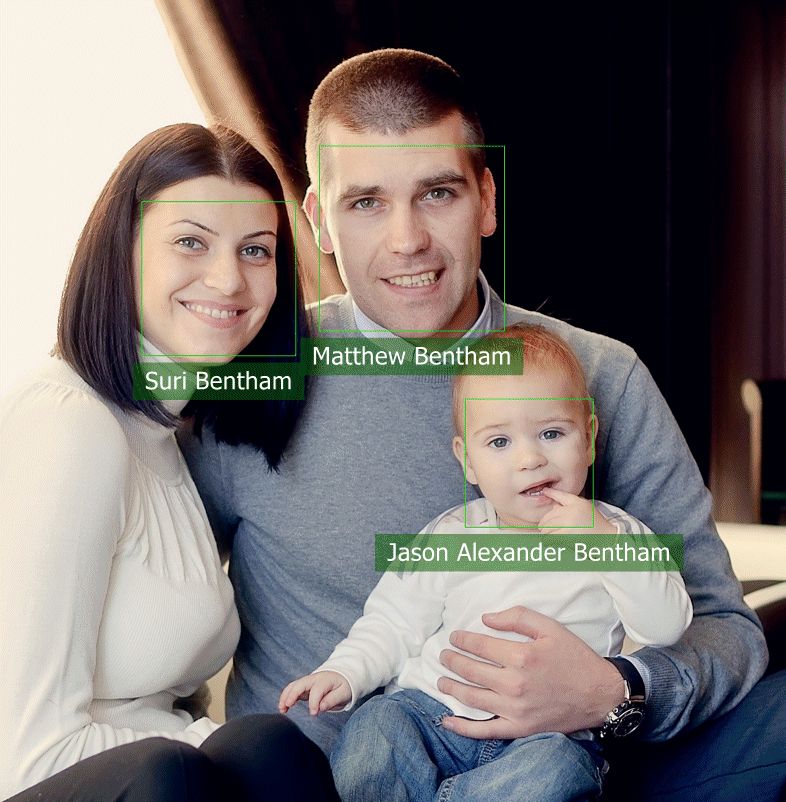
Face Recognition and People
With the powerful integrated face recognition in IMatch you can organize your images by the shown persons easily.

Slide Show
A hardware-accelerated self-running slide show for uncluttered full-screen presentations.

Universal Thesaurus
The thesaurus allows you to maintain values for metadata tags in a structured and hierarchical form.
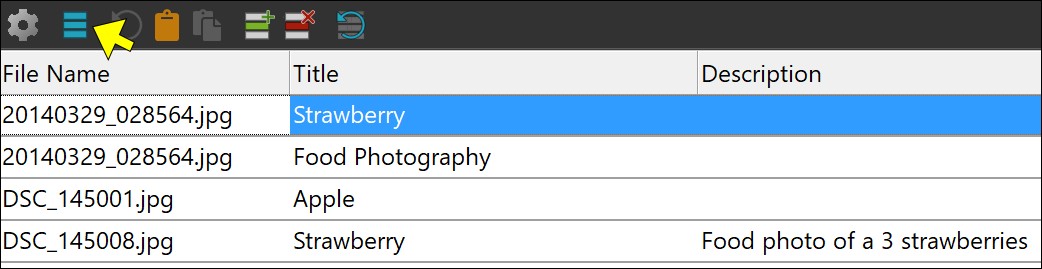
Attributes
Attributes are freely configurable metadata records. Basically your own database inside the IMatch database. Attributes work across all file formats and are ideal for managing things like addresses, persons, submission tracking and similar tasks.
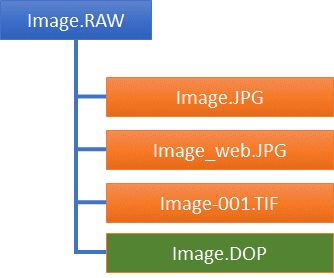
File Relations
IMatch uses a universal approach to handle features like stacking, buddy files and versions.

Variables
Variables are a unique IMatch concept. Features like the File Windows, Batch Processor, App Panel, Import & Export Modules use variables for customizing display and output results.
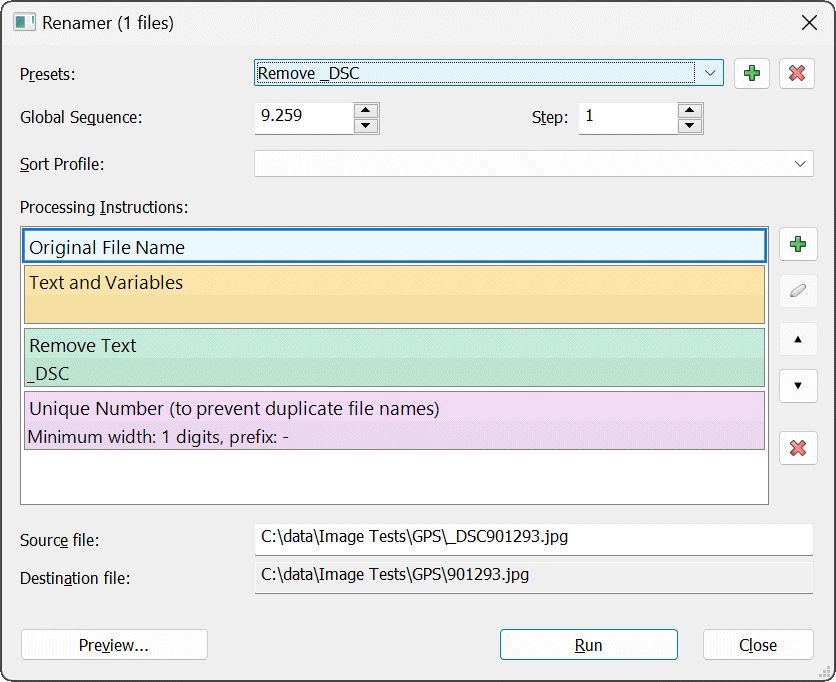
Renamer
The Renamer allows you to rename and distribute individual or sets of files. You can produce unique file names using parts of the original name in combination with sequences provided by IMatch, variables and the metadata contained in your files.

ExifTool Command Processor
The ExifTool Command Processor allows you to directly access ExifTool without leaving IMatch.
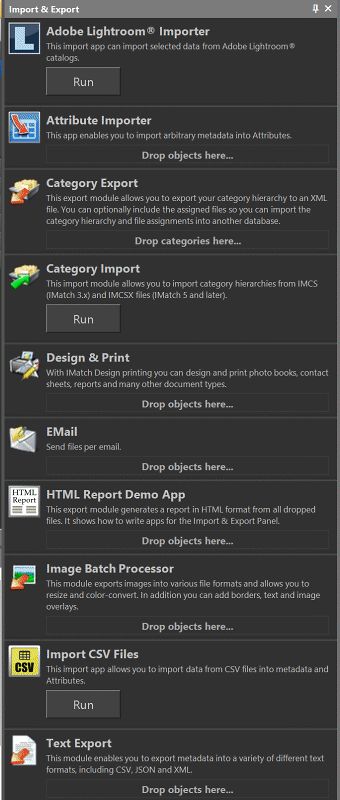
Import & Export
IMatch includes a wide range of import and export modules for various file formats.
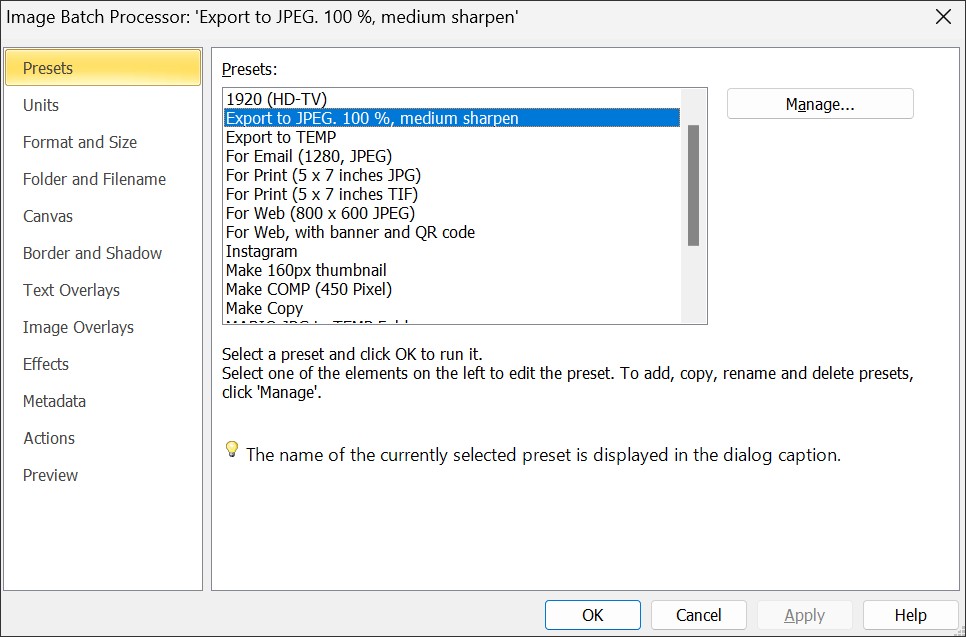
Batch Processor
This feature allows you to resize, manipulate, annotate and convert files into many other formats.
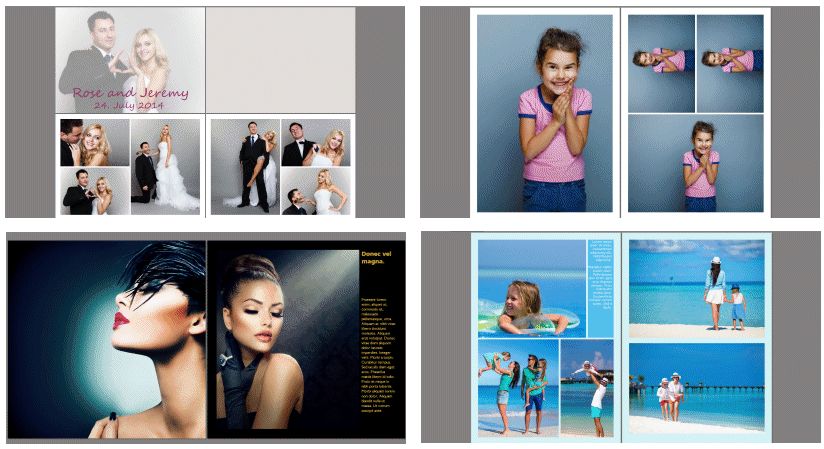
Design & Print
Design photo books, contact sheets, reports and many other print documents.
Create templates which work with any number of files and print on any connected printer. Create PDF/XPS files or output the result into separate image files.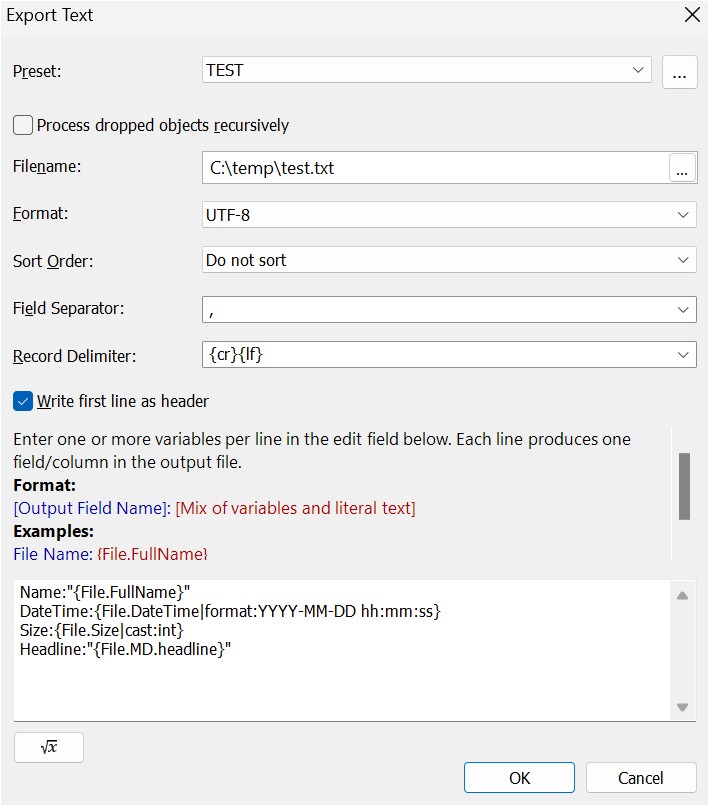
Text Export
A generic text export module which allows you to export all metadata contained in your database into a variety of text formats.
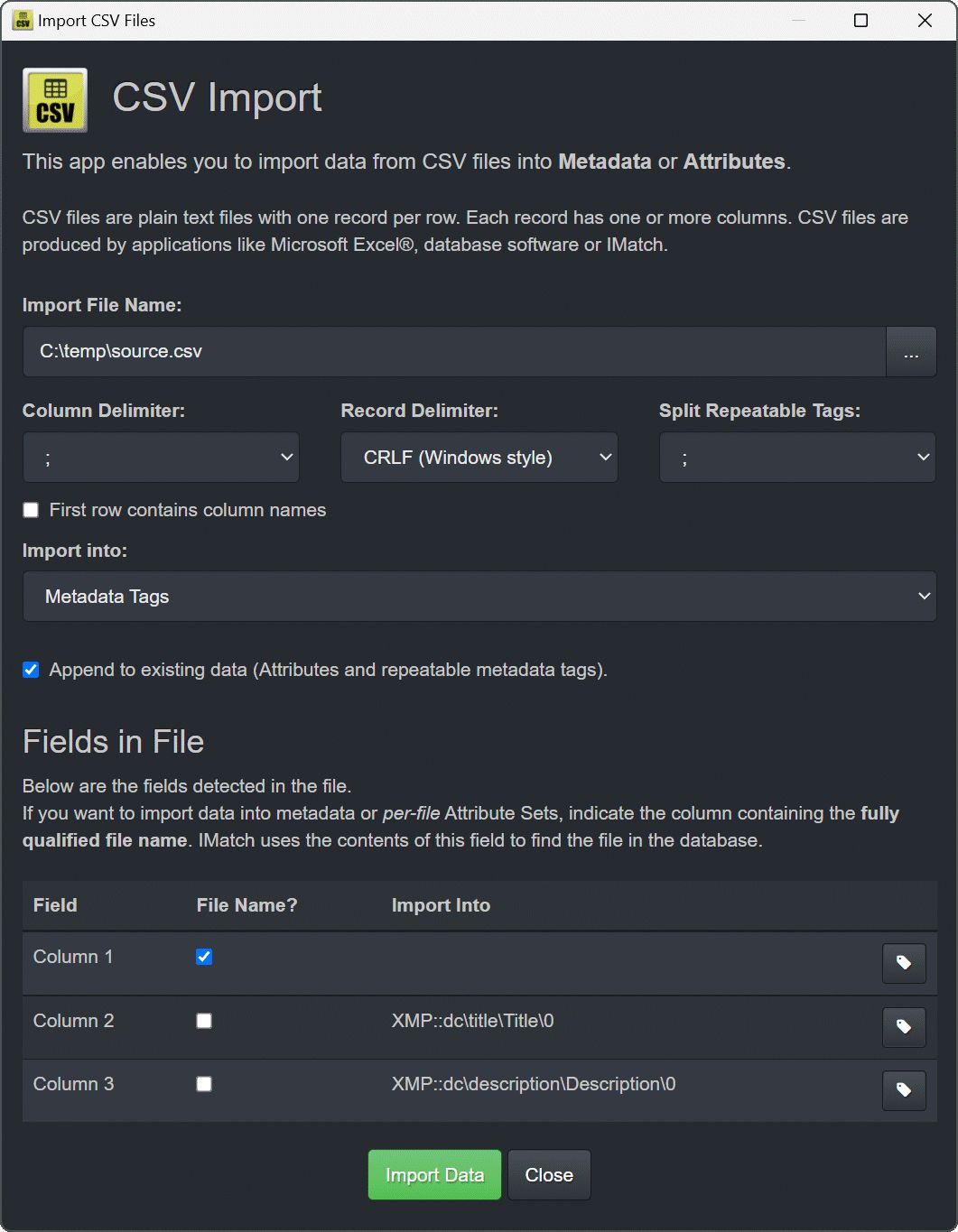
CSV Import
This import module allows you to import data from CSV files into Metadata tags and Attributes.
CSV files can be created by many applications, e.g. Microsoft Excel or Access, backoffice and financial applications, database systems, ...
Indexing
Configure how IMatch processes new and modified files into the database.
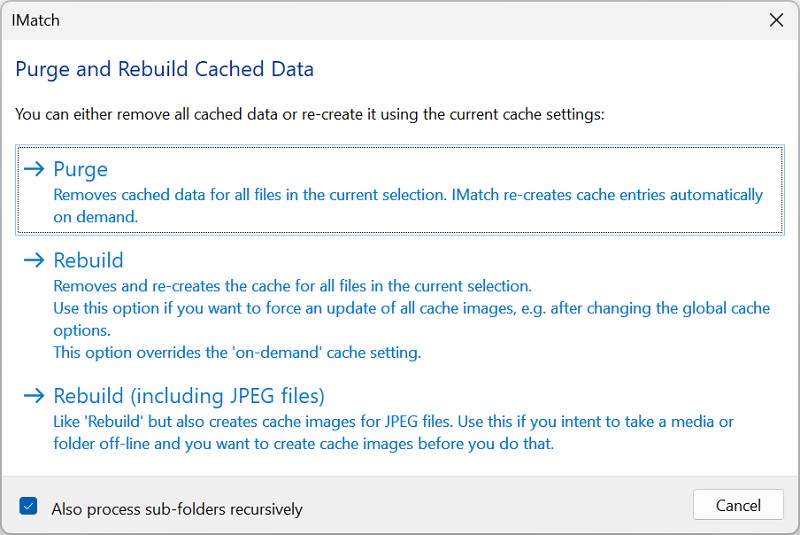
The Cache
IMatch employs an automatic background cache system to improve display speed for large files.
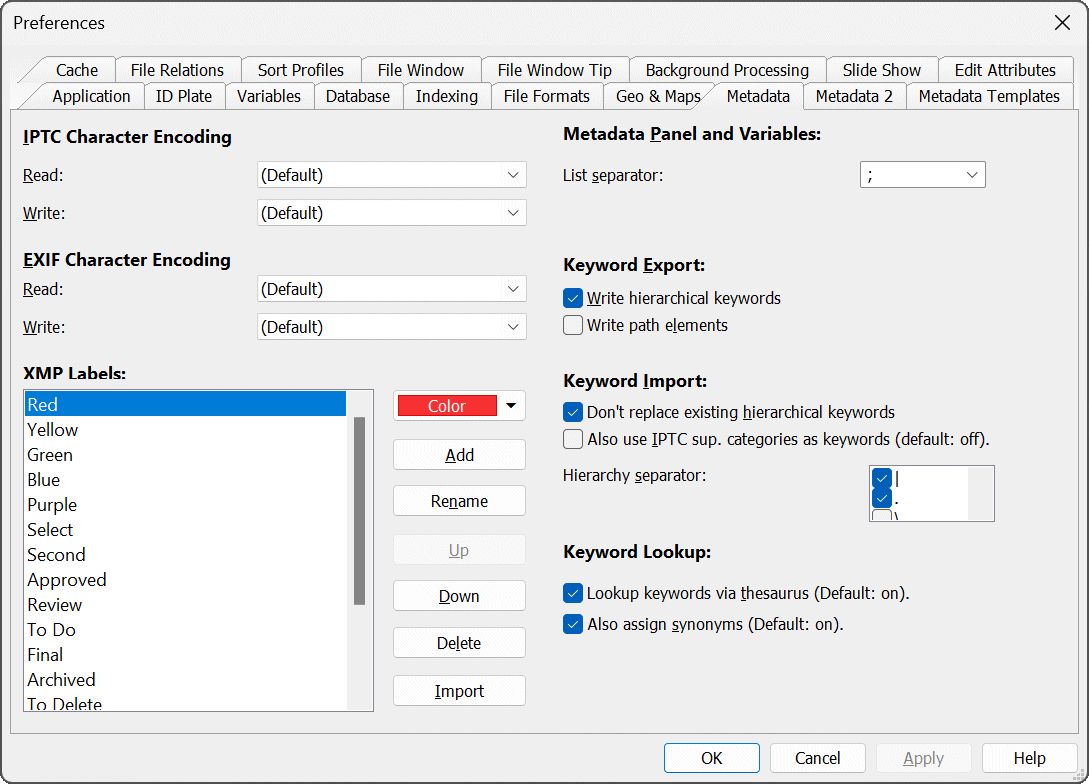
Metadata Settings
Configure IMatch to process metadata in the way you need.
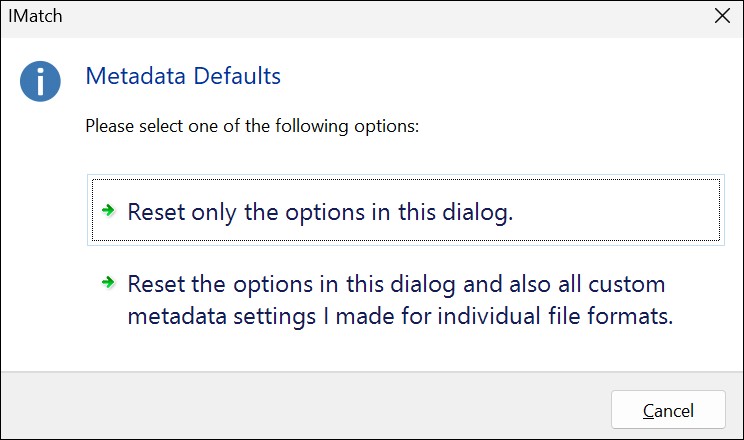
Additional Metadata Settings
Configure Metadata Working Group compliance options, how IMatch treats metadata in RAW and read-only files and more.
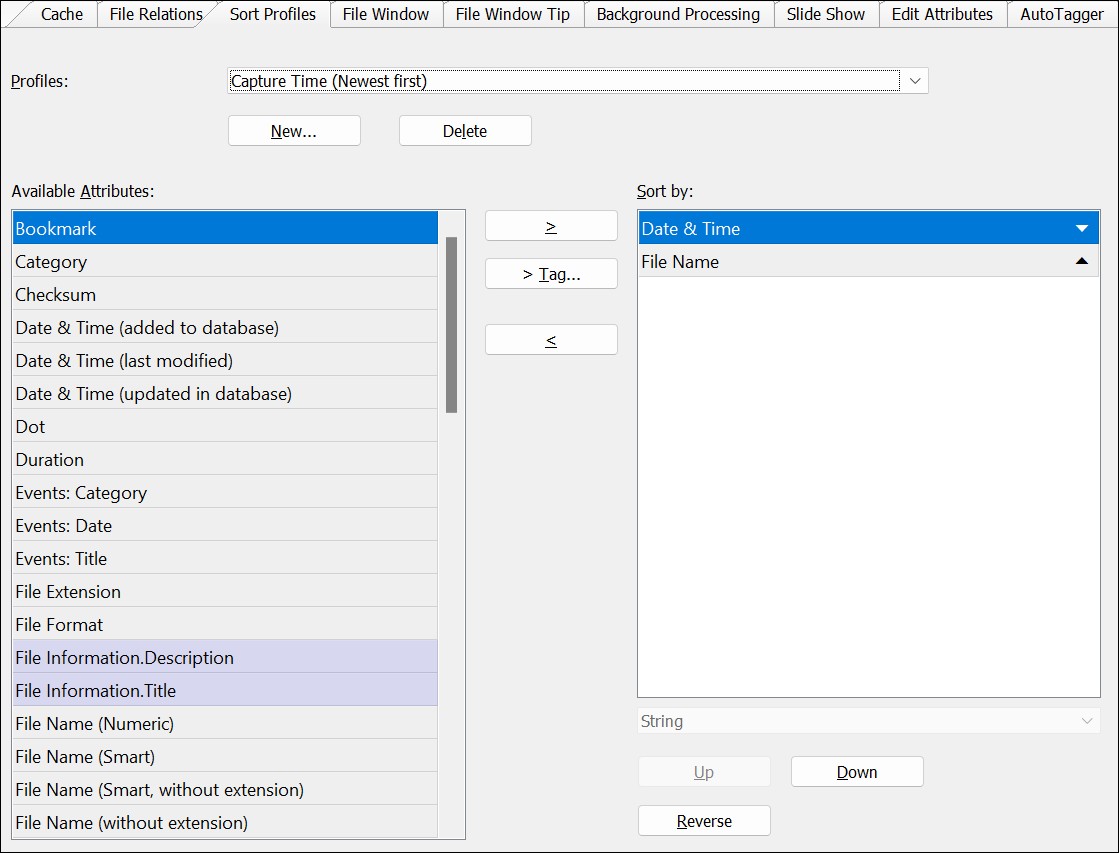
Sort Profiles
Change existing presets or set up your own presets to sort files exactly in the way you want.
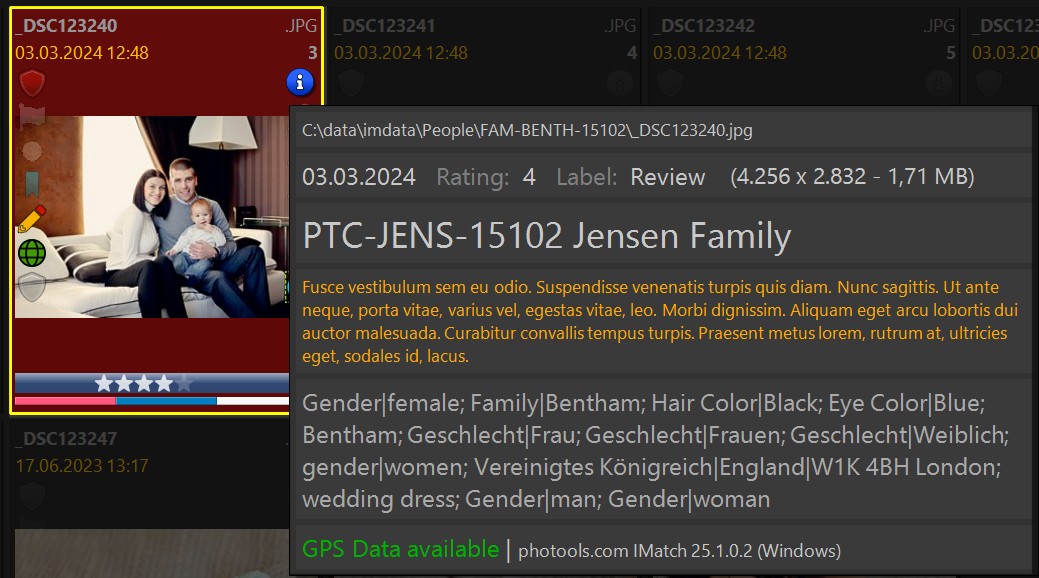
File Window Tip
Configure the File Window tip to show the data you want to see.
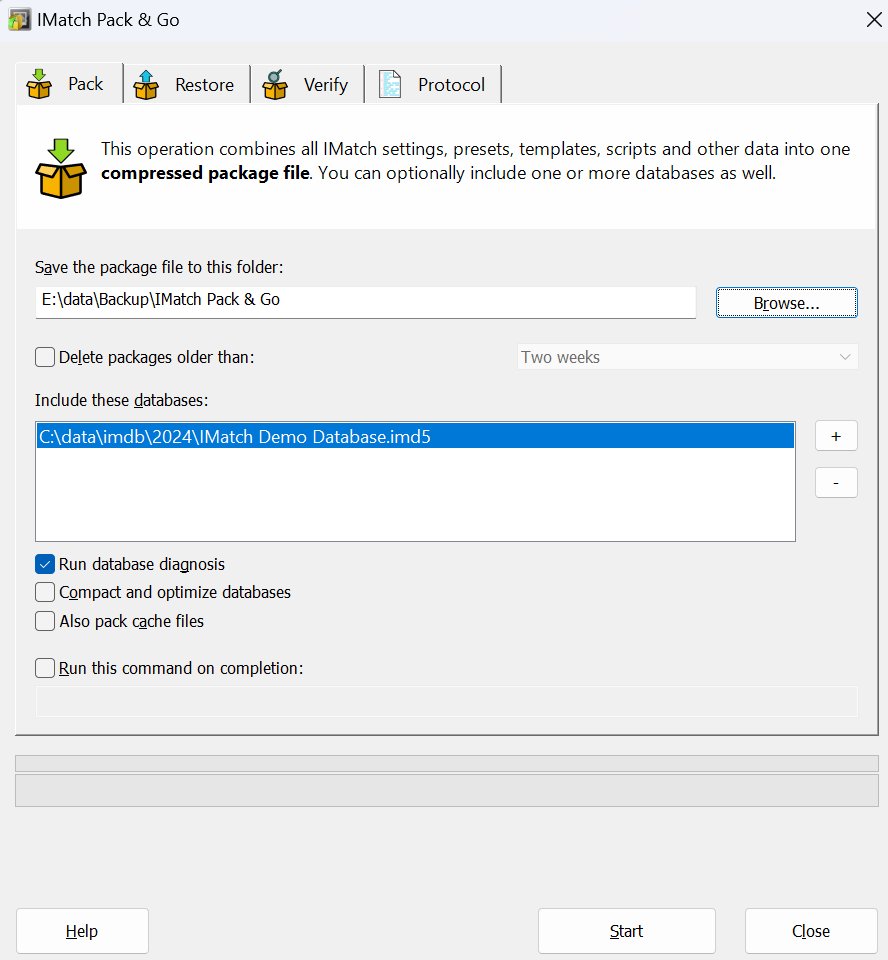
IMatch Pack & Go
This application enables you to backup your IMatch database, all settings, presets, scripts and other important files with a few mouse clicks.
You later restore the data to the same or another computer. Pack & Go is a simple backup utility, and also makes using IMatch on multiple PCs much easier.