File Window Tip
Edit Menu > Preferences > File Window Tip
The File Window Tip displays user-defined information in the File Window, the Version and Stack panels and also the Viewer thumbnail strip.
The File Window Tip is shown when you move the mouse pointer over the info icon in the File Window panels.
If no info icon is shown, you can display the info tip by moving the mouse cursor in the upper right corner of the thumbnail.
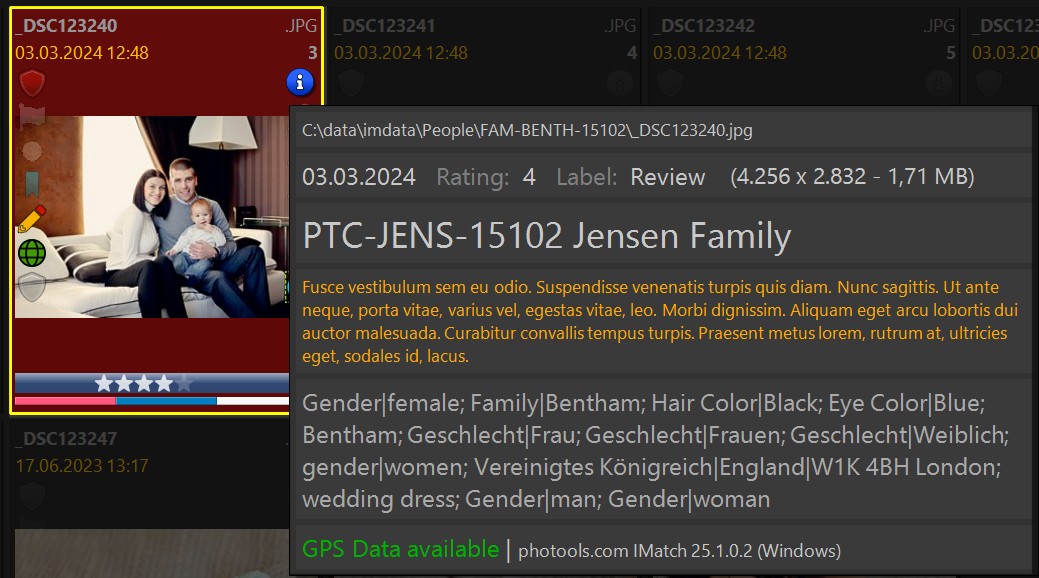
The default IMatch 2026 File Window Tip (All Formats).
You specify what to show in the File Window Tip using the overlay feature, which is also used in the Viewer and Peek View overlays and in My Panels.
See Overlays for detailed information and many examples.
Optional: Use File-format Specific Tips
IMatch has one File Window Tip that is used for all file formats, unless a specific tip for the file format under the cursor has been configured by the user. This allows you to display different information for different file formats.
Thanks to the flexibility of variables, you can usually use a variable function to show or hide information based on the format of the selected file.
For example, to display tag values only available for certain file formats, you can use the variable function is:
{File.Ext|is:mp4,Duration: {File.Duration.HMS},}The above variable outputs something like Duration: 01:45:22 when the file has the .mp4 file extension. Otherwise, the variable returns an empty result. This way, you can conditionally show and hide data as needed. The Overlay help topic has many more examples.
This allows you to stick to one File Window Tip for all file formats, which keeps things simple.
Loading and Saving File Window Tips
These commands allow you to save your current tips to a file on your hard disk and to import existing tips. This is convenient if you want to share File Window Tips with other users, or if you create a second database and want to copy your tips.