Meet IMatch
IMatch is a professional Digital Asset Management (DAM) system that helps you manage digital images and other documents more efficiently. It becomes the central point of your asset management and archiving strategy, integrates seamlessly into your existing workflow, and works well with your other software.

What Makes IMatch So Useful and Unique?
IMatch has been designed from the ground up to be open, cooperative, reliable, fast, and flexible.
It combines an industrial-strength database system with a rich user interface and a comprehensive feature set. Built on experience and technology refined over the past decade, IMatch now serves thousands of users in over 70 countries.
IMatch can manage file collections of virtually any size. Even with only tens of thousands of files, IMatch makes organizing and managing them much easier. However, it really excels when you have 100,000 or 500,000 files to manage. While many other applications reach their limits, IMatch allows you to manage your files effortlessly.
How It Works
IMatch creates an index of all folders you add to its database. During this indexing process, IMatch reads every file, extracts metadata, generates thumbnails, calculates checksums, gathers visual query data, and more. The resulting data is stored in the IMatch database.
Optionally, IMatch can also fill in standard metadata automatically or run face recognition at this stage.
IMatch does not move your files into the database. It manages your files where they are. You do not need to change your file organization; files managed by IMatch remain accessible via Windows Explorer and other applications.
Once the files have been indexed, they are presented in the IMatch user interface, allowing you to add keywords and descriptions, cull and rate your files, search for files, organize them using categories and collections, work with GPS data, manage People and Events, and open files in other applications.
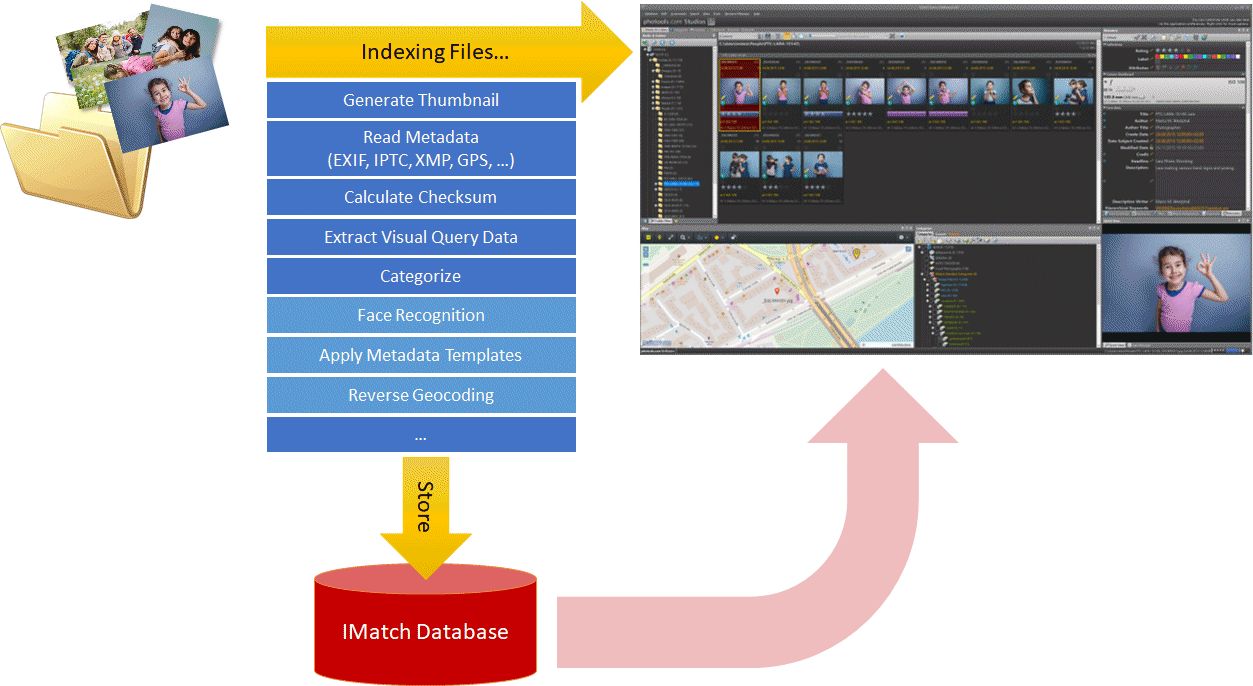
One of the main features of a DAM like IMatch is reading, modifying, and writing metadata in your images and other files.
Read the Metadata for Beginners help topic to learn more.
Main Features
This list links to the help pages for the most important concepts and features in IMatch.
Indexing Files
During this step, you add new files to your database, allowing IMatch to create its index.Keywords
Adding and editing keywords is one of the main tasks performed in IMatch. Read this topic for an overview of all keyword-related features in IMatch.Metadata
Working with metadata such as title, description, keywords, ratings, or labels is one of the main purposes of IMatch.
It offers powerful features for viewing, modifying, and using metadata contained in your files, including XMP, IPTC, EXIF, and GPS data. The primary features for working with metadata are the Metadata Panel and the Keywords Panel.Searching and Filtering
Finding files in seconds by file name, keywords, or other metadata is one of the key features of any DAM.
IMatch includes powerful search and filter features, such as the File Window Search Bar or the Filter Panel. IMatch also enables you to find duplicate or visually similar files quickly.Viewing Files
The Peek View opens a screen-size preview when you middle-click a thumbnail in a File Window.
The Viewer is the main feature for displaying and reviewing images, offering numerous functions to display up to 8 files at the same time.
The Quick View Panel displays the currently selected file in a convenient panel that you can dock anywhere inside the IMatch workspace. Like the Viewer, the Quick View Panel uses hardware-based image rendering for awesome speed, instant zooms and pans, and high-quality, fully color-managed image display.Sorting
The File Window not only supports many ways to display your files, but also allows you to sort them by file name, folder, title, descriptions, keywords, and hundreds of other metadata tags and Attributes.File Management
IMatch offers built-in functions for copying, moving, renaming, and deleting files with automatic buddy/sidecar file handling. These functions go well beyond what you can do in Windows Explorer. IMatch also makes it very easy to open files in other applications.Renaming
The Smart Renamer allows you to rename files in batches using simple but powerful rules. This tool also supports buddy/sidecar files, can create folders on the fly, and move and copy files.Metadata Templates
Metadata templates allow you to add or update metadata for individual files or sets of files. They can run automatically while files are being indexed, which saves time.GPS Data and Maps
If you want to view your files on a map, assign or edit GPS coordinates, or perform reverse geocoding to look up countries, cities, and locations, IMatch has all the tools you'll need.Categories
Categories allow you to organize, cluster, and group your files either manually or automatically. This is one of the unique concepts available only in IMatch.- Data-driven categories automatically categorize your files based on metadata. These categories can group your files, for example, by camera model, city, country, or artist.
- The special @Keywords category groups files by their keywords. Whether you assign keywords in the Keywords Panel in IMatch or another application, this category makes it easy to see which keywords you have used, how many there are, and which files contain a specific keyword. @Keywords combines regular keywords (tags) with the powerful category concept of IMatch. This special category is fully automatic, and its results are used by several other features as well, for example keyword coloring.
- You can use category formulas to dynamically combine categories or fill them from folder contents, collections, queries, and more.
- The Category Builder allows you to visually combine categories via drag and drop.
- Alias categories allow you to reuse the same category in different sections of your category hierarchy. This is ideal for things like family trees or scientific classification systems.
Collections
A collection groups files based on specific criteria. IMatch automatically maintains collections for Rating and Label, Bookmarks, Flags, Pins, and Dots. There are also collections that show the files you have recently added, updated, or viewed. One collection keeps track of file versions, and another takes care of annotations.Events
IMatch Events allow you to organize your files by events such as Joe's Birthday or a family trip to London.Albums
Albums allow you to create timelines, family trees, collages, print-ready layouts, and more. Tell a story with albums.Timeline
The timeline in IMatch automatically organizes your files based on their creation date and time. With a few clicks, you can see all images taken on a specific day, week, month, or year.Face Recognition and People
The IMatch AI searches your images for faces and automatically links them to people you have created in the database. Everything runs locally on your PC, not in the cloud. No data is sent to third parties.Auto Tagging
The IMatch AutoTagger enables you to use AI to automatically add keywords and descriptions to your images. This can be a major help when starting with a large file collection that has no prior organization.File Relations, Versions, and Stacking
These are global concepts unique to IMatch that combine buddy files (sidecar files), versions, and stacks.The Slide Show
The slide show allows you to display full-screen automatic or manual presentations. It is great for presenting your images to clients or friends.Batch Processing, Conversion, and Exporting Images
It lets you convert files into many different formats, with options to add text, watermarks, overlays, and metadata.Printing, Layouts, PDFs
With the built-in Design & Print tool, you can easily create contact sheets, prints, photo books, PDF files, and more.Importing & Exporting Data
IMatch includes many modules to import and export data in a wide variety of formats. Additional modules can be written as custom IMatch Apps.IMatch Apps
IMatch includes everything you need to create your own apps. You can use them to automate routine tasks, extend built-in functionality, or add new features.
The IMatch Database
IMatch uses an industrial-strength database system to keep your data safe. All information and metadata extracted from your files, along with categories, attributes, and other input data, are stored in this database. IMatch handles database operations automatically, so you do not need to maintain the database yourself.
See Creating the Database for more information.
The IMatch Workspace
IMatch uses different views to visualize various aspects of your database. Each view offers a distinct way to look at your files.

- Media & Folders View
This view presents the physical structure of the files you manage in your database. Here, you work with drives, media, and folders, similar to Windows Explorer but with many additional features. - Category View
In this view, you organize your images using IMatch's unique category features. - Collection View
This view displays the automatic and manual collections IMatch maintains for you. - Timeline View
In this view, IMatch displays all files in the database on an automatic timeline. - Events View
In this view you work with IMatch Events and the associated files. - People View
In this view you manage people in your database and view images for each person. - Album View
In this view you can browse, edit, and manage your albums. - The Dashboard
The Dashboard shows everything important about your files and database in one place.
See The IMatch Workspace for detailed information about the IMatch main window and all panels.
Tip: Command Palette
Press Shift + Ctrl + P to open the Command Palette.
The Command Palette gives you direct access to almost all IMatch commands, features, and settings by searching:

The File Window
File Windows display the contents of folders, collections, categories, or timeline nodes. They are also used to display results from search operations. File Windows display files in thumbnail or tabular formats and offer a wide range of customization options, including font sizes and free choice of which metadata and attributes to show.
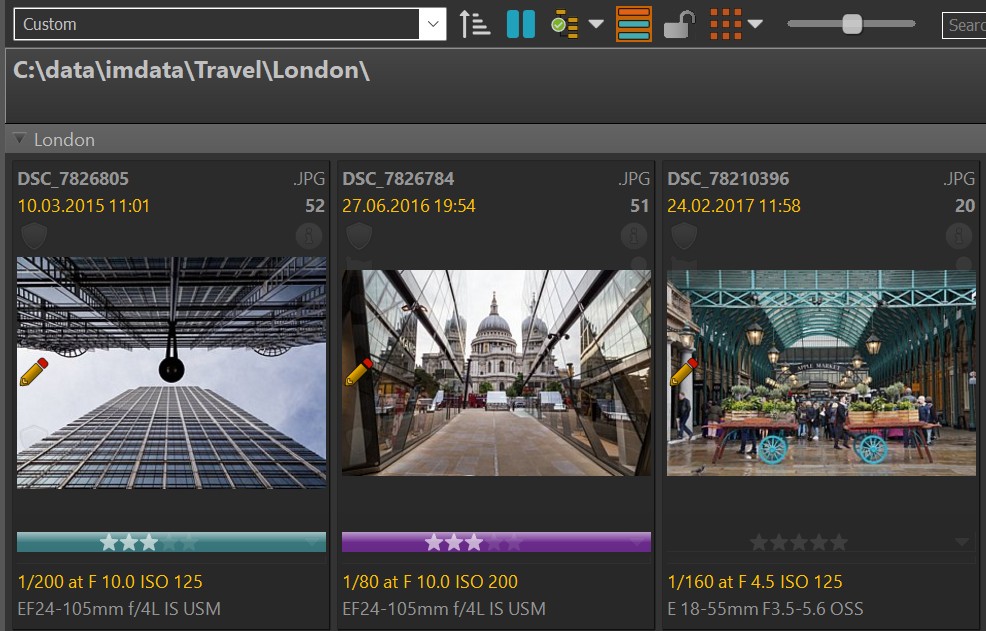
A File Window with a thumbnail layout.
See the File Window for detailed information about File Windows.
View Files
IMatch contains several features to display files for review and culling:
- The Peek View in File Windows.
- The Quick Preview Panel
- The Viewer
- The Slide Show
Search in File Windows or the Database
The File Window Search Bar is one of the most frequently used search features.
It allows you to search any number of files by file name, metadata, and attributes. The Search Bar supports simple and complex searches, Boolean operations, regular expressions, etc.
By default, the contents of the File Window (scope) are searched. With a ribbon button, you can make the search bar search the entire database.

Special Search Operations
In addition to common search operations that involve searching by file name, folder, metadata, and attributes, IMatch provides several specialized search functions:
- Duplicates/Copies: Locate duplicate or copied files.
- Similar Shape or Colors: Find files with similar shapes or color compositions.
- Sketch Matching: Search for files that match a specific sketch.
- GPS Coordinates: Identify files based on their location data.
- Files Taken in Region: Discover files taken within a region you draw on a map.
See the Searching topic for more information.
Quick Filter in File Windows
For frequent filter operations, use the Quick Filter in the File Window. To enable it, click the Funnel icon in the File Window ribbon:

This opens the Quick Filter in a separate ribbon, allowing you to access common filter features and all stored filters created in the Filter Panel.
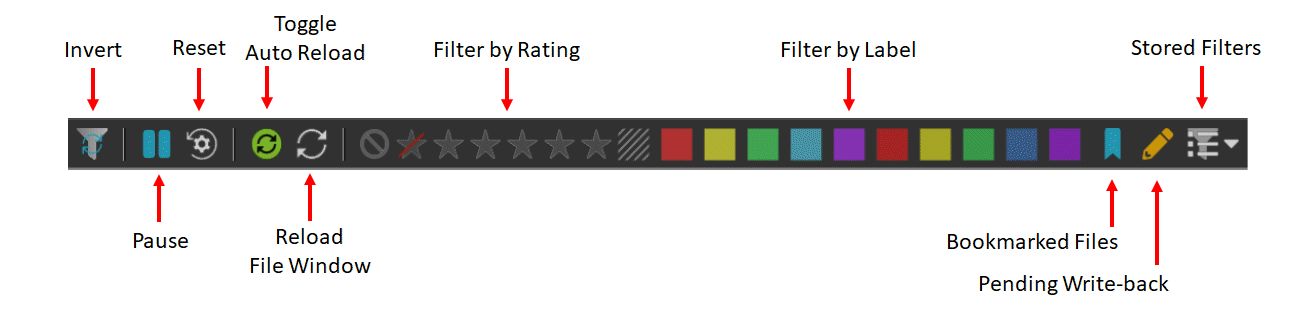
Filter Panel
In addition to searching and filtering directly in File Windows, the Filter Panel offers powerful filter functions for all situations. You can filter by rating and label, arbitrary metadata, size and dimensions, date & time, GPS data and locations, and more. Filters can be saved and recalled later.
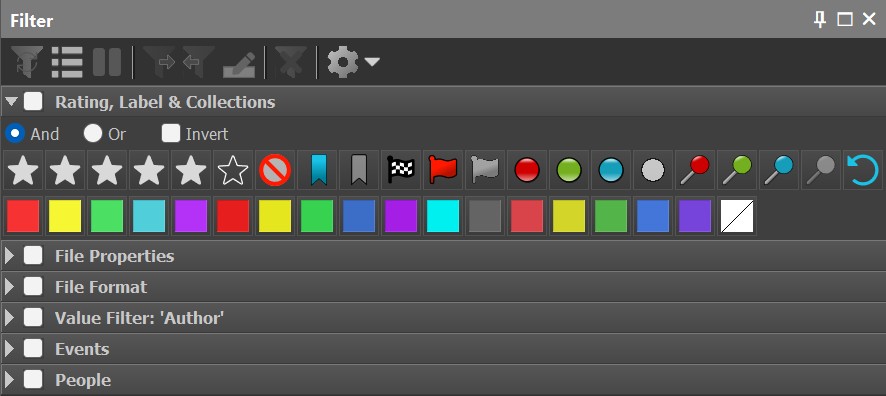
The Filter Panel showing some of the available filters.
See the Filters topic for more information.
Panels
Most information about your files is displayed in customizable panels. Panels can be docked inside the IMatch main window or float, allowing you to move them freely around, even to a second monitor. Here's a list of available panels and their functions:
- Preview Images
- Edit metadata
- Edit keywords
- Filter File Window contents
- Edit categories
- View and edit the File History
- Work with favorites
- Display stacks and versions
- Display statistics
- Display maps and geo coordinates
- Display scripting and ExifTool output
- Display background activity information
- View the File History
See the Panels for full details on each panel and general panel usage.
Move, Copy, Rename and Delete Files and Folders
IMatch includes powerful commands to move, copy, rename, delete, rate, label, reject files, and more.
See File Management for detailed information.
See Renamer for information about the powerful file renaming feature.
Save Time with Favorites
Favorites are a time-saving feature. You can create favorites for your most important folders, categories, apps, applications, metadata templates, etc. Favorites can be run with a single mouse click or a keyboard shortcut.
See Favorites for full details.