Configuring IMatch
This topic explains the various configuration options and settings in IMatch, and how you can use them to fit IMatch into your workflow.
Preferences
The majority of IMatch settings can be reached via the Edit > Preferences menu.
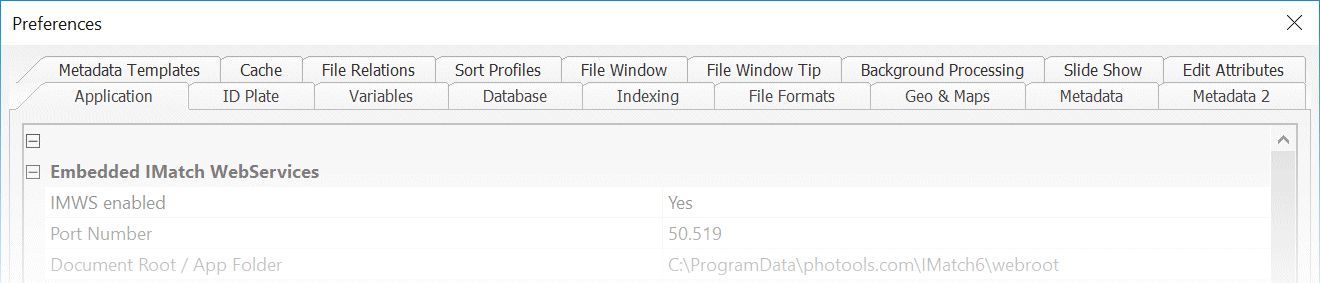
This opens the main preferences dialog box, which groups IMatch settings. Each group is represented by its own tab.
Press F1 or click on the Help button in any of these configuration tabs to open the associated help topic.
IMatch is a powerful and flexible application and therefore offers a lot of settings, options and switches for tweaking.
To make it work and look the way you want. To make it integrate nicely with your workflow and the other applications you use.
Most of the options work out of the box for the majority of IMatch users - you will never have to change them.
Some Quick Links
- Application Settings
- Database Settings
- Indexing Settings
- Metadata Configuration
- Metadata 2 Configuration
- File Window Configuration
- File Format Configuration
- File Relation Configuration
Nearby Help
For tabs that show properties in the form of grids (like the Application preferences), you get help and details in the help area directly below the grid:

The Apply Button
Some configuration pages allow you to apply the current changes by clicking the Apply button without closing the Preferences dialog box. One example is the File Window preferences, where you can try out new colors and styles while you're still editing them. For all other settings, the Apply button is disabled, and you have to close the Preferences dialog box with OK to save your changes.
Extended Settings
The Application configuration, by default, hides rarely used settings to reduce confusion , especially for new users.
Enable the Show extended settings check box at the bottom of the dialog box to see all available settings.
Expert Mode
IMatch hides potentially dangerous commands and settings unless the Expert Mode option is enabled. We recommend to keep Expert Mode off unless you know what you are doing and you need access to the expert commands and options.
The IMatch Settings Database
See The Settings Database for information about how IMatch stores settings. This topic also covers how to move or copy all settings to another computer and how to share settings between multiple computers over a network.