How to Use the IMatch Help System
IMatch is a professional DAM, containing a huge amount of features, settings, and options. The comprehensive IMatch Help System enables you to find what you need to know quickly. It also contains a wealth of tips & tricks for IMatch features and functions.
Searching
Use the search bar at the top to search the titles, keywords and full-text content of the Help System:
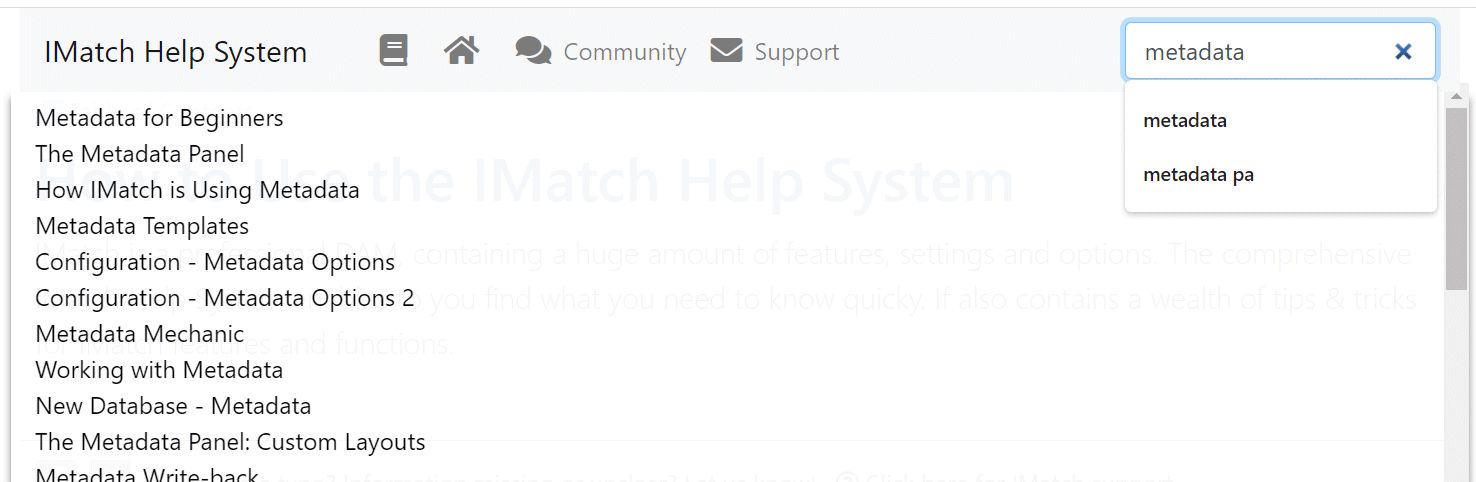
Searching the Help System.
The help system displays a list of matches while you type. Click on a match to navigate to the corresponding help page.
Table of Contents
Click on the book icon in the toolbar at the top to open the table of contents. This is a hierarchical list of all Help System content:
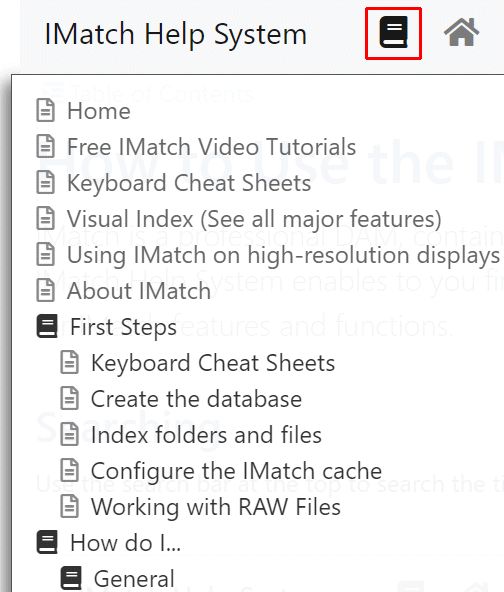
Table of Contents.
Click on the small books on the left of the TOC to expand the subtopics.
Topic Table of Contents
Each help topic offers a table of contents to allow you to navigate larger topics quickly. You open it by pressing F2 or with the TOC link at the top:
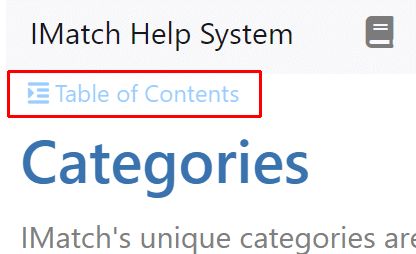
Topic Table of Contents.
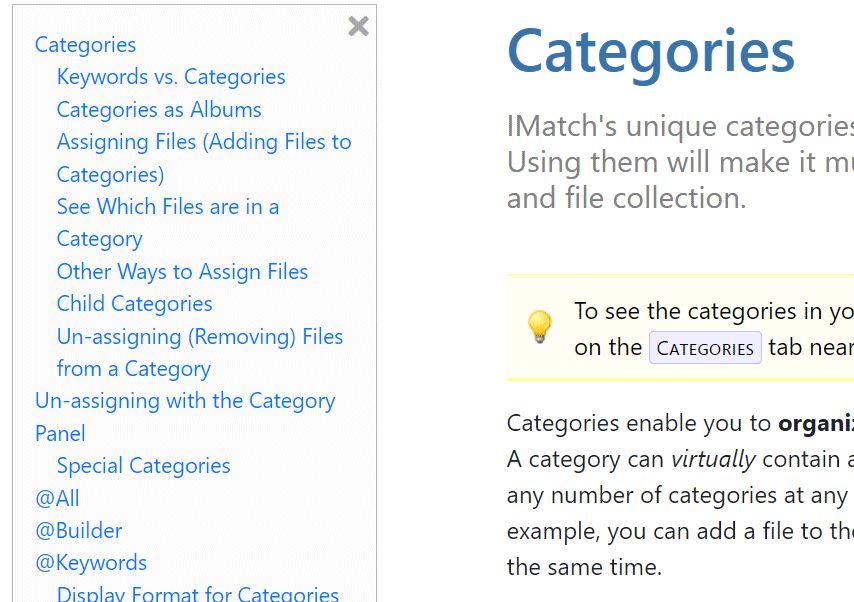
The topic table of contents opens on the left and sticks there until you close it with the button at the top or by pressing F2 again:
Search Within a Page
Use your browser's built-in search function (usually opened via Ctrl + F) to search for text within a help page.
The IMatch User Community
If the help does not help , the user community is a great place to ask questions and to get help from the awesome IMatch user base and the developers. Click on the community link in the toolbar at the top to navigate to the community website.
Feedback
If you find a typo, some strange wording, or confusing or missing information, let us know. We'll fix it.
Use the special link at the bottom of each help page to send us information about these kinds of issues.