IMatch supports AI-enabled natural language queries utilizing metadata you have entered manually or added with IMatch AutoTagger.
IMatch supports AI-enabled natural language queries utilizing metadata you have entered manually or added with IMatch AutoTagger. This feature makes finding images based on concepts and similar terms used in descriptions much easier.
This is an experimental feature. It cannot harm your database or IMatch installation, but it might not function correctly in all situations. The user interface is very basic; we chose not to spend time polishing it before determining whether the feature adds value for a larger share of the user base.
You must enable experimental features in the application settings to use this.
Modern AI makes new possibilities achievable, and we're always looking for ways to make IMatch more productive and easier to use. IMatch already has very powerful and flexible search and filter features. Perhaps AI can extend these features and provide additional methods to search your database?
We want to test if this new AI-assisted search feature creates value and proves useful for users. If users like it, we will integrate it into the File Window search bar as a new option in a future IMatch version.
This is where you come in to help us, if you're interested . Try out the new search feature and let us know via the user community whether you like it, how you used it, what can be improved, etc.
This experimental feature is designed to enhance the search function in IMatch by utilizing AI. The AI-assisted search function enables natural language search and identifies similar or related terms and concepts in descriptions, keywords, and other metadata.
For example, if you search for the term car using the normal search engine in IMatch, it finds images with descriptions containing the words car or cars. It will not find images where the description contains the words auto or automobile, even though car and automobile describe the same "thing". The new search feature aims to solve this problem.
With this AI-assisted search feature, if you're searching for senior, IMatch includes images with descriptions mentioning older people or grandma in the results. Or, if you search for young people, IMatch includes images with descriptions mentioning boy, girl, or child. The AI also links terms like Tokyo to Japan, fish to sushi, beef to burger, cola to soda, and Mexican food to images mentioning chili in the description.
If you use variables like {File.MD.description} for the query, IMatch returns files with identical, synonymous, or similar descriptions, but also files describing the same concept, even when the descriptions vary. Querying {File.MD.hierarchicalkeywords} can produce interesting results, returning files with identical, synonymous, or similar keywords, but also with different keywords describing similar concepts.
With the help of specialized AI models, IMatch can process concepts, interchangeable terms, or synonyms while searching.
This is especially helpful when dealing with AI-generated content, where the AI uses different (related/synonymous) terms to describe things.
The feature uses AI to analyze selected metadata tag contents and produces an n-dimensional index from the results. This index is stored in the IMatch database. The AI concept employed for this is called embeddings. IMatch utilizes this technology and specialized embedding AI models to process tag values for more flexible searches.
Using a bit of math, IMatch calculates an n-dimensional vector from your search query and then searches the database for similar ("nearby") vectors. This produces results where the search query and tag values are close together, even if not identical. Similar descriptions or concepts that describe similar things are close together in vector space, enabling IMatch to produce good results from fuzzy search criteria.
This feature is not meant to replace existing search and filter features in IMatch. If it proves successful, it will offer a fuzzy/natural language search option, allowing you to find files more easily when the search criteria are vague or when searching by concept.
This technology is not perfect. It may produce random results, sometimes mixing unrelated images with those that match your search term.
The quality of this feature depends solely on the quality of the descriptions (keywords, etc.) you have created manually or with AI assistance. It does not 'see' the image; it only examines the descriptions (or other tag values included for indexing).
Currently, it requires Ollama to be installed and a model to be downloaded by you (see below). We hope to simplify this in the future.
To try out the new feature, you must perform some tasks explained in detail below. In summary:
XMP description).To try this experimental feature, you must first enable experimental features via Edit > Preferences > Application. After restarting IMatch, you can access the new feature in the Commands menu.
In order to use this experimental feature, you need to have Ollama installed (see AI Services for download and installation instructions). There is a video tutorial in the IMatch Learning Center that shows how to download and install Ollama.
If you are using local AI for IMatch AutoTagger, you probably have already installed Ollama.
There is currently no "best" model available. Several embedding AI models are available for Ollama, and each works slightly differently, producing varying results based on the length, style, and language of the descriptions and other tag values you choose to use with this new feature.
We do not yet know which models perform best at this time. This is why we are running this experimental feature to gather user input. Please let us know which models you have tried and which work best for you.
You can install multiple models, create embeddings for your data for all of them, and then compare the results you get from your searches.
The experimental feature currently supports several models. You need to download at least one model with Ollama in order to use the new feature. Embedding models are small, compared to the large models needed for image analysis in AutoTagger. These models run well on standard graphics cards or even on CPUs, as Ollama manages all of that.
This is a versatile model that runs quickly even on low-end hardware. We recommend trying this model first.
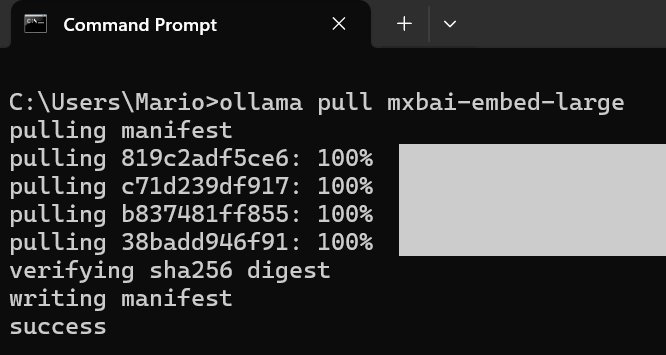
To download and install it, open a command prompt window and run the following command:
ollama pull mxbai-embed-large
The model is only about 700 MB and downloads and installs quickly. It may be less versatile than other models when working with non-English text.
This is a very recent model, updated in September 2025. It supports more than 100 languages. This is the second model we recommend using.
To download and install it, open a command prompt window and run the following command:
ollama pull qwen3-embedding:0.6b
This model exists in different sizes. We currently support the 0.6b variant.
This is a very recent model, updated in September 2025, and has been trained on content in many languages.
To download and install it, open a command prompt window and run the following command:
ollama pull embeddinggemma
The model is only about 600 MB and downloads and installs quickly.
This is a very recent model, updated in October 2025, and has been trained on content in many languages.
To download and install it, open a command prompt window and run the following command:
ollama pull qwen3-embedding:4b
The model is only about 2.6 GB and downloads and installs fairly quickly.
After installing the model, select this command from the Commands menu:

This opens a dialog box that gives you access to the search function and index management.
To keep things simple for us, we have combined everything required for this test into one dialog box. If this feature becomes an official feature, Index Management will be moved to Edit menu > Preferences, and the search function will become part of the File Window search bar or Quick Filter.
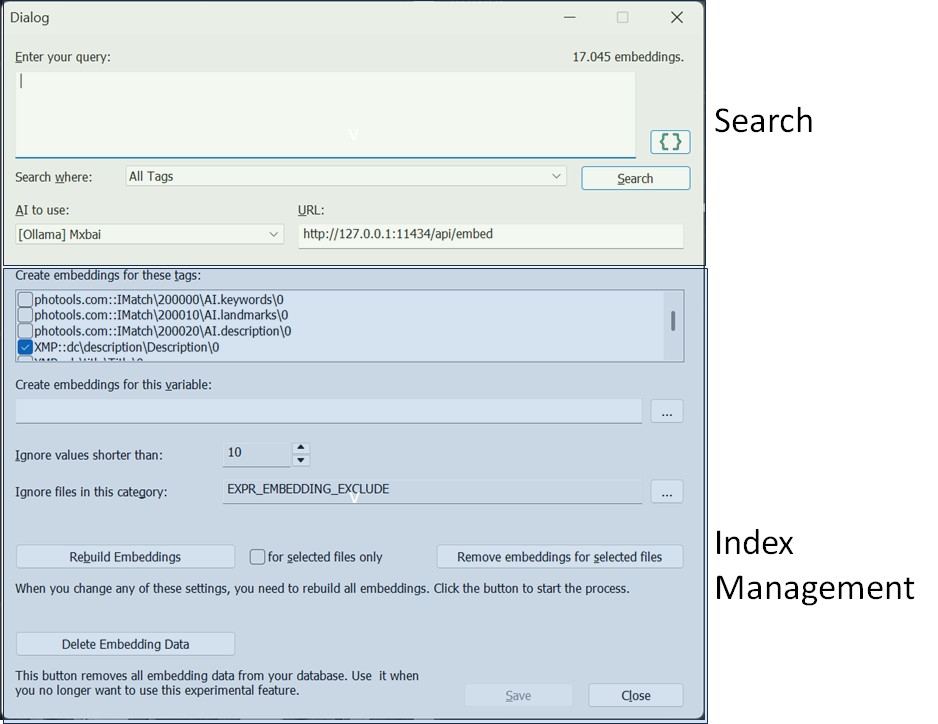
The first step is to create the AI embeddings. All you need for that is accessible in the blue section of this dialog box.
Make sure to select the model you have installed from the drop-down control at the top:

The URL for Ollama is usually correct. Change it only if you are running Ollama on a different port.
If you already use Ollama for AutoTagger, you can check the URL in Edit > Preferences > AutoTagger.
Select the tags you wish to search later. IMatch needs to create embeddings for these tags. By default, the XMP Description tag is selected along with the AI.Description tag if IMatch finds data for this tag in the database. These are typically the tags containing the most valuable text content.
If your keywords are relevant, consider including them in the embeddings. However, note that each additional tag increases the time required to create the embeddings index.
We recommend starting simple by creating embeddings only for the description tag(s).
-------------------------------------------------------------------------------
If you manually write descriptions, or you let AutoTagger create them for you, these descriptions are not necessarily ideal for versatile embeddings.
Consider the description AutoTagger produced for this image:
Alexandra Bergman, Louise Bergman, Amanda Jorgen, and Anna Kathrein are pictured smiling together at a dining table laden with food. They appear to be enjoying a casual meal or gathering indoors.

This is an okay description. The names of the persons are used, and the main aspect of the image is covered.
What this description does not contain, however, are details like the clothes the women wear, the surroundings, details about the food on the table, the room, surroundings, furniture, lighting, facial expressions and so on.
If you would conduct searches for buns, bowls, books, fruit or dishes, this image would not be returned as a match. Because the description does not mention these things and properties.
Now consider this description, created with a prompt that tries to produce the best source for creating embeddings:
These persons are shown in this image: Alexandra Bergman; Louise Bergman; Amanda Jorgen; Anna Kathrein. The image shows four young women sitting closely together at a wooden dining table laden with food, suggesting a casual and joyful gathering. They are all smiling broadly at the camera, conveying happiness and camaraderie. The setting appears to be indoors, likely in a cozy, well-lit home or cafe, featuring warm natural light coming through a large window behind them. A bookshelf is visible in the background, adding to the domestic or relaxed atmosphere. The women are all young adults, appearing to be in their late teens to early twenties. Their ethnicities appear to be Caucasian, and they have varied hair colors (blonde, light brown, dark brown) and styles. All four are female, with expressive, cheerful facial features bright eyes, wide smiles showing teeth, and relaxed postures. On the table, there are multiple plates of food including buns, fried potato wedges, fresh fruit like apples and cherries, green salad, and small bowls of condiments or dips. The women are dressed casually in off-the-shoulder tops, one white, one gray-blue, one orange, which contributes to the relaxed vibe. The overall mood is warm, friendly, and festive, as if capturing a moment during a brunch, lunch, or casual party.
This description contains a lot more details about the image. Descriptions like this often create much better and more versatile embeddings.
The prompt used to create this description:
[[-c-]] {File.Persons.Label.Confirmed|hasvalue:These persons are shown in this image: {File.Persons.Label.Confirmed}. Include this information in your description.}
Describe this image in great detail, including the surroundings, location, weather (if applicable).
Include information about gender, ethnicity, age group and facial expression of persons you detect in the image.
Describe each object or thing shown in the image in great detail.
The description you produce should be ideal for generating embeddings with another AI model, to aid natural language queries.
While this kind of detailed description in most instances produces better embeddings and thus better search results, they are not necessarily what a human would write or want to see when looking at image descriptions. This is where IMatch's unique Trait Tags come in handy.
AI.description for EmbeddingsIf you let AutoTagger store the detailed "embedding" description in a trait tag like AI.description and keep the "for humans" description in the standard XMP description tag, you have two descriptions for the same image: one ideal for human consumption, and one for creating embeddings.
If you create embeddings for the AI.description and you later use it for searching via the {File.MD.AI.description} variable:
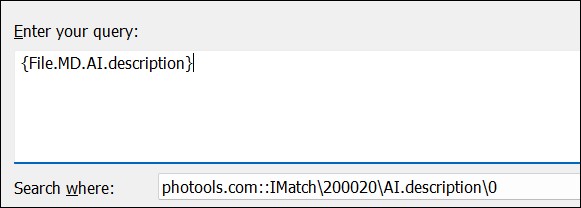
Your search result will contain the image you have used for the search, and all images with identical or conceptually similar descriptions. This is an easy and very effective way to find duplicate similar images, even when they were cropped or rotated or modified in other ways.
You can of course also use the regular IMatch search features to search in AI.description, but without the flexibility and concept-awareness offered by the AI-based search feature.
You can instruct IMatch to create embeddings for a variable, either exclusively or in combination with one or more tags.
This allows you to control which data is used for the index and enables combining data from multiple tags or attributes. You can also preprocess this data as needed using formatting functions. IMatch evaluates the variable for each file, feeding the result to the AI embedding model to produce embeddings.
IMatch ignores tag values and variables with lengths shorter than a specified minimum. This helps exclude files with very short (and thus often useless) descriptions from the index, thereby enhancing its quality.
Set this to 0 or 1 if you intentionally use very short descriptions or keywords.
If certain files should always be ignored when creating the embeddings index, categorize them and select this category here.
When your settings are satisfactory, click Save to store your configurations.
We recommend setting up a 'Test Set' category with 3,000 to 5,000 images. Include examples typical of the images you work with in this test set.
Select all files in the category and, when creating embeddings, enable the For selected files only option next to the Rebuild Embeddings button. This creates embeddings for your test images quickly, typically taking three to five minutes for 5,000 images. Having 5,000 images for testing the search function is more than sufficient.
Additionally, when making changes such as altering included tags or variables, re-creating the embeddings will be faster if you limit the number of files processed in this way.
If satisfied with the new feature and settings, create embeddings for all files in your database.
Click the Rebuild Embeddings button to start the process. This adds tasks for each file to the background processing queue. You can close the dialog box while embeddings are generated.
IMatch processes embeddings in the background. You can monitor progress in the Info & Activity Panel and the status bar.
To abort index creation if you wish to change something, click into the progress panel in the Info & Activity Panel or the progress bar in the status bar. The embeddings for images already processed remain in the database and can be searched.
The duration of this process depends on the number of files to process and how quickly Ollama creates embeddings. IMatch maximizes the use of available graphics cards/processors within the current performance profile limits.
Our tests indicate approximately 5-10 minutes per 10,000 files processed, measured on a notebook PC with an NVIDIA RTX 4060 graphic card.
Once embeddings are created, IMatch automatically updates them when new files are added to the database or when you change tag values linked to embeddings.
If you create embeddings based on variables, IMatch currently cannot determine when to recreate an embedding for a file. Essentially, any changes made to an image can invalidate the variable-based embedding. You must manually re-create embeddings for files as needed.
Whenever settings affecting the index are changed such as switching tags or altering variables you must rebuild the index to apply these changes. The dialog box will notify you.
Sometimes, images in search results may be total mismatches due to poor descriptions or nonsensical tag values that produce irrelevant embeddings.
If this is bothersome, select these files and use the Remove embeddings for selected files button to remove them from the index. They will no longer appear in search results.
They will be re-added to the index when you recreate embeddings later or modify tag values used for embeddings. You can improve the description or add the file to an exclusion category as described above.
IMatch creates embeddings per model. This allows you to switch models in this dialog box and rebuild the index for the active model without affecting previously created embeddings for other models.
You can then select the desired model from the drop-down control at the top to compare search results produced by different models for the same query.
Please share your experiences via the user community regarding which model works best for you.
Once index creation is complete, use the search function in this dialog box. Select the tag or variable to search (or All Tags) and enter your search query. Click on the Search button or press Ctrl + Enter to start the search.
If you use All Tags, IMatch calculates embedding distances for each tag (and variable) and uses the shortest distance as the result for this file.
The dialog box is non-modal, meaning it does not block the IMatch user interface. You can continue using IMatch normally, such as scrolling through the Result Window. Minimize or close the dialog box when necessary.
If you run a new query, the Result Window is reused and updated with the new query results. To redirect results into a new Result Window, close and reopen the dialog box (using the Commands menu or Alt + C , 1).
You can use short queries like car or full sentences such as A dog playing with a ball outside.
The outcome depends on the descriptions included in the embeddings and the model used. Small changes, even punctuation like a period at the end, can affect search results!
No matter your query, IMatch creates an embedding for the text using Ollama and searches the database to find the closest (best matching) embeddings, producing the result set. IMatch uses embeddings to identify descriptions that are similar to your search query or express the same general concept.
This type of search is distinct from searching for descriptions containing specific words or matching a regular expression.
If you search for A house with a red door., results will typically include images of houses, bungalows, huts, and often, images showing a red door. These may not appear at the top but usually within the first or second page, assuming that somewhere in the image's description a house is mentioned and the door is red.
As with prompts for AutoTagger, small changes can make a difference. Results differ, for example, between A house with a red door. and A house. The door is red.. While the returned images are similar, their order will vary.
The first search always takes slightly longer because the database system needs to warm up the embeddings index. Typical search times are less than one second for 10,000 to 20,000 files in the embedding index.
Your queries can be quite specific:
An image showing a house with a red door and trees.A castle near the water.Teenagers looking at a smartphone.A group of seniors dining in a restaurant.Female portrait, taken on a street.A cat and a person.A soccer game.A wall with graffiti.Graffiti visible in the background.In your search query, try to describe the contents or concepts of the images you seek.
Consider the last two queries: they yield different results because the second is more 'loose' and also covers descriptions mentioning 'Graffiti Backdrop' or 'In front of a graffiti background'.
The search feature cannot locate objects not mentioned in any way within the description.
If you have good manually or AI-generated descriptions, this AI-assisted search feature enables finding images using 'fuzzy' criteria or by describing the content/concept. The more detailed the description, the better the search results will be.
You can use IMatch Variables as your query or as part of your query.
It can be interesting to use {File.MD.description} or {File.MD.headline} as your query. Using a query based on the description or headline (or whatever you like) of the currently focused file will return files with identical, visually or conceptually similar images.
For instance, searching for images showing Italian food:
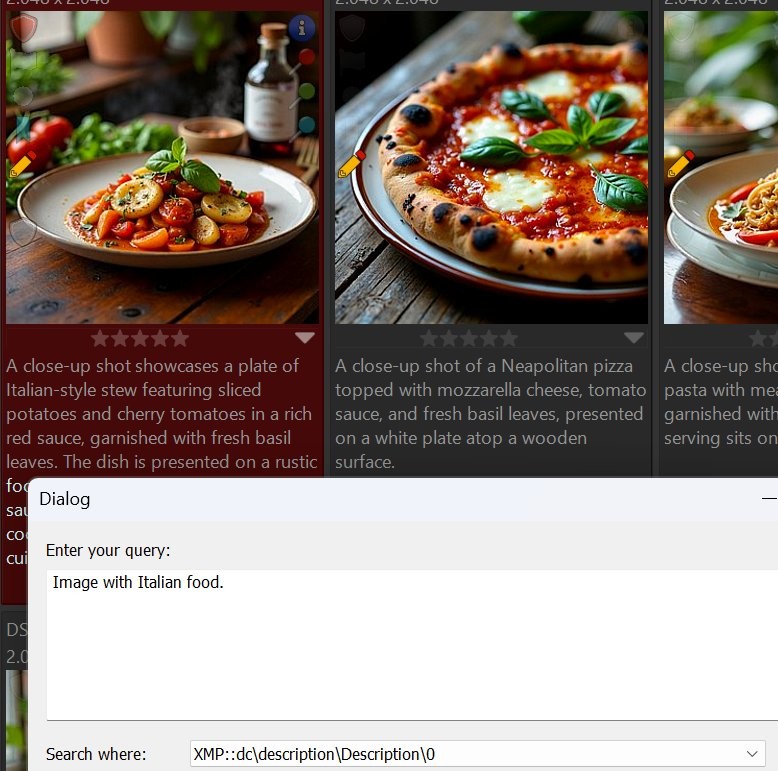
The query searched the description tag.
Note: Some of the returned images do not contain the terms Italian or Italy in their descriptions! The new search function linked ingredients used in typical Italian dishes to the query for Italian food.
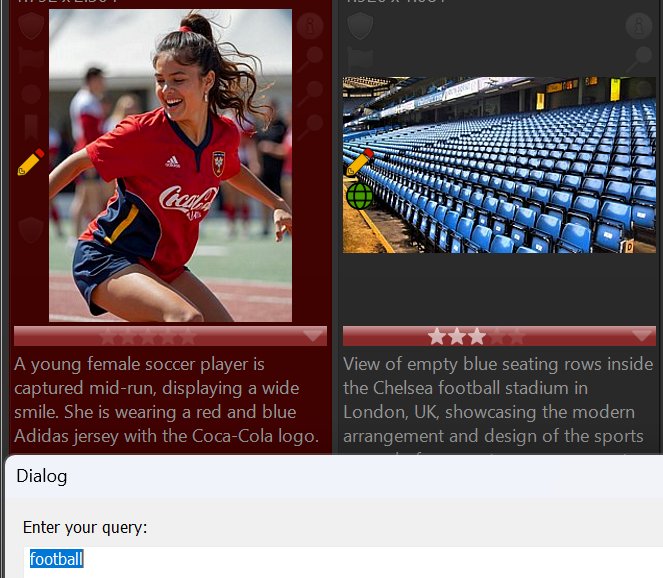
Another example: Searching for football also returns images mentioning soccer:
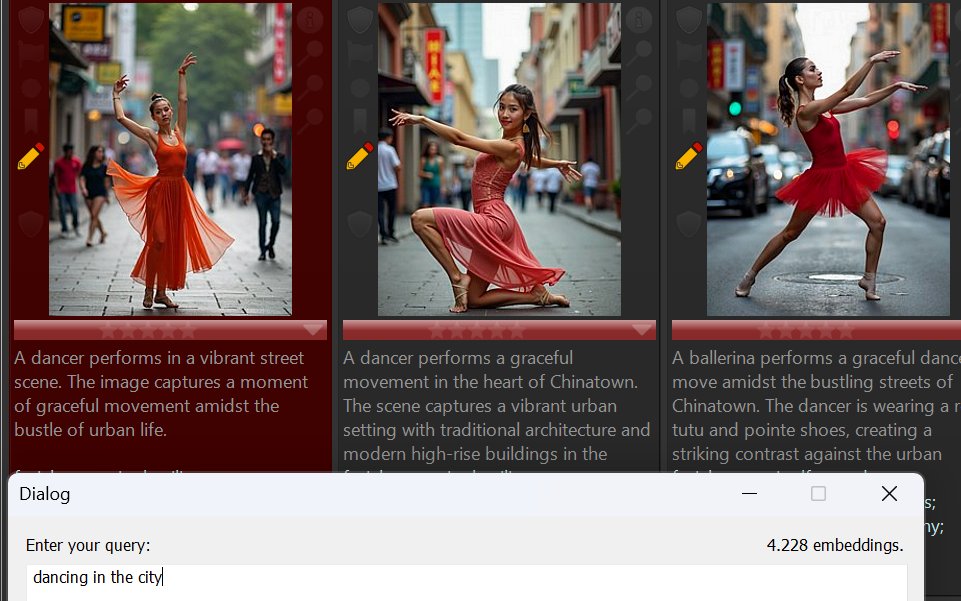
When searching for dancing in the city, results include these images. The AI-assisted search linked street and Chinatown with the search term city:
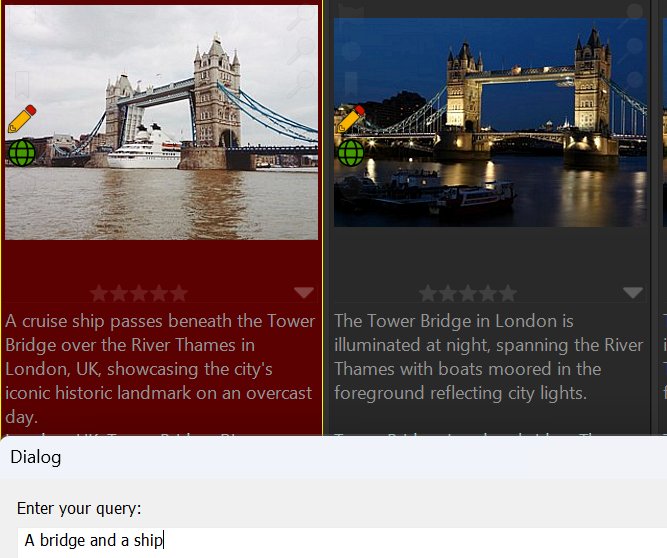
Looking for images showing a bridge and ships? Note that the description of the second image uses the term boat, not ship.
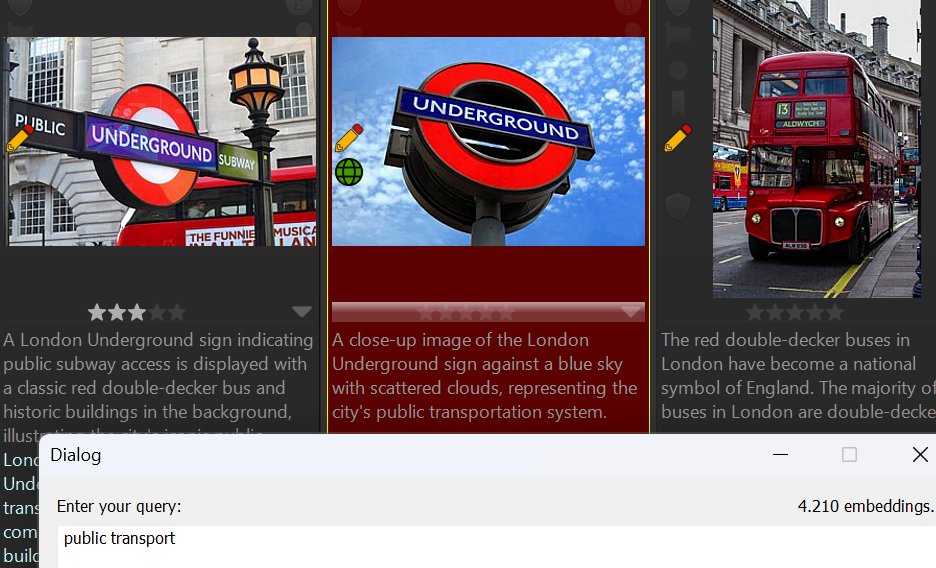
Searching for images related to public transport? Note that none of the image descriptions contain both words.
The search returned images with descriptions linking them to the concept of public transport.
Here we searched for images showing older men with smartphones. Although some younger individuals appear, all images in this database of old men with phones were found, regardless of wording variations in descriptions.

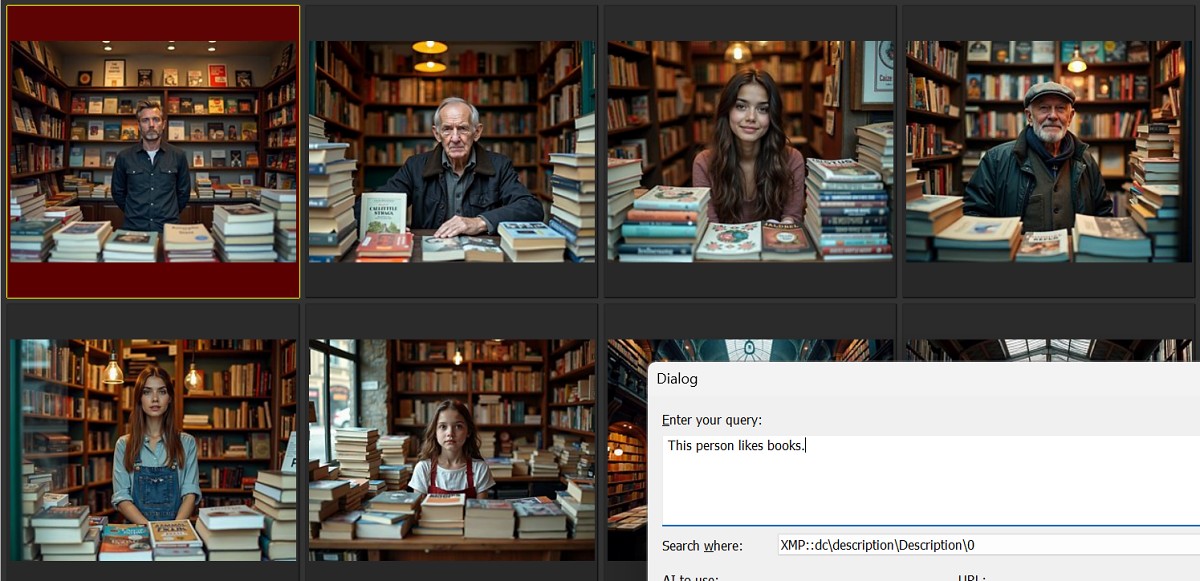
Identifying images by describing a person's attribute (This person likes books.):
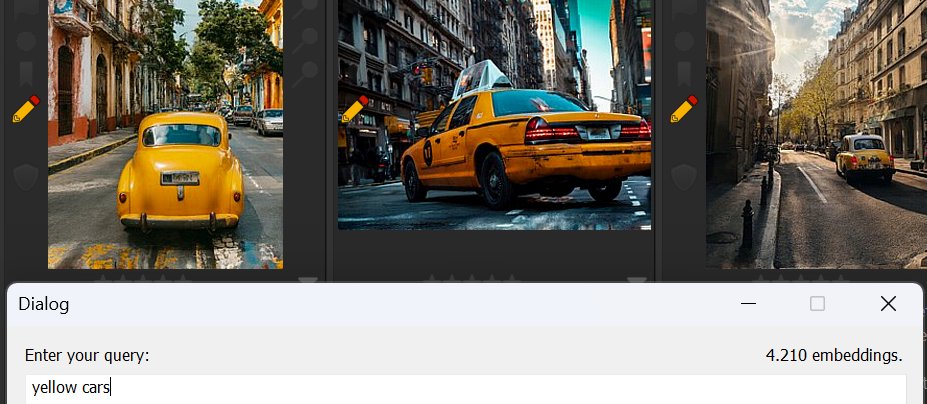
What's the name for these yellow cars again?
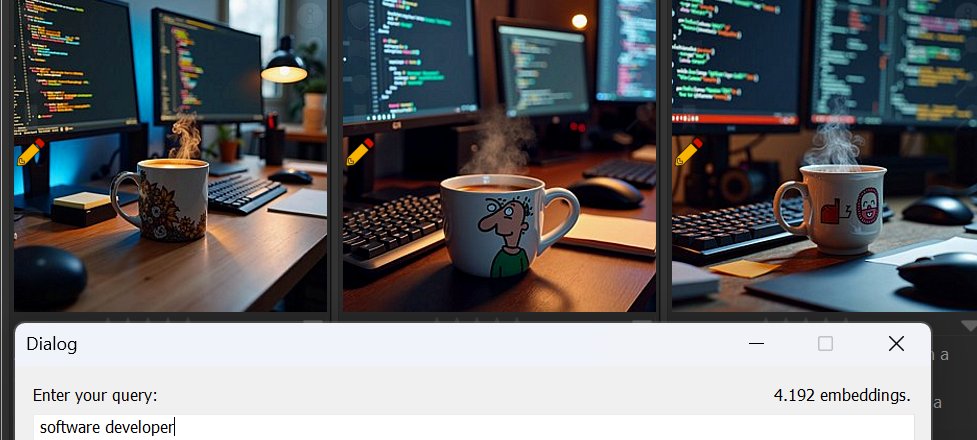
And...
These are just some examples of what can be achieved with the new experimental search feature.
We're sure you'll find numerous effective queries as you explore this feature.
Images with similar descriptions produce similar embeddings.
This makes embeddings a good tool for searching images with similar motives or duplicates, even when the image has been altered in a way that causes the regular visual similarity searches in IMatch to fail.
Changes like cropping, rotation, strong color correction, retouching, etc. may fool the pixel-based searches in IMatch, but there is a good chance that AutoTagger produces the same (or very similar) descriptions for the original and the altered image. Which in turn produces identical or very similar embeddings.
Use {File.MD.description} or {File.AI.description} as the search query to quickly identify duplicates or similar images.
During our tests, we found it helpful to use a custom Result Window layout that shows similarity and also includes contents from the description tag and keywords. We duplicated the default 'Result Window' layout and modified it accordingly. See File Window Layouts for more information.
The Default sort profile organizes File Window contents by similarity and file name, which is a good starting point for AI-assisted searches. However, sorting the search results from embeddings by criteria like creation date or folder can often produce better sequences. Give it a try.
Use both long and short queries. Try to find specific images by describing various aspects of their content. Install a second or all three models, create embeddings using each model, and then compare the results for identical queries.
Please Share! Let us know your experiences via the community after trying this new feature.
If you wish to see it become a built-in feature, please inform us.