IMatch supports a range of virtual transforms such as rotate or crop.
IMatch supports a range of virtual transforms such as rotate or crop. These transforms are applied to an image for display purposes only; they don't modify the original file. You can use these transformations to display incorrectly oriented images properly, or to see crops made in other applications.
IMatch interprets the EXIF orientation metadata tag to decide how to rotate an image for display, whether portrait or landscape. If the file has no EXIF orientation data or the data is incorrect, the image may show up with the wrong orientation in IMatch. A portrait file may be displayed as landscape, for example.
Even for files containing EXIF orientation info, this information may be misleading. This happens if you rotate the image in an application which did not update the EXIF orientation field to account for the changes made. Or you work with RAW files containing embedded previews, and these previews are rotated differently from the original RAW data.
You can solve these problems and just tell IMatch how to rotate an image for display using a virtual transformation. Virtual means that the original file is not changed, the rotation is only applied in IMatch when an image is about to be displayed in a File Window, the Quick View Panel, the Viewer or the Slide Show.
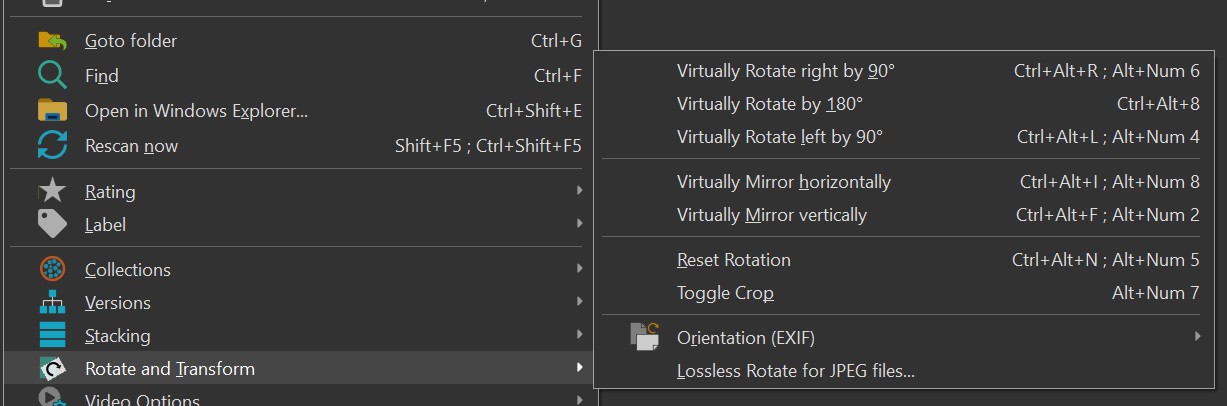
Virtual transformations can be applied to images via the commands available in the File Window context menu.
To remove a virtual rotation made via this menu, use the Reset Rotation command.
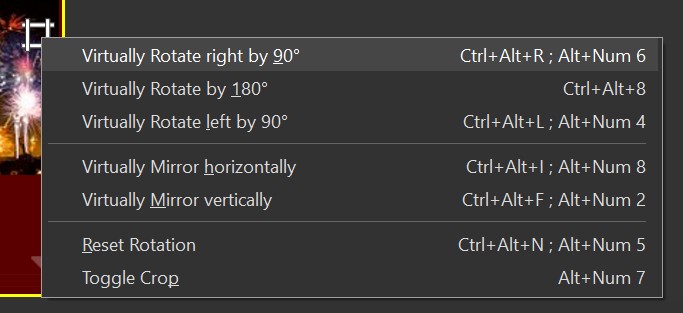
The same commands are available in the context menu of the Viewer.
If a file has a virtual transformation (rotation or crop), IMatch displays a special icon in the thumbnail panel.

Thumbnail Panel with transformation icon.
When you click on the icon, IMatch opens a context menu with transform commands.
IMatch provides commands to modify the EXIF orientation information stored in the image if it is not correct. Go to Commands > Image > Orientation (EXIF) to change the EXIF orientation in the file. For JPEG files, there is also the lossless rotation command in the Commands > Image menu (Expert Mode only).
See the corresponding help topic for more information.
Adobe's ACR RAW processor, Photoshop, Lightroom, and some other applications from other vendors record information about the crop you perform in the XMP metadata of the image. The information is stored inside the XMP crs namespace.
IMatch can use this information to display images cropped in the same way you see these files in Photoshop or other supported applications.
The crop information is optionally imported at the same time as metadata is imported from the file. If the XMP record contains information about a crop in a format that is supported by IMatch, the crop is applied as a virtual transformation to the image.
Since this is non-standard and may lead to unwanted or incorrect crops, IMatch makes it optional. To enable the use of existing crop information, enable the corresponding option under Edit > Preferences > Metadata 2. Only when this setting is enabled does IMatch import and apply crop data.
The option only affects future metadata imports. If you change the option, you must rescan the metadata for affected files via the Refresh command from the File Window context menu. Hold down the Ctrl key when you select this command to open the additional options dialog box. There, select the "Reload Metadata" command.
When a crop exists and has been imported, you can switch it on or off via the corresponding command available in the File Window context menu under Rotate and Transform. IMatch also toggles the corresponding Cropped metadata tag in the XMP:crs namespace. This does not modify the crop settings or dimensions, only whether the crop is enabled or not.